Smart Bible apps · Android
How to start using the app
Open a chapter, enlarge the text, save your first verse and listen to Scripture without signing in to Smart Bible for Android.
Smart Bible team · For version 4.x
Button names match the English interface; screenshots show the English interface.
On this page
Start with one chapter: open it, choose a comfortable text size, save a verse and try listening. You do not need to sign in for these actions.
The illustrations show an English translation. You can follow the same steps with your own translation; book names and verse text will differ.
Open a chapter
- Tap Bible in the bottom navigation.
- Tap the book name and chapter number above the text to open the passage selector.
- Choose a book, then a chapter and a verse. Choose verse 1 to start at the beginning.
The selector closes after your choice. Check the heading above the text to confirm the chapter. The video opens the first verse of Genesis 2.
Enlarge the text
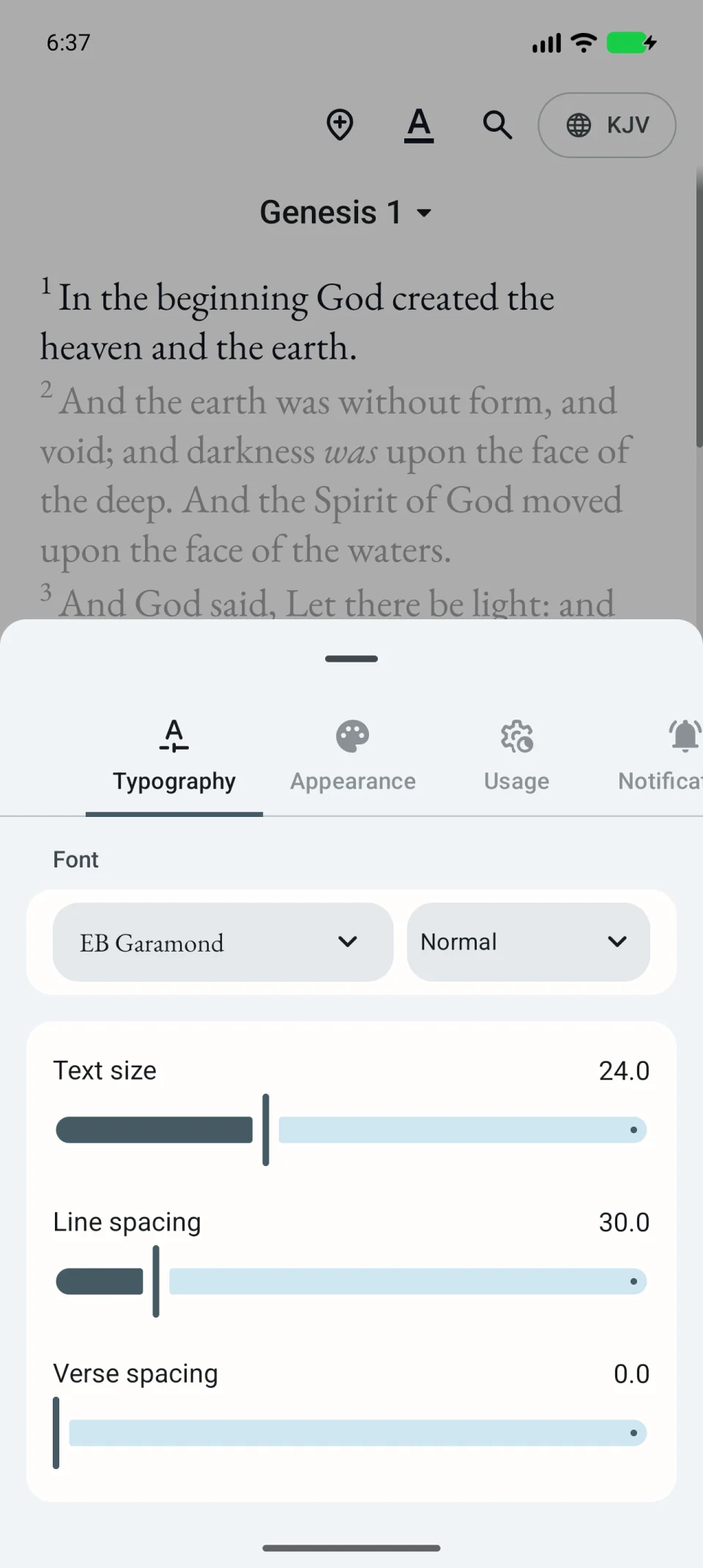
- Tap the underlined A at the top of the reading screen.
- Open Typography.
- Move Text size to the right to enlarge the letters, or left to reduce them.
- Tap the text outside the panel to return to reading.
The change applies to the chapter text. Choose a size that lets you read a whole line comfortably.
Save a verse
- Briefly tap a verse to show its action toolbar.
- Tap Bookmark.
- Optionally enter a memorable name in Title.
- Tap Save.
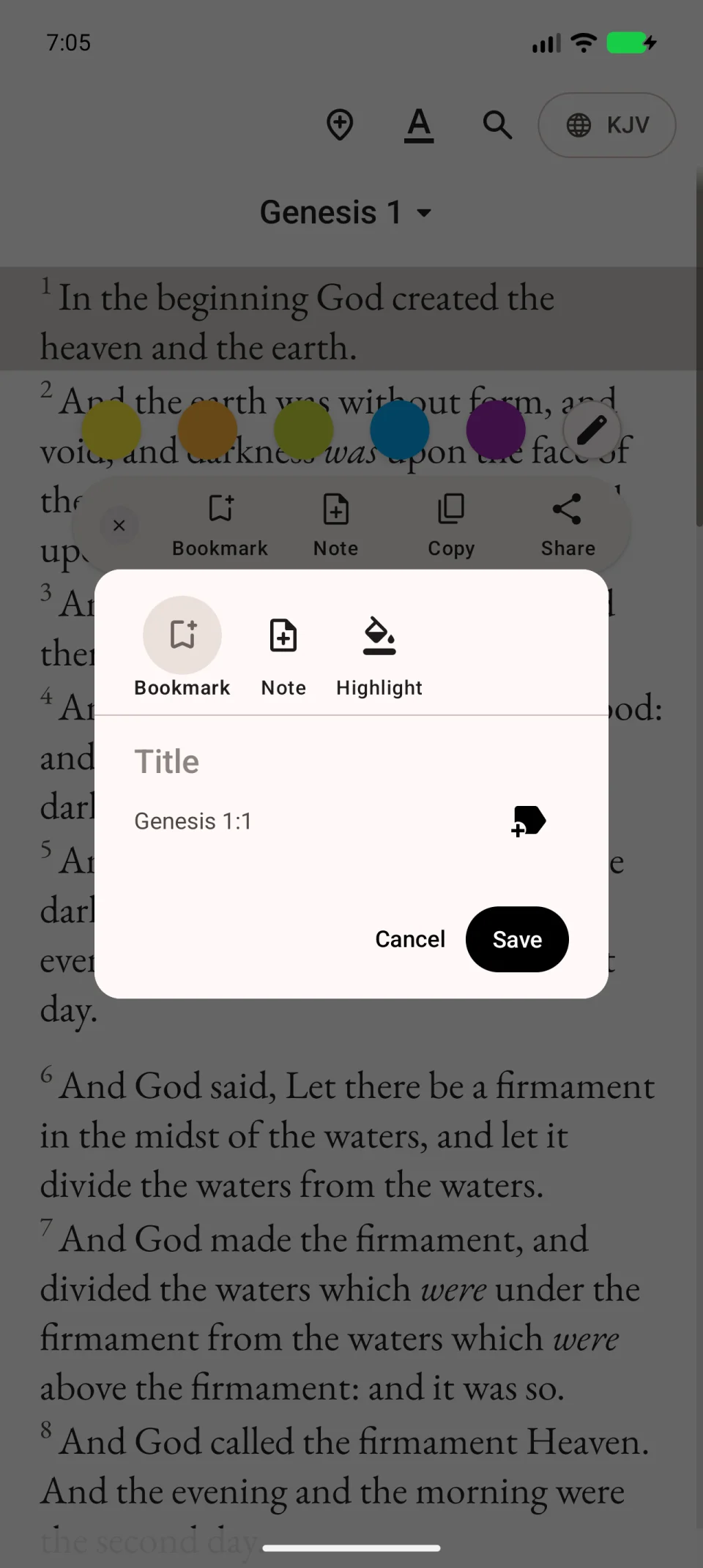
To find the entry, open Saved in the bottom navigation, then Bookmarks. Tap the saved passage and open it in the Bible to check that you saved the right place.
Start listening
Return to Bible and tap the triangle on the left of the bottom reading toolbar. Android’s text-to-speech voice starts reading. To stop, tap the square that replaces the triangle.
If there is no sound, check media volume, then follow the voice selection guide. The voice must match the language of the Bible text.
Keep exploring
Next, search for a verse, highlight text or start a reading plan.