Smart Bible apps · Android
How to find a verse by its words
Search a Bible translation, filter by books and reopen recent queries in Smart Bible for Android.
Smart Bible team · For version 4.x
Button names match the English interface; screenshots show the English interface.
On this page
Use search when you remember a verse’s words but not its reference. Search uses the selected translation, so your query must match its language. A Russian word will not find its English equivalent in KJV.
Enter a query
- Tap the magnifying glass in Bible, or open More → Search.
- Check the translation abbreviation below the search field.
- Enter a word or a few words from the passage.
- Tap the magnifying glass to the right of the query.
The keyboard closes and results appear below the filters. Start with a short query to check whether a word occurs in the selected translation.
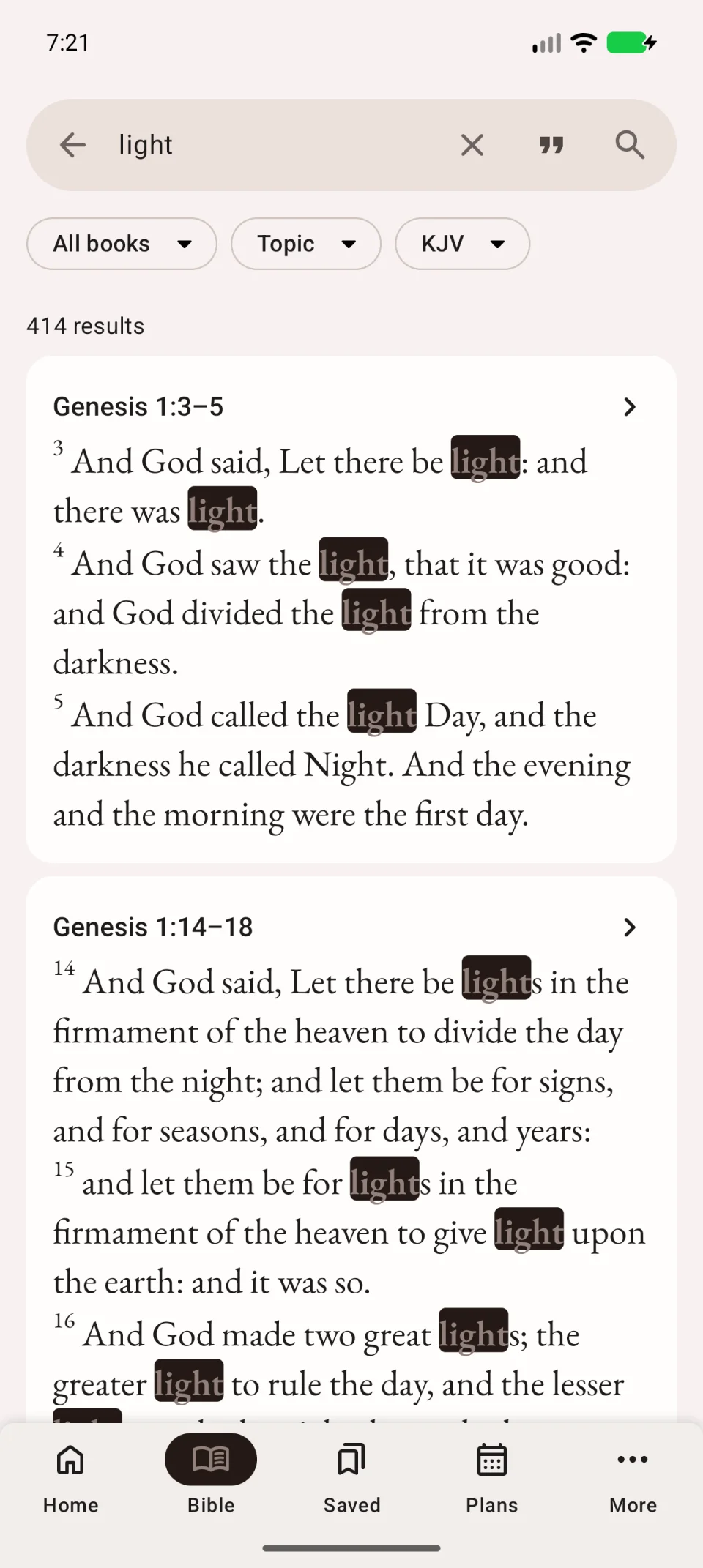
Open a result in context
Tap a result to open it in its chapter. Read the surrounding verses before adding a bookmark.
Several neighbouring verses may appear as one result. Check the full range before saving it.
Limit the search to books
- Tap All books below the search field.
- In Search scope, choose the whole Bible, a Testament or Change selected books.
- If choosing individual books, select the ones you need.
- Tap Apply.
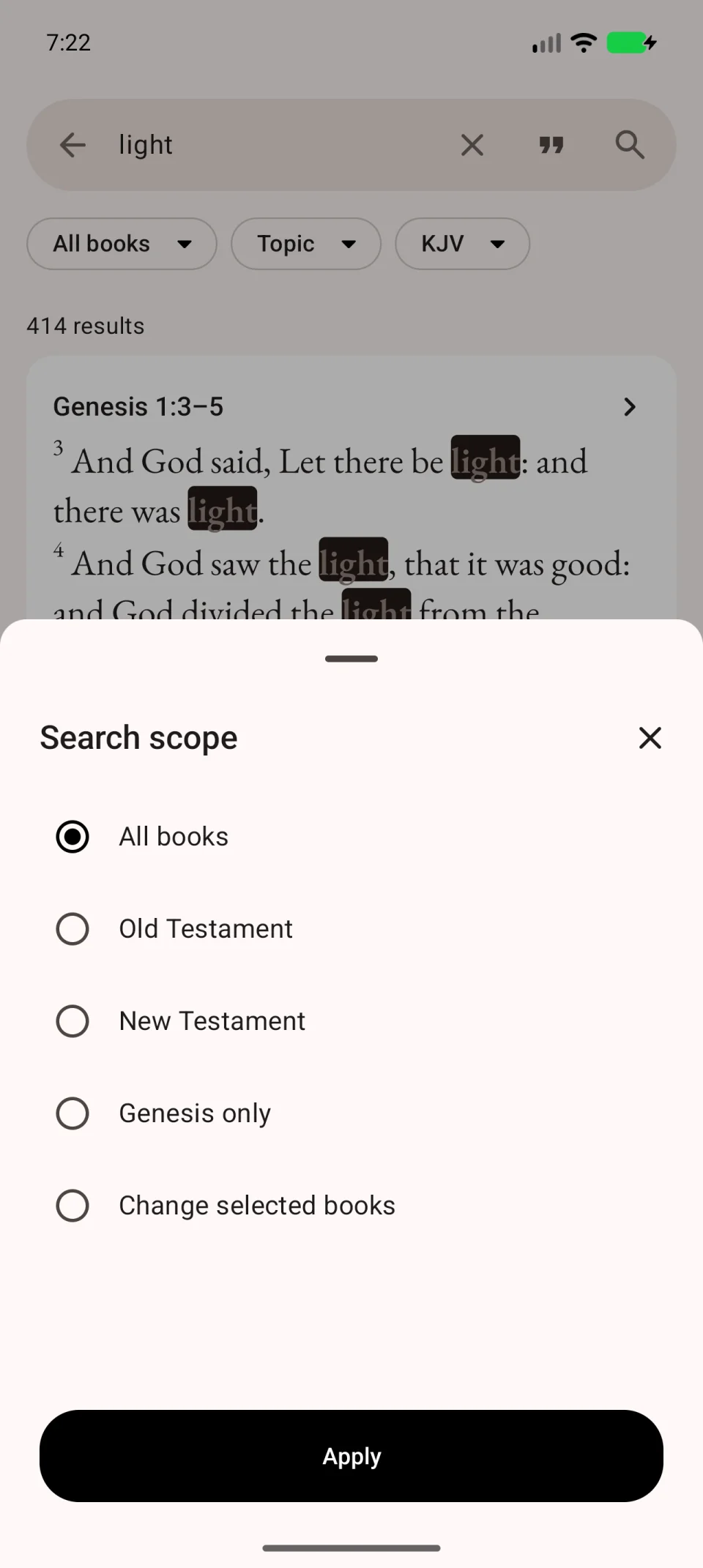
The video shows entering a query and opening the book filter.
Repeat an earlier search
Clear the field and choose an entry under Recent searches. Tap All history for the full list. Clear search history removes queries, not bookmarks or Bible text.
If there are no results, check the translation, clear the topic filter and restore All books. If you remember the meaning rather than the wording, try topic search.