Smart Bible apps · Android
How to select, copy and share verses
Select one or more verses, copy a quotation or send it through another Android app from Smart Bible.
Smart Bible team · For version 4.x
Button names match the English interface; screenshots show the English interface.
On this page
You can copy a verse to the clipboard or pass it to another app through Android’s share menu. First select the text in the chapter: this determines what the quotation contains.
Select verses
- Open a chapter in Bible.
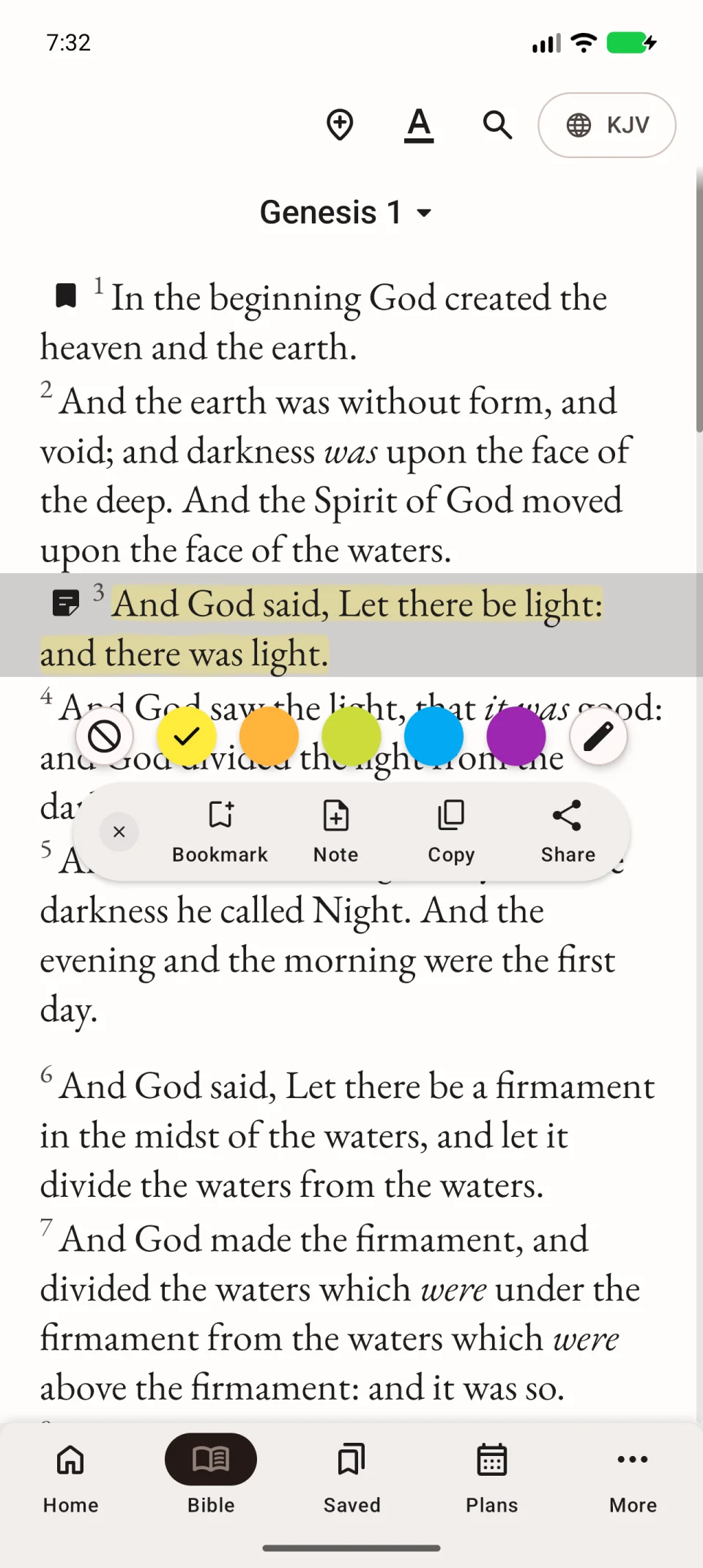
- Briefly tap a verse to select it and show the action toolbar.
- Tap each neighbouring verse you want to add. Tap a selected verse again to remove it.
- Check that only the intended lines are selected.
Copy a quotation
- Tap Copy, the two-sheet icon on the selection toolbar.
- Open the app where you want the quotation.
- Touch and hold its text field, then choose paste.
- Check the wording and Bible reference before saving or sending.
Copying sends nothing; it puts the quotation on your device’s clipboard.
Share through another app
- Tap Share on the selected verses’ toolbar.
- Choose an app in Android’s share menu.
- Choose the recipient in that app and review the quotation.
- Send the message when ready.
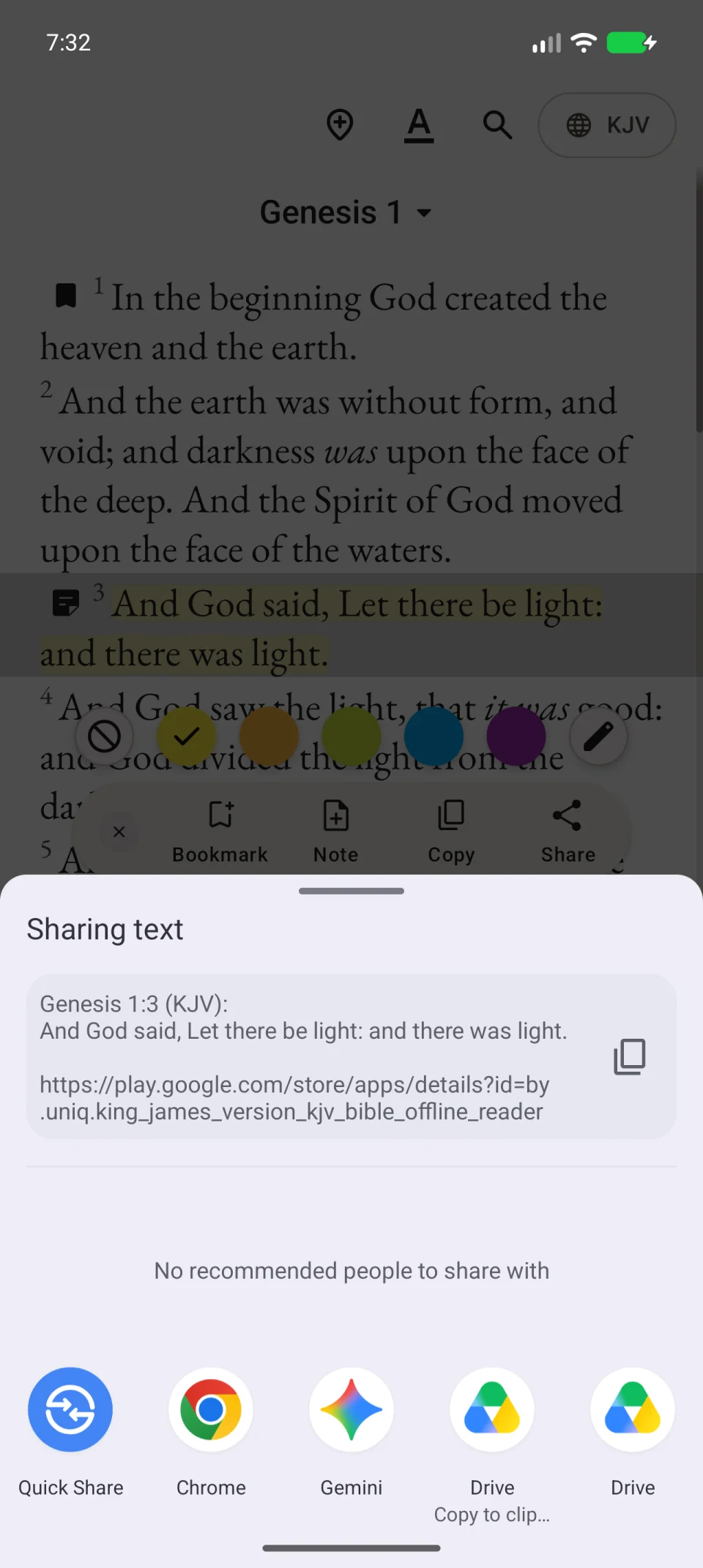
The video shows verse selection and the share menu. You can cancel before sending the message.
If your app is missing from the menu
Return to the passage, choose Copy and paste it manually. The share menu depends on the apps installed on your device.
Quotation formatting may include verse numbers, abbreviated book names and the translation name. It does not change the chapter’s original text. For one bookmark or note, select consecutive verses without gaps; some save actions are unavailable for a non-contiguous selection.