Smart Bible apps · Android
How to keep several reading places
Place, move and remove reading pins to return to several passages in Smart Bible for Android.
Smart Bible team · For version 4.x
Button names match the English interface; screenshots show the English interface.
On this page
A reading pin remembers a position in the text. If you read several books at once, leave a pin in each and return to them from the same toolbar.
Reading pins differ from bookmarks and the labels used to organise notes: you move these pointers directly over the chapter text.
Open the pins toolbar
- Open a chapter in Bible.
- Tap the pin-shaped icon on the left of the top toolbar, labelled Pins.
- A row of coloured pins appears below the toolbar.
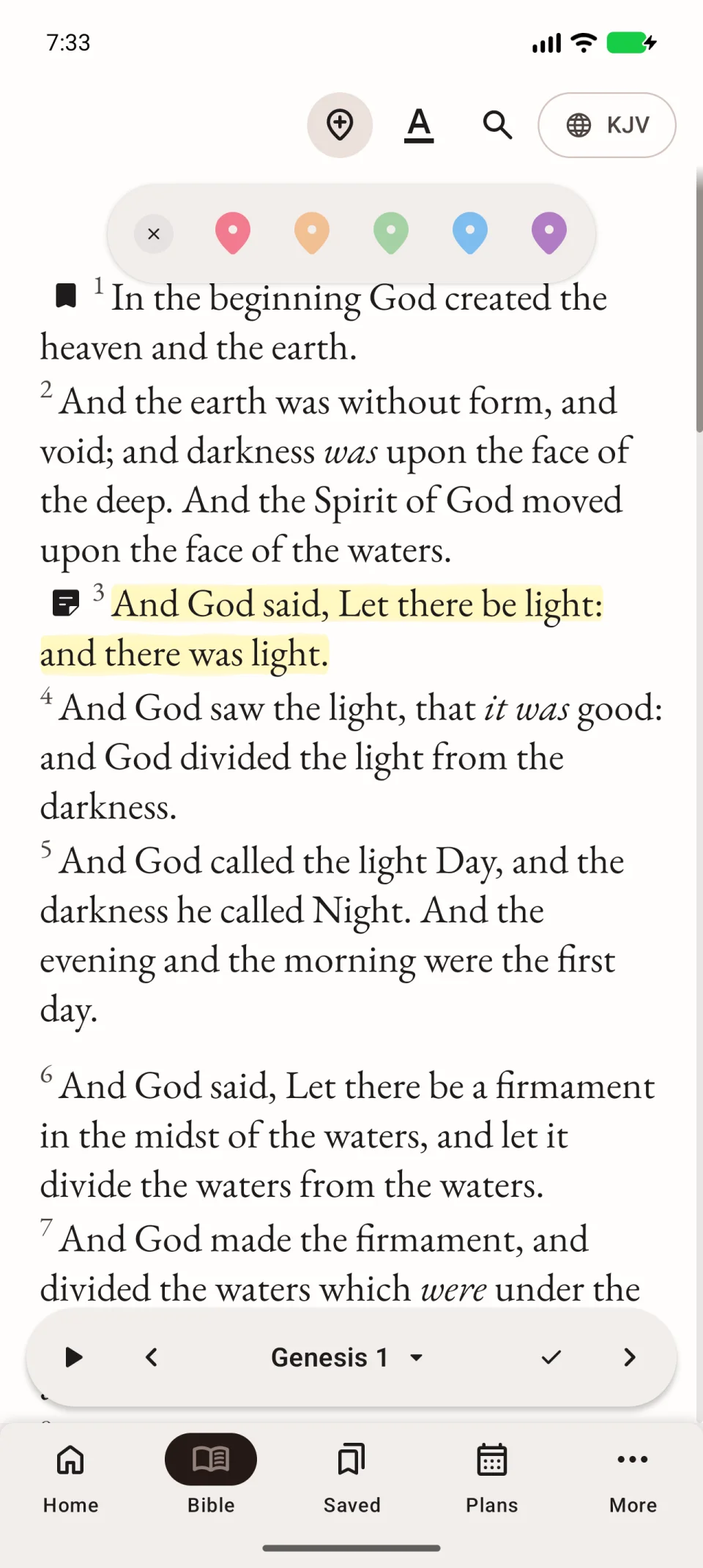
Place a pin on a verse
- Touch and hold an unused pin.
- Without lifting your finger, drag it to a verse.
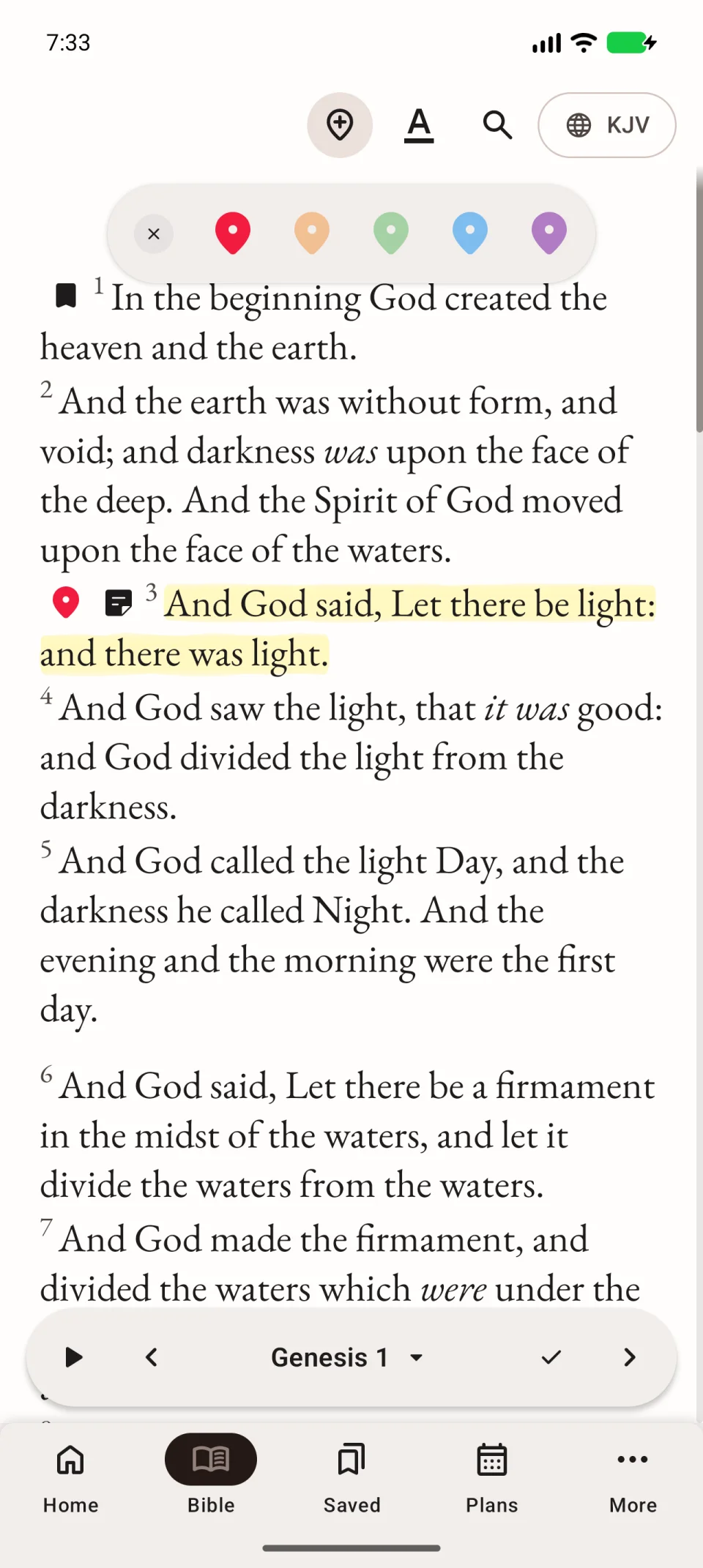
- Release it and check which verse has the coloured pointer.
A brief tap on an unused pin may show a tip. To place it, hold and drag. The video places a pin beside Genesis 1:3.
Return to a pinned place
Open Pins and briefly tap a pin already in use. The app opens its passage. Check the chapter and pointer position after the jump.
Move or remove a pin
Hold the pin and drag it to another verse to move it. While dragging, use the removal area that appears if you no longer need the pin. Move it to the cancellation area to cancel the action.
Removing a pointer does not delete Bible text. To save a named passage in a list, use a bookmark.