Smart Bible apps · Android
How to return to recent reading
Continue from your last passage or find an earlier chapter in reading history in Smart Bible for Android.
Smart Bible team · For version 4.x
Button names match the English interface; screenshots show the English interface.
On this page
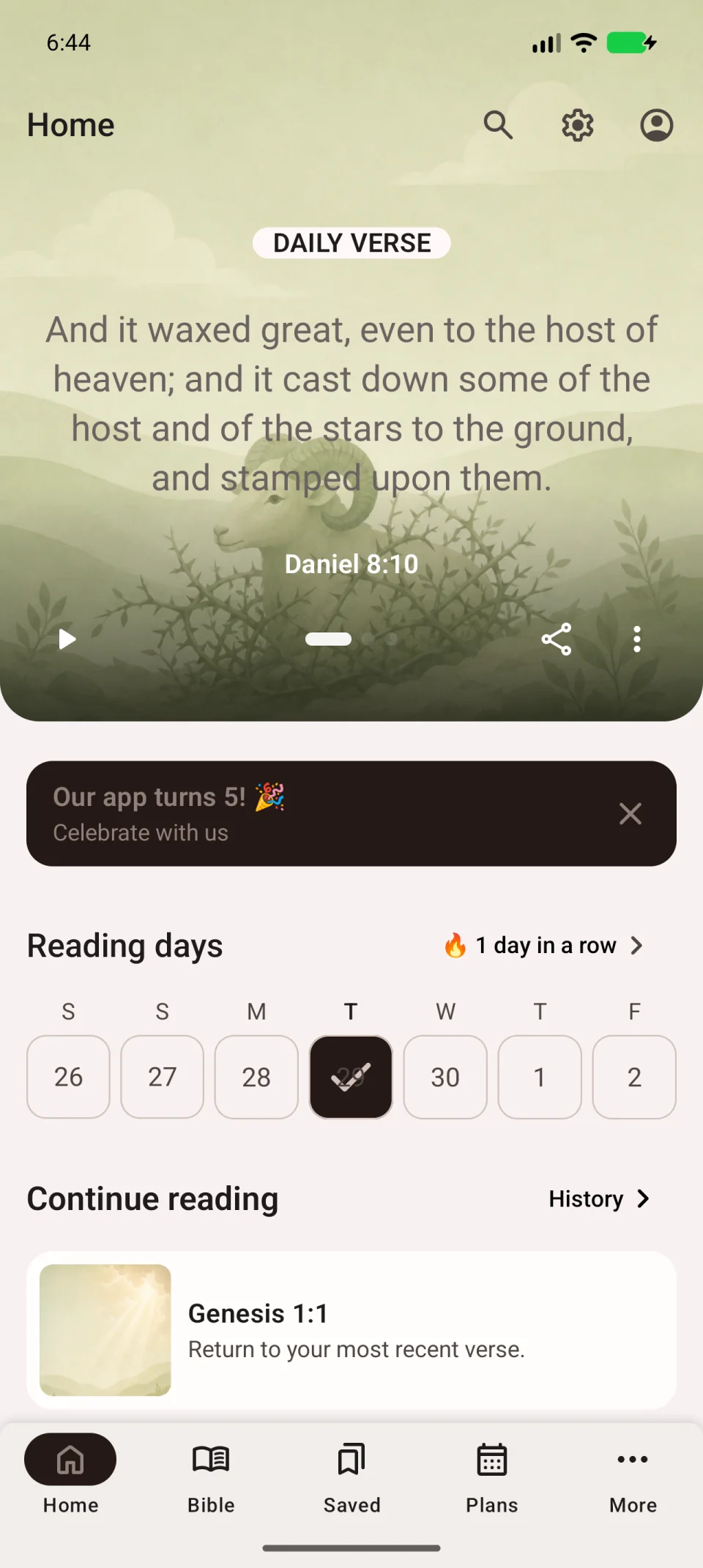
After closing the app or opening another passage, return to your reading through Home. The continuation card opens your most recent place; history helps you find earlier chapters.
Continue from your last place
- Open Home in the bottom navigation.
- Find Continue reading, scrolling down if needed.
- Check the book, chapter and verse on the card.
- Tap the card to open that passage.
Find an earlier chapter
- Tap History beside Continue reading.
- Browse recent entries for the book and chapter you want.
- Tap the entry to open it.
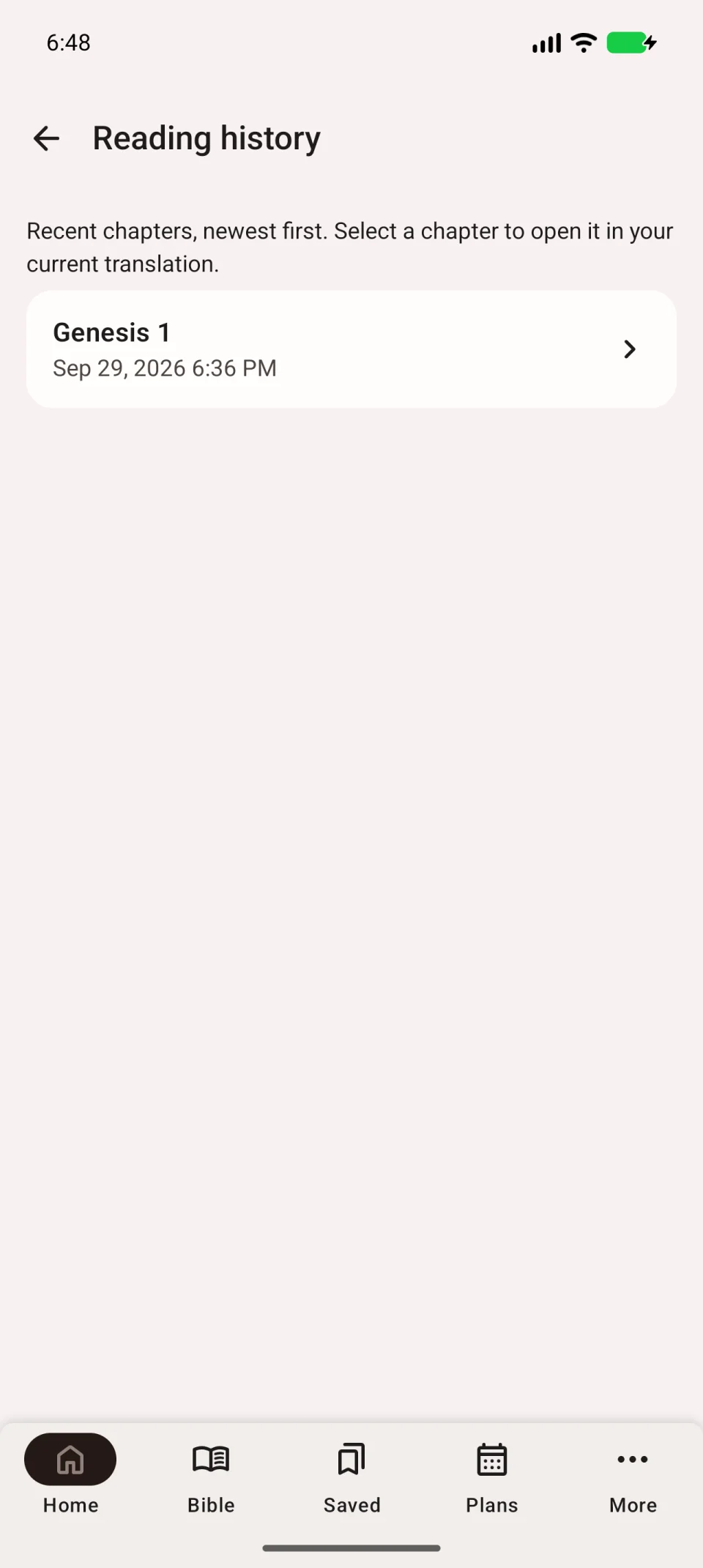
If a familiar chapter shows different wording, check the translation abbreviation at the top right. Choosing a history entry and choosing a translation are separate actions.
Keep a place for next time
History records recent navigation. To return to a passage regardless of what you read afterwards, add a bookmark.
For reading several books in parallel, use reading pins. For example, leave one in a Gospel and another in Psalms.
The Read mark means a chapter is complete. It does not save your position within that chapter.