Smart Bible apps · Android
How to open a book, chapter and verse
Use the passage selector, book search and chapter arrows to find a Bible passage in Smart Bible for Android.
Smart Bible team · For version 4.x
Button names match the English interface; screenshots show the English interface.
On this page
A Bible reference identifies a book, chapter and verse. For example, John 3:16 means the Gospel of John, chapter 3, verse 16. Choose these parts in order in the passage selector.
Open the passage selector
- Go to Bible.
- Tap the book name and chapter number above the text or in the bottom reading toolbar.
- On Choose passage, find the book. Tap the magnifying glass and enter its name to search a long list.
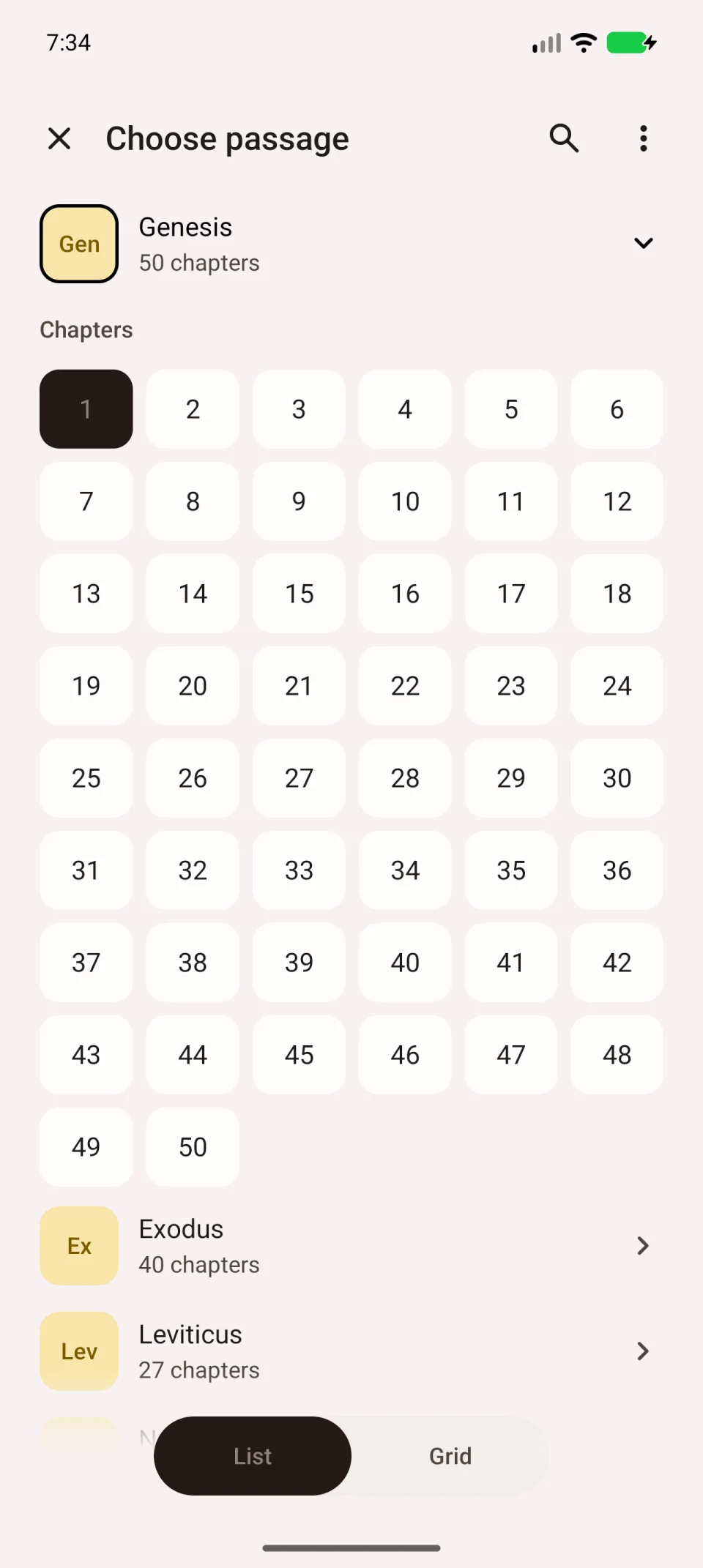
Choose the chapter and verse
- Tap the book name.
- Choose the chapter number.
- Choose the verse number. Tap 1 to read from the beginning.
The selector closes and the verse appears. A brief highlight helps you find it among the surrounding lines. Check the chapter heading to confirm your destination.
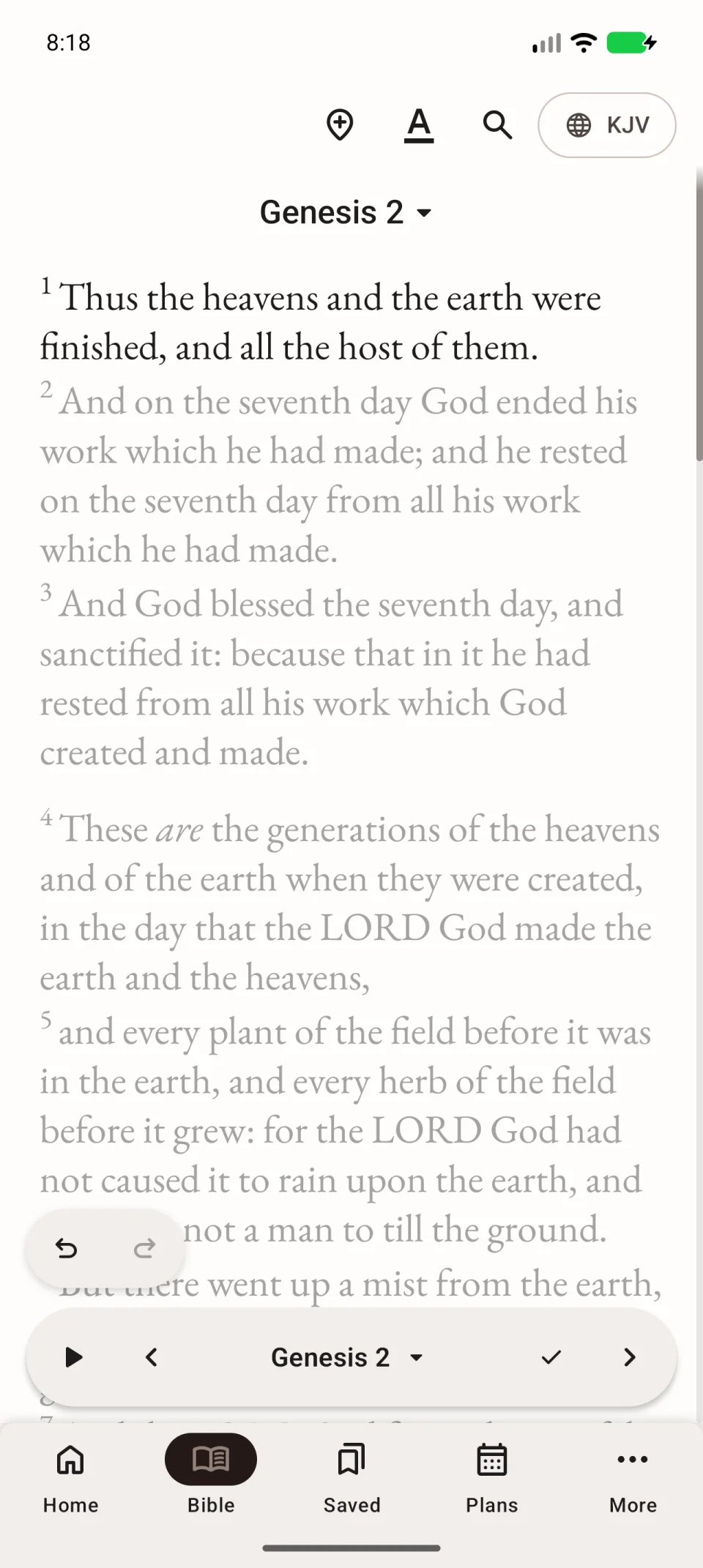
The video shows the complete path from choosing a book to opening its text.
Move between chapters
Use the left and right arrows beside the chapter name in the bottom toolbar. You do not need to reopen the selector. If scrolling has hidden the toolbar, scroll back slightly.
Change the book list layout
Choose List or Grid at the bottom of the selector. This changes the layout, not the translation. The cross closes the selector without navigating.
If a book is missing, check the selected translation and the name you entered. Book names follow the language of the translation. The set of books and verse numbering can differ between editions.