Smart Bible apps · Android
What works offline
Prepare translations, reading plans and voice data, then check offline reading and saved entries in Smart Bible for Android.
Smart Bible team · For version 4.x
Button names match the English interface; screenshots show the English interface.
On this page
Without an internet connection, you can read translations already stored on your device and use local bookmarks and notes. Prepare new translations, plans and voice data before travelling.
Download what you need
- Connect to the internet.
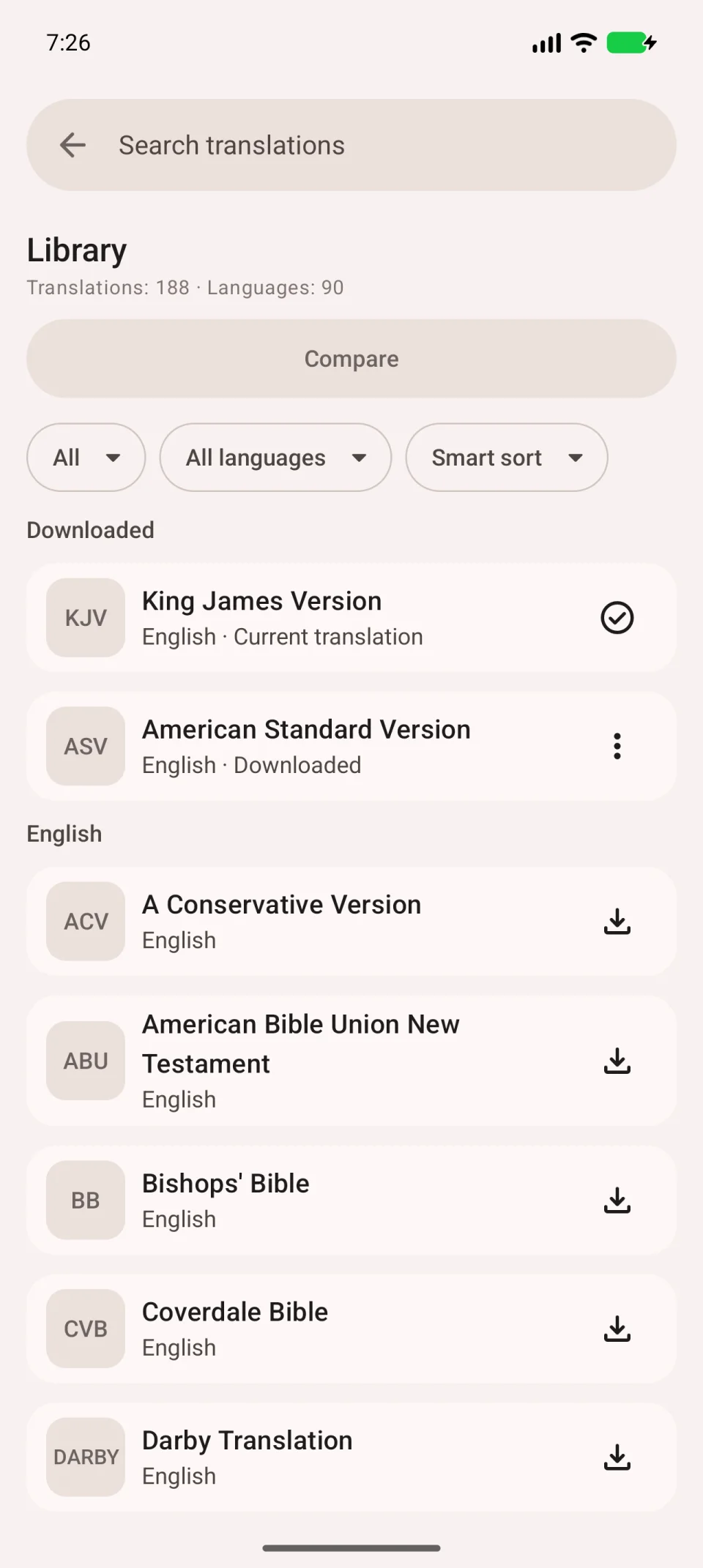
- Open Bible, tap the translation abbreviation at the top right and choose Other translations.
- Download your translation. See the library guide if you need help finding it.
- Return to reading and open a chapter in that translation. Make sure the actual text appears.
Prepare your reading plan
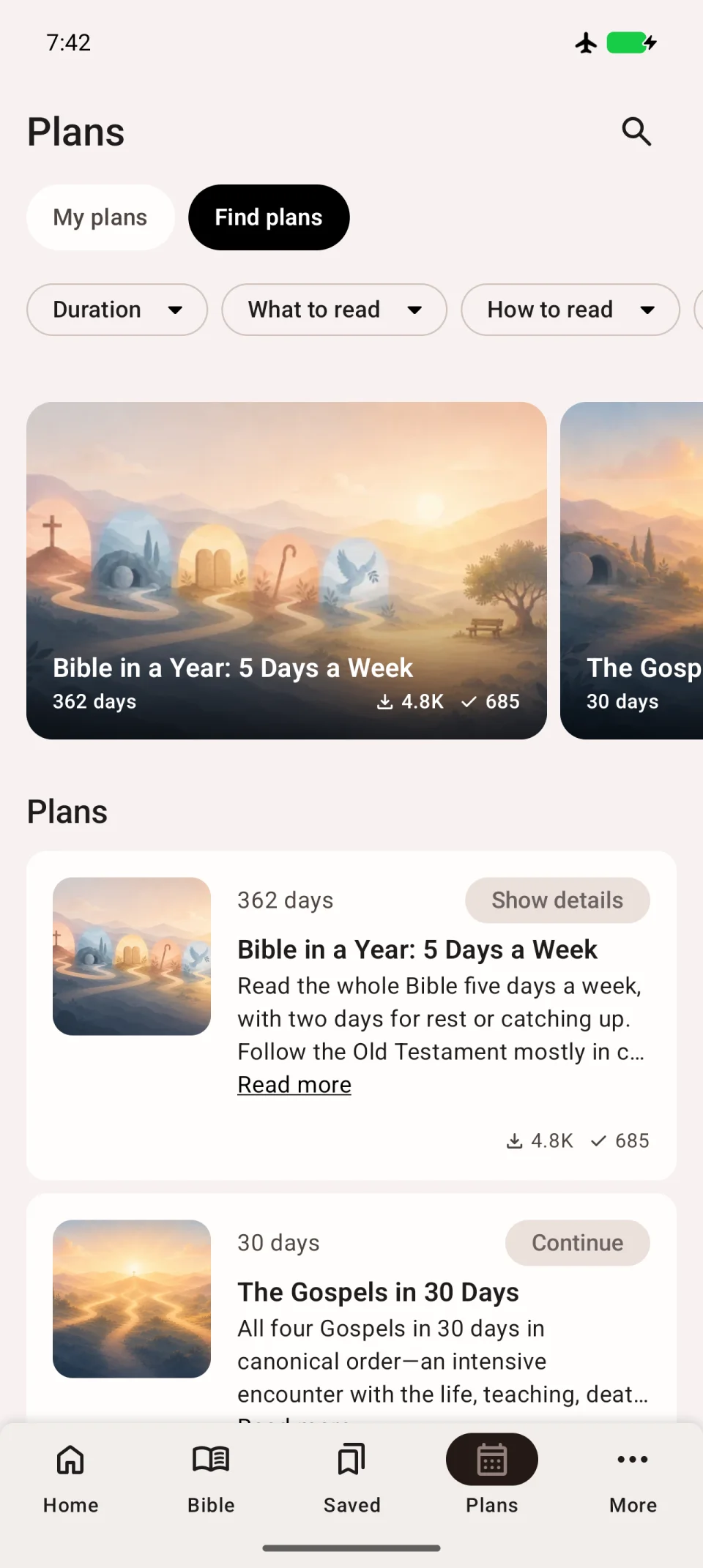
Download both the plan and the Bible translation used for its readings. Saving a plan for later only helps you find its card again; it does not download everything needed.
Open the plan under Plans → My plans and try an assignment. You should see the chapter text, not just a list of chapter names.
Use saved entries
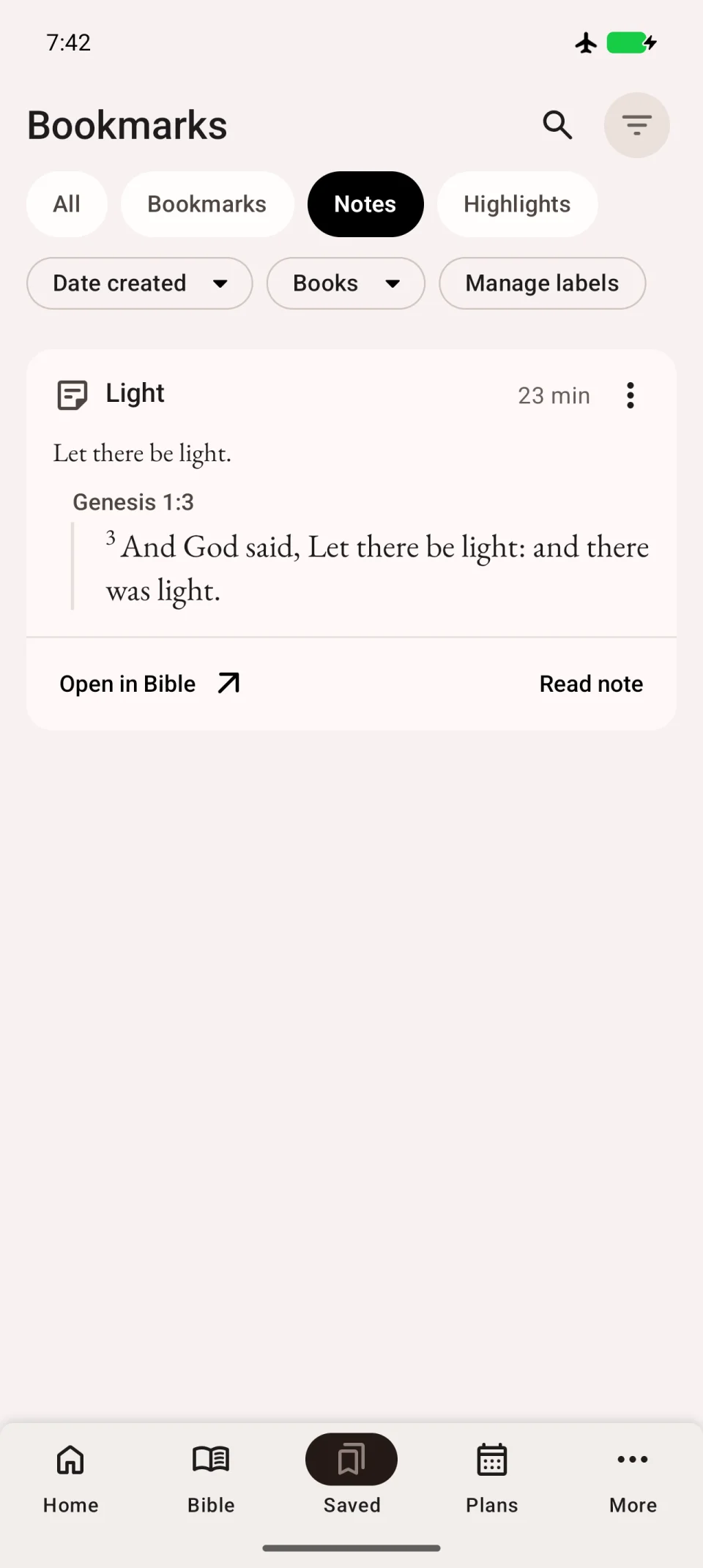
Local bookmarks, notes and highlights remain in Saved. You can read and edit them offline. Changes reach another device only after successful synchronisation.
Check the voice separately
Listening depends on Android’s text-to-speech voice. Some voices need internet access. Choose an offline voice in advance and download its data in Android settings if required.
Test before travelling
Temporarily turn off Wi-Fi and mobile data. Open a chapter, a saved entry and a plan assignment, then start listening. If something fails, reconnect and finish preparing it. Restore your connection after the test.