Smart Bible apps · Android
Where to find the main sections
Learn your way around the five main sections, reading tools, settings and tablet layout in Smart Bible for Android.
Smart Bible team · For version 4.x
Button names match the English interface; screenshots show the English interface.
On this page
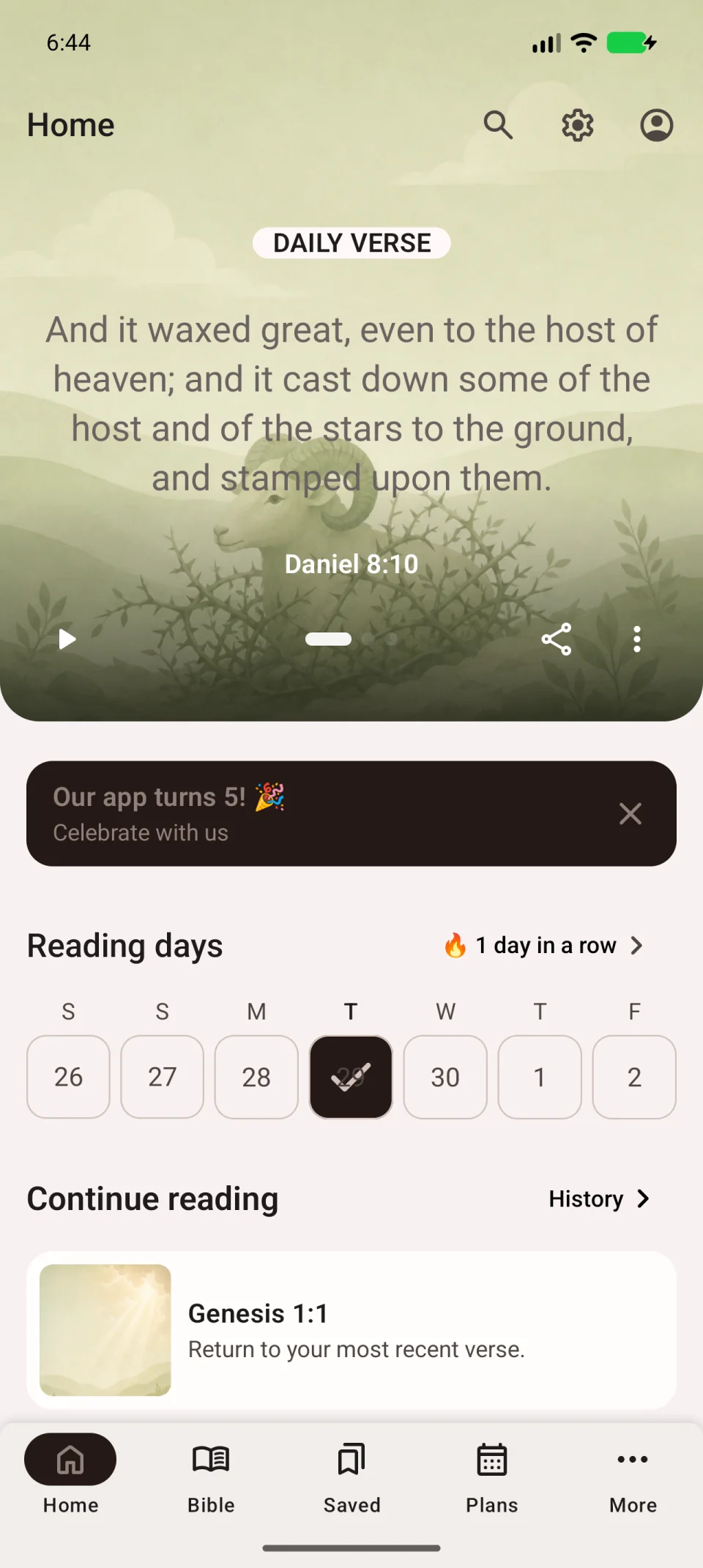
The app has five main sections. On a phone, their buttons are at the bottom of the screen. Tap a section name or icon to switch tasks.
Main sections
| Section | What you can do |
|---|---|
| Home | View the daily verse, continue recent reading or return to a plan. |
| Bible | Read a chapter, choose a book, listen and save verses. |
| Saved | Find bookmarks, notes and highlights. |
| Plans | Choose a reading plan or open your daily assignments. |
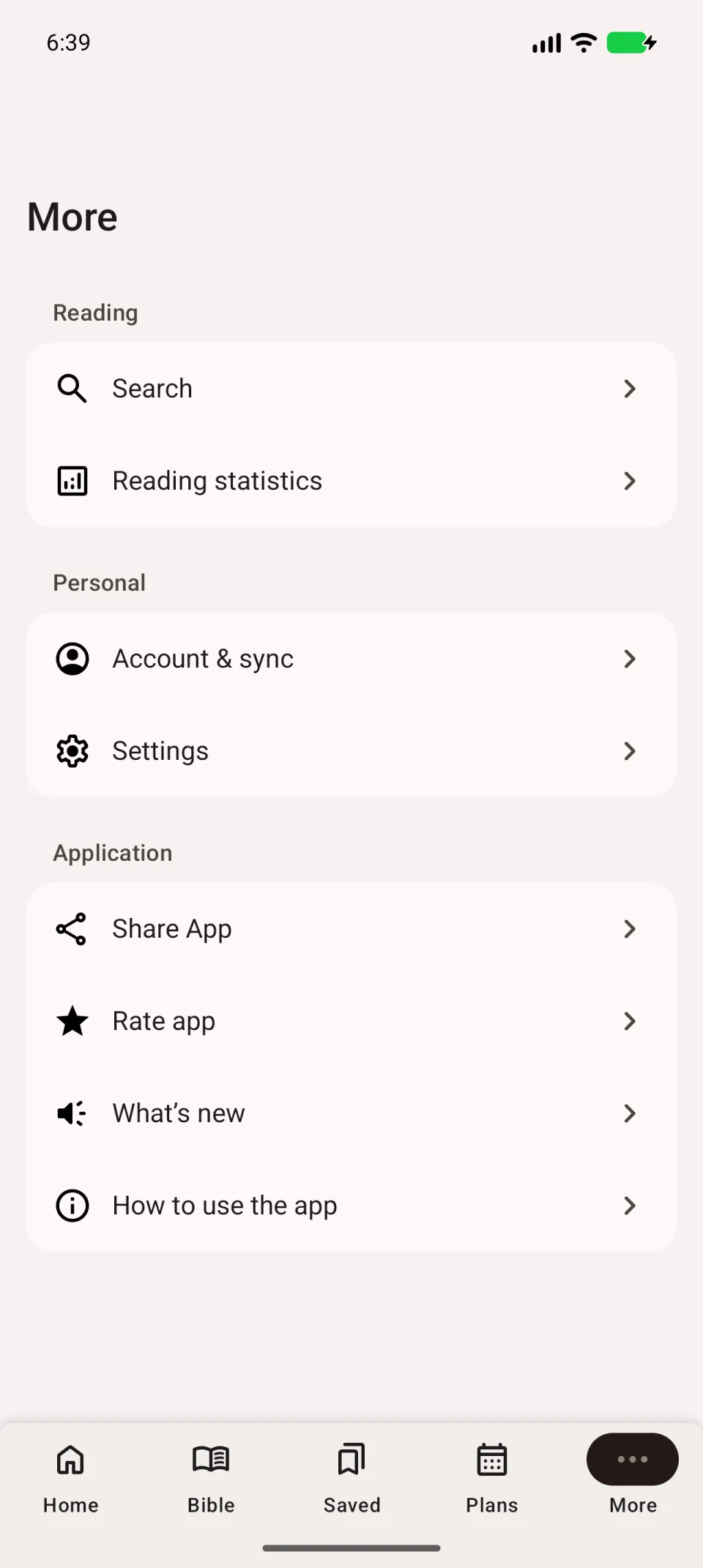
| More | Open search, statistics, your account and settings. |
Saved has separate tabs. Look for a note under Notes and a coloured verse under Highlights. An empty Bookmarks tab does not mean your other saved entries have disappeared.
Reading tools
Open Bible. The chapter heading opens the passage selector. The underlined A opens reading settings; the magnifying glass opens search. The translation abbreviation at the top right lets you choose another text.
To open the library, tap that abbreviation, then Other translations. Tapping the abbreviation alone does not download a new Bible.
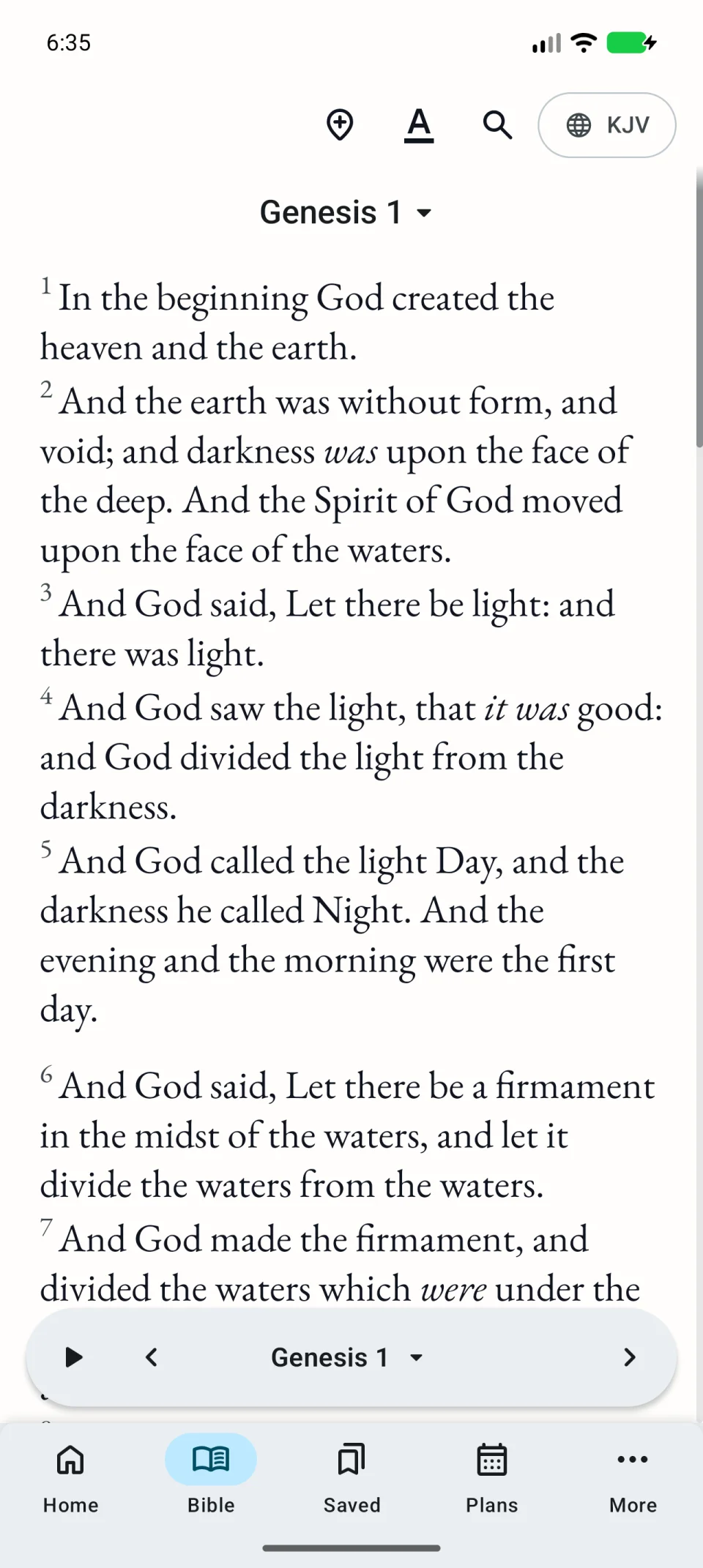
If scrolling hides the bottom reading toolbar, scroll back slightly. Briefly tap a verse to show its actions.
Settings and guided tips
Open More → Settings to change app behaviour. Choose More → How to use the app to revisit the guided introduction. Skip tour ends the tips.
On a tablet
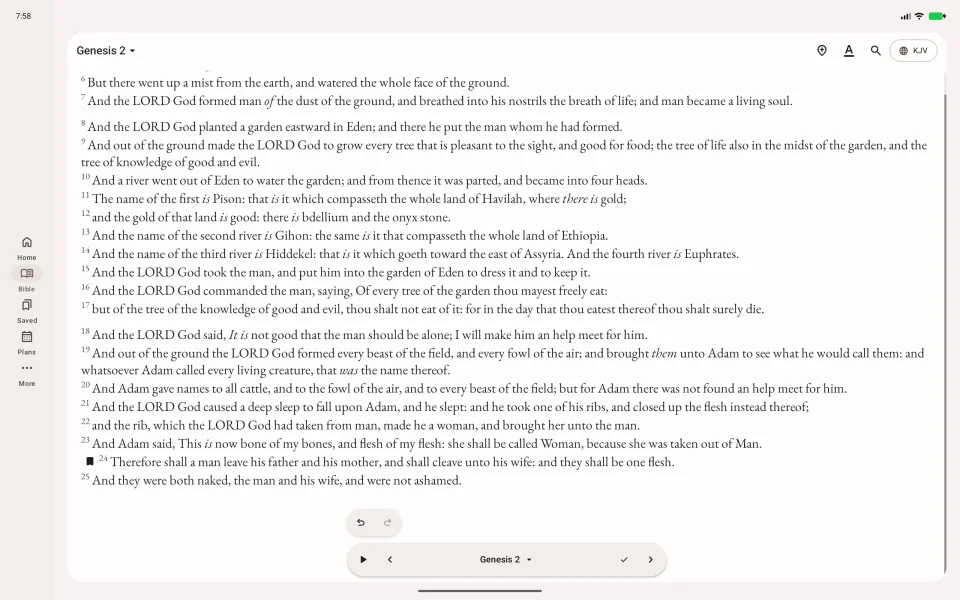
On wider screens, the main sections may appear on the left, with a list and its selected item side by side. Look for the same section names; the path to a feature remains the same even when a button moves.