Smart Bible apps · Android
How to add a bookmark
Save a verse or passage, give it a title and find or edit it later in Smart Bible for Android.
Smart Bible team · For version 4.x
Button names match the English interface; screenshots show the English interface.
On this page
A bookmark saves a verse or passage reference so you can return to it. You can give it a title and attach labels. It does not change the Bible text.
Select a passage
- Open a chapter in Bible.
- Briefly tap a verse to show its action toolbar.
- To save several verses, tap neighbouring verses one at a time.
- Tap Bookmark on the toolbar.
Choose consecutive verses without gaps for one bookmark. The action may be unavailable for separate, non-adjacent lines.
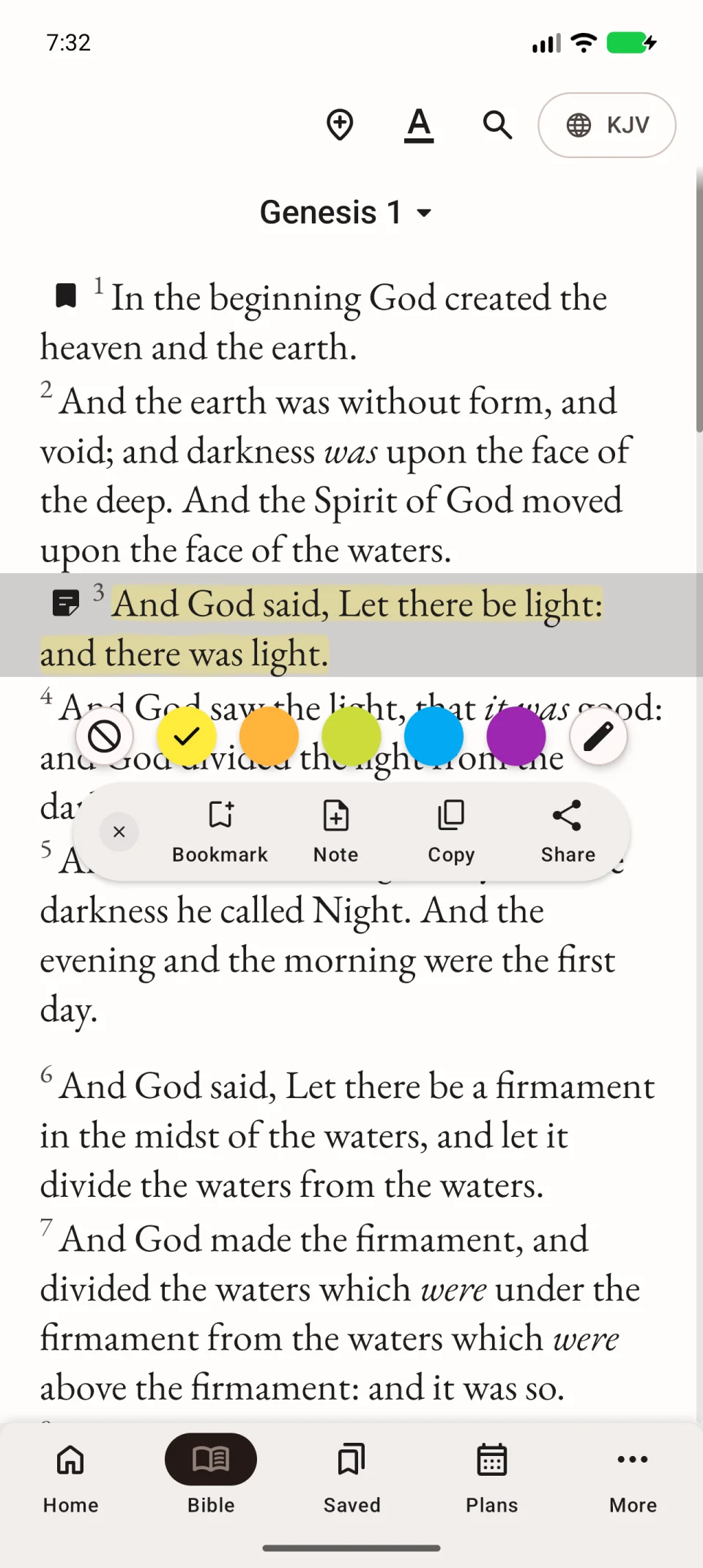
Save the bookmark
In the editor, check the book, chapter and verse range. Optionally enter a Title, such as “Sunday discussion”, to help find it later. Tap Save.
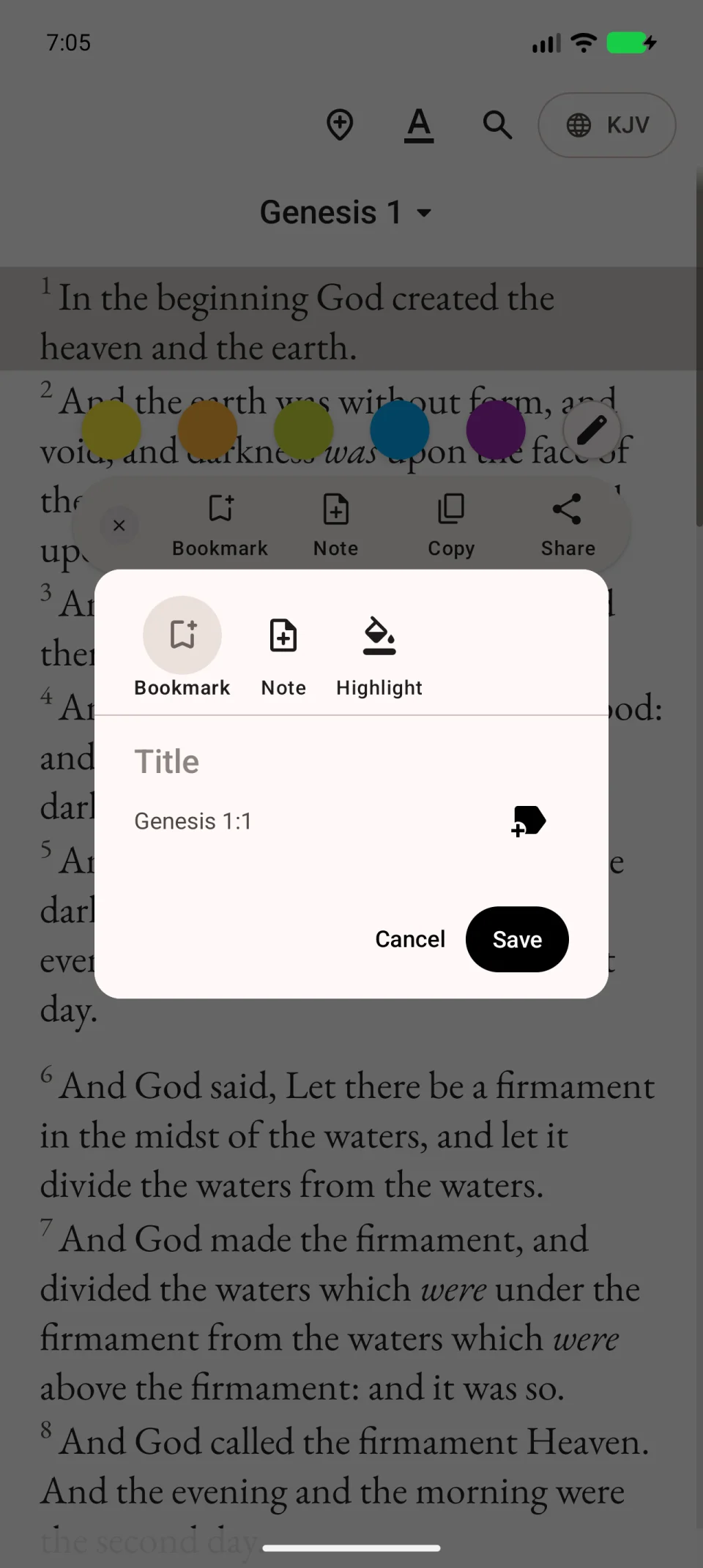
The video saves a bookmark without a custom title. A title is optional.
Find the saved verse
- Open Saved in the bottom navigation.
- Choose Bookmarks.
- Find the entry by title or Bible reference.
- Tap Open in Bible to open the passage in its chapter.
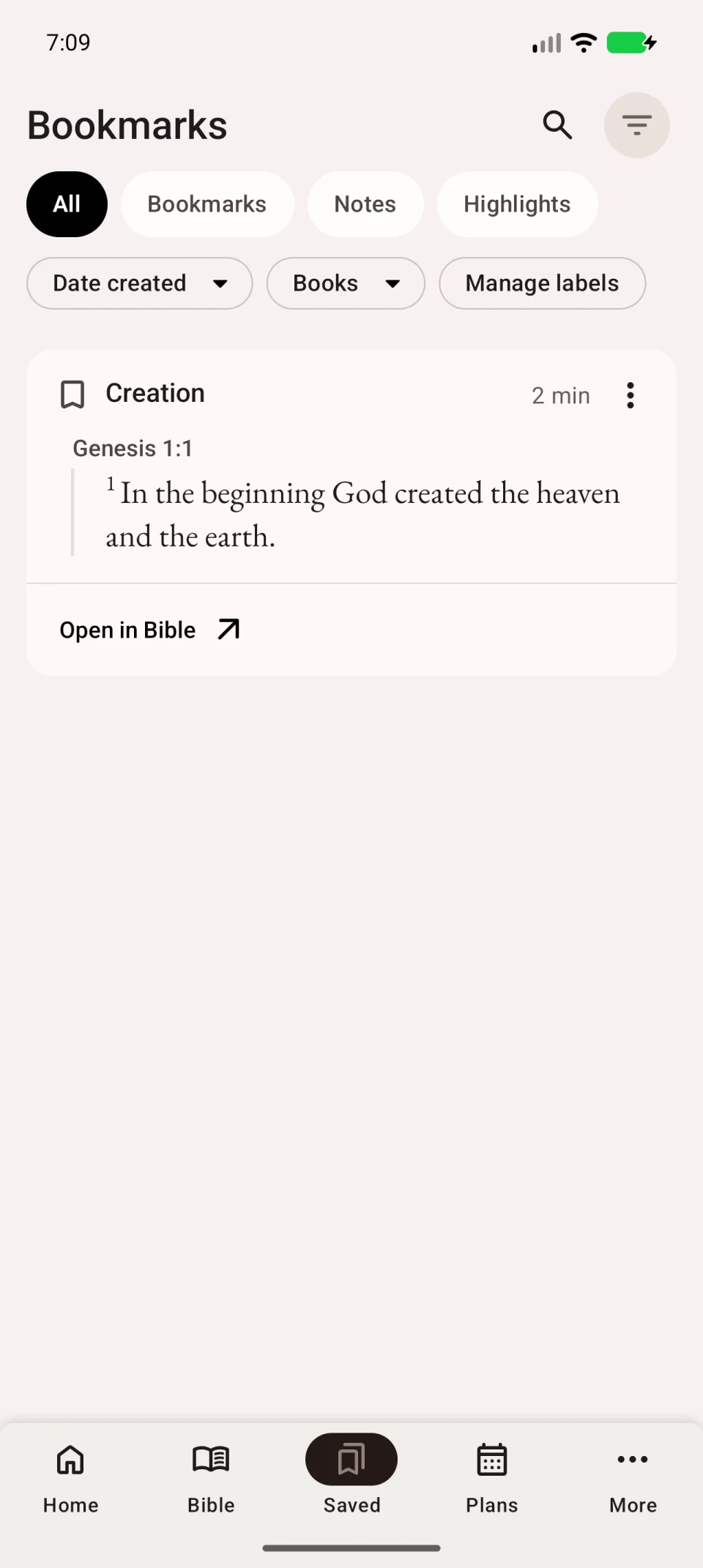
Edit or delete an entry
Open the entry’s three-dot menu. Choose editing to change the title or labels, then save. To delete it, choose the deletion action and check the confirmation.
If you tapped a colour circle instead of Bookmark, look under Highlights. Notes have their own tab. If a bookmark is missing, first clear the search and check the filters.