Smart Bible apps · Android
How to use labels
Create, assign, colour, delete and restore labels for saved entries in Smart Bible for Android.
Smart Bible team · For version 4.x
Button names match the English interface; screenshots show the English interface.
On this page
A label groups saved entries by your own topic, such as “Prayer” or “For discussion”. Assign one label to different bookmarks, notes and highlights, then find them through a filter.
A label’s colour distinguishes topics in lists. It does not colour Bible text or replace a highlight.
Create a label
- Open Saved.
- If filters are hidden, tap the filter icon at the top right.
- Choose Manage labels below the tabs.
- Tap Add Label.
- Enter a name, choose a colour and tap Save.
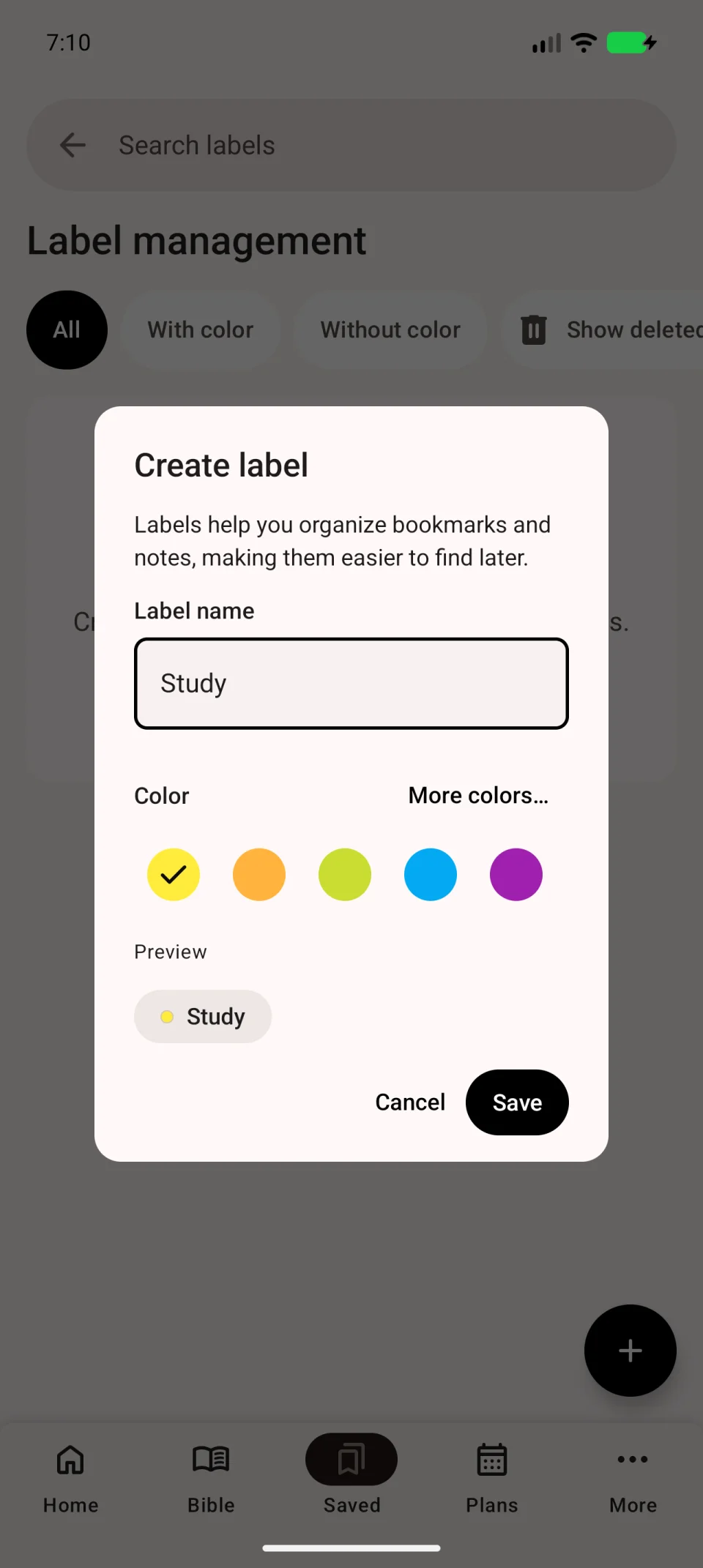
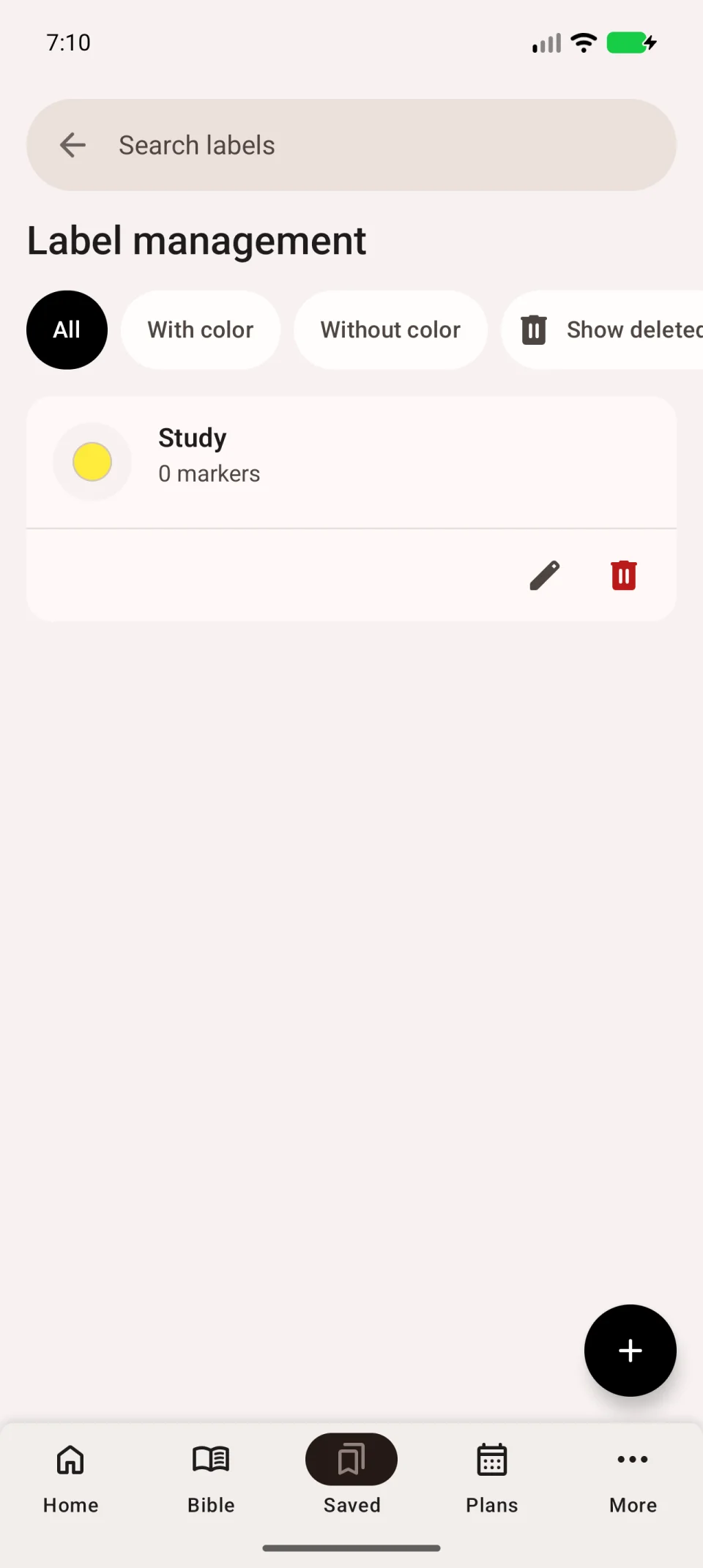
The new label appears in the management list. Creating it does not automatically assign it to your entries.
Assign a label
Edit a bookmark, note or highlight. Tap Add Label, choose the topic and save the entry. Repeat for other entries you want to group.
Return to Saved, open filters and select the label. If the list is empty, check the tab: notes and highlights have separate lists.
Delete a label
Find the name in Manage labels and choose deletion. Read the confirmation, especially if entries already use the label. Deleting a label does not delete the notes or bookmarks themselves.
Restore a deleted label
- Enable Show deleted in label management.
- Find the deleted name.
- Tap Restore label for that entry.
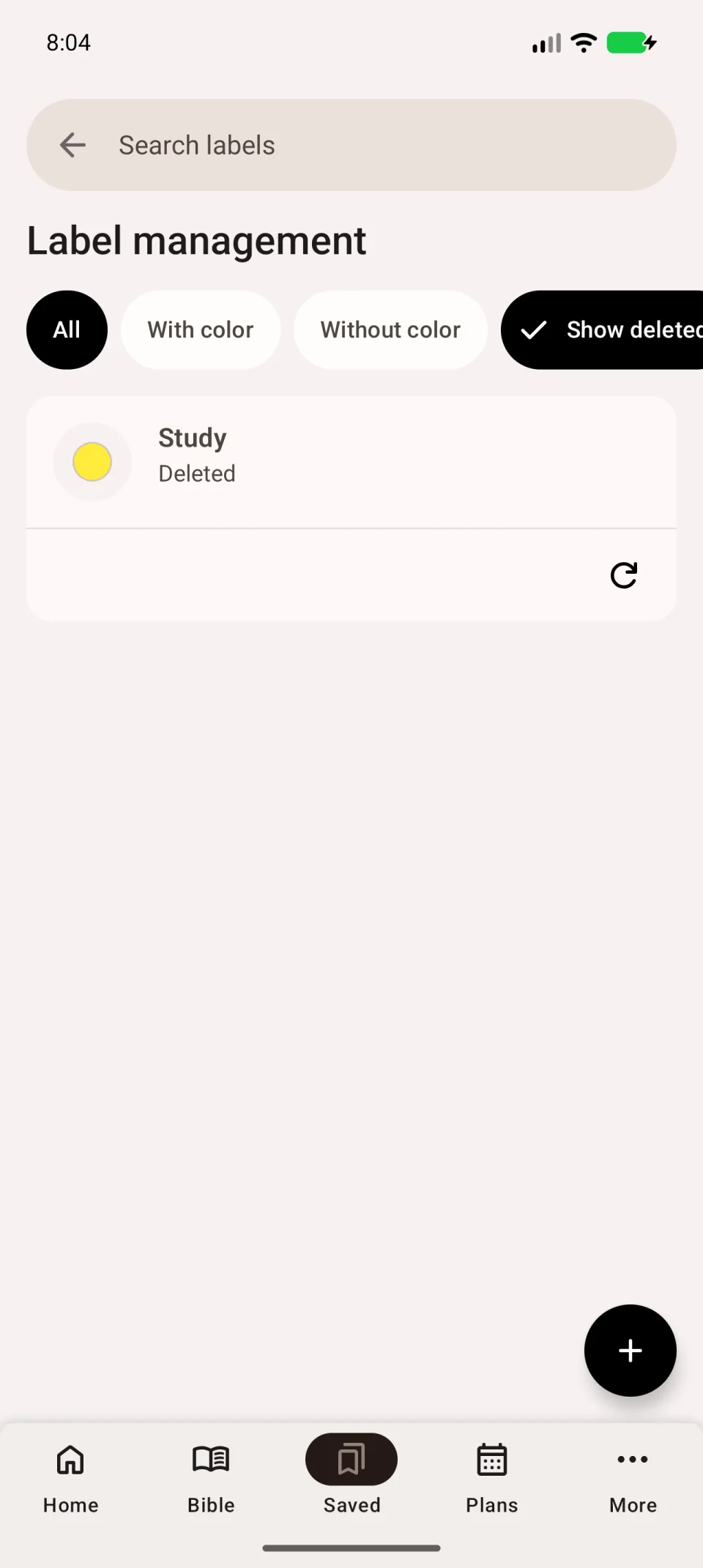
Check that the label is available again. Clear the label filter to see all saved entries.