Smart Bible apps · Android
How to write notes
Attach a note to a passage, format its text and reopen it later in Smart Bible for Android.
Smart Bible team · For version 4.x
Button names match the English interface; screenshots show the English interface.
On this page
A note connects your thoughts to a Bible passage. Record a question, explanation or reading insight. Notes are stored separately and do not change Scripture.
Create a note
- Open a chapter in Bible.
- Briefly tap a verse; add neighbouring verses one at a time if needed.
- Tap Note on the action toolbar.
- Check the reference in the editor.
- Enter a title and the note’s main text.
Choose a recognisable title, such as “Question for discussion”. Write the thought itself in the main field so you do not have to reconstruct it from the title later.
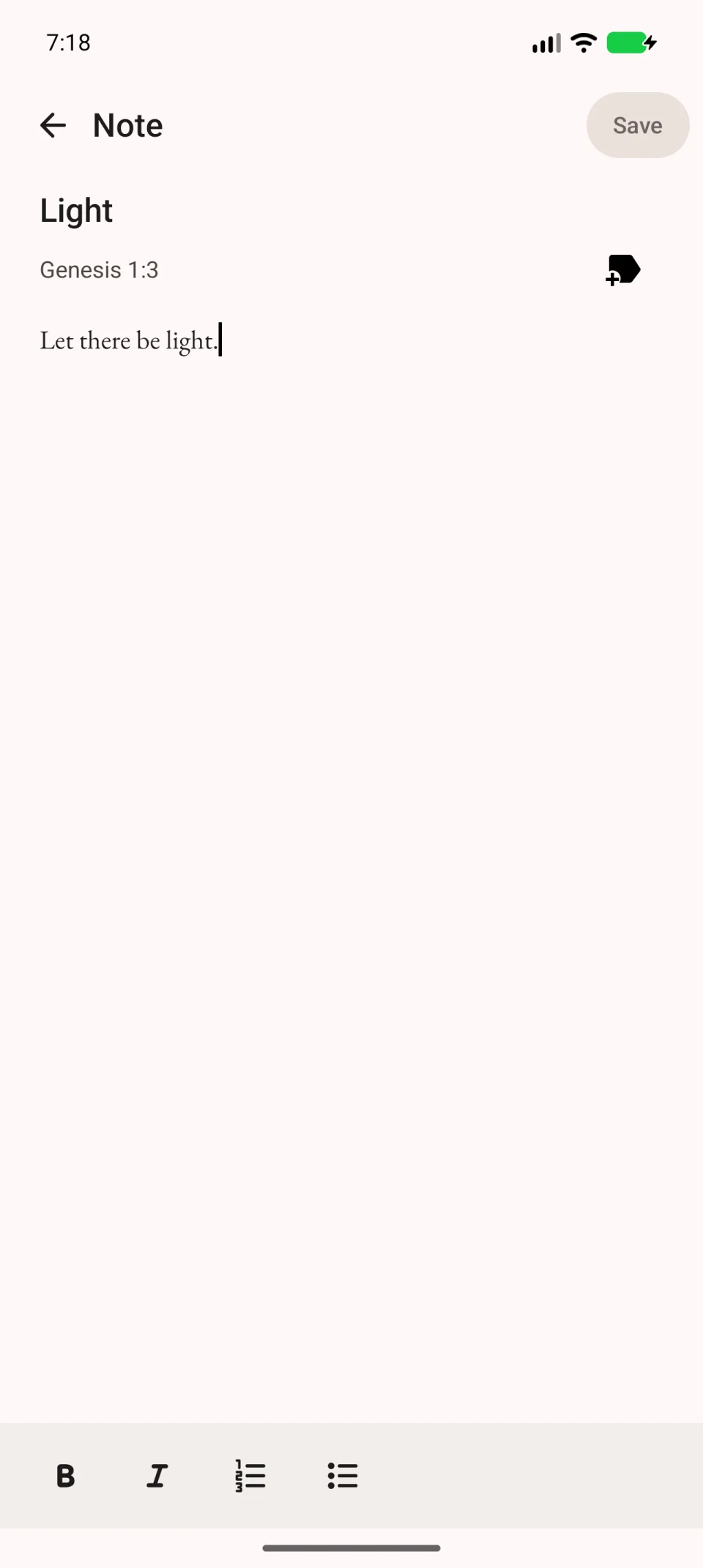
Format and save
If the editor is in a small window, tap Full screen at the bottom left. The formatting toolbar offers bold, italic, numbered lists and bullet lists.
To mention another passage, type its reference, such as “John 3:16”, in the text. This records the reference without needing a separate link-insertion command.
Tap Save. If leaving shows an unsaved-changes prompt, return to the editor and finish saving.
Reopen the note
- Choose Saved in the bottom navigation.
- Open Notes.
- Find the entry by its title or passage reference.
- Open the note. To change it, use the entry menu to edit, then save again.
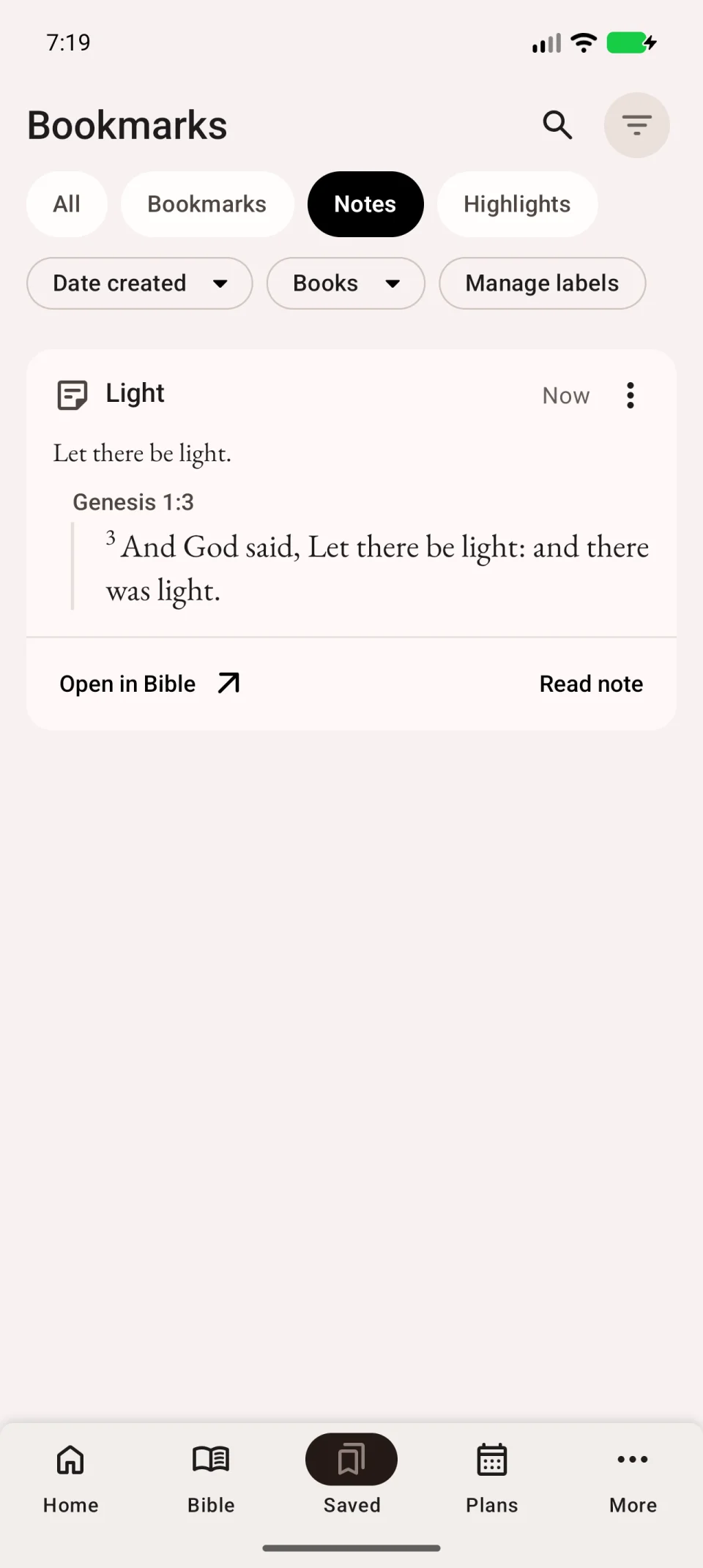
Assign labels to organise notes. If an entry is missing, clear search and filters. If it appears on only one device, see sync troubleshooting.