Smart Bible apps · Android
Notes or progress are missing on another device
Check the app, account, sync order and saved-entry filters before troubleshooting missing data in Smart Bible.
Smart Bible team · For version 4.x
Button names match the English interface; screenshots show the English interface.
On this page
If entries remain on only one phone, preserve them there while checking sync. Do not sign out or clear app data; signing out deletes local entries.
Check the same app and account
Open More → Account & sync on both devices and compare Google accounts. Also check the installed app name. Selecting the same translation in different apps does not transfer entries between them.
If Sign in with Google appears, that device is not signed in. Use the account that synced the first device.
Send from the first device
- Use the phone where the entry still exists.
- Check its internet connection.
- Open More → Account & sync.
- Tap Sync Now.
- Wait for completion. Record any error and its time; do not clear data.
Then run manual sync on the second device. This order sends changes before attempting to receive them.
Check whether the entry is hidden
After both operations succeed, on the second device:
- Open Saved.
- Choose the appropriate bookmarks, notes or highlights tab.
- Clear the search field.
- Remove book and label filters.
- Find the entry by title or reference.
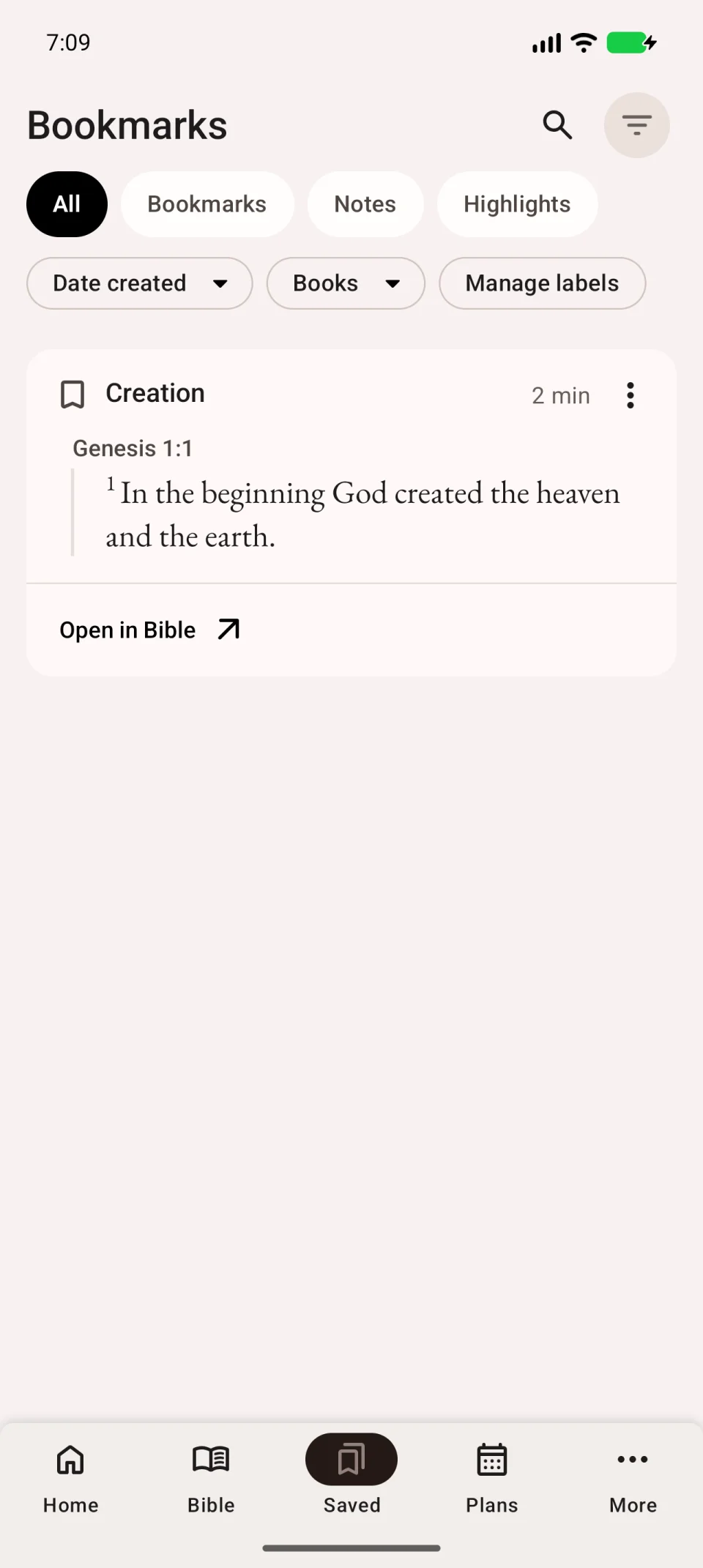
See finding saved entries for details.
If progress differs
For a plan, open Plans → My plans and check the plan, day and assignments. Do not compare plan percentage with overall Bible progress.
Reading pins and plan assignments are synced. Overall reading-time statistics, streaks and manual chapter marks are not in that list. Differences alone do not mean notes failed to transfer.
If data is still missing
Keep the failed-operation log and contact support. Include both app versions, missing data type, where it remains and the last attempt’s time. Passwords and sign-in codes are unnecessary.