Smart Bible apps · Android
How to sign in and transfer data to another device
Use the same app and Google account to transfer supported data between Android devices and check the result.
Smart Bible team · For version 4.x
Button names match the English interface; screenshots show the English interface.
On this page
Signing in lets you transfer supported data between your devices. Reading and saving entries on one device do not require an account.
Use the same app and the same Google account on both devices. Selecting the same Bible translation in different apps does not make their data shared.
Prepare the old device
- Connect to the internet.
- Open More → Account & sync.
- Tap Sign in with Google if you are not signed in.
- Choose the account you will use on the new phone and complete sign-in.
- Tap Sync Now on the account screen and wait for the result.
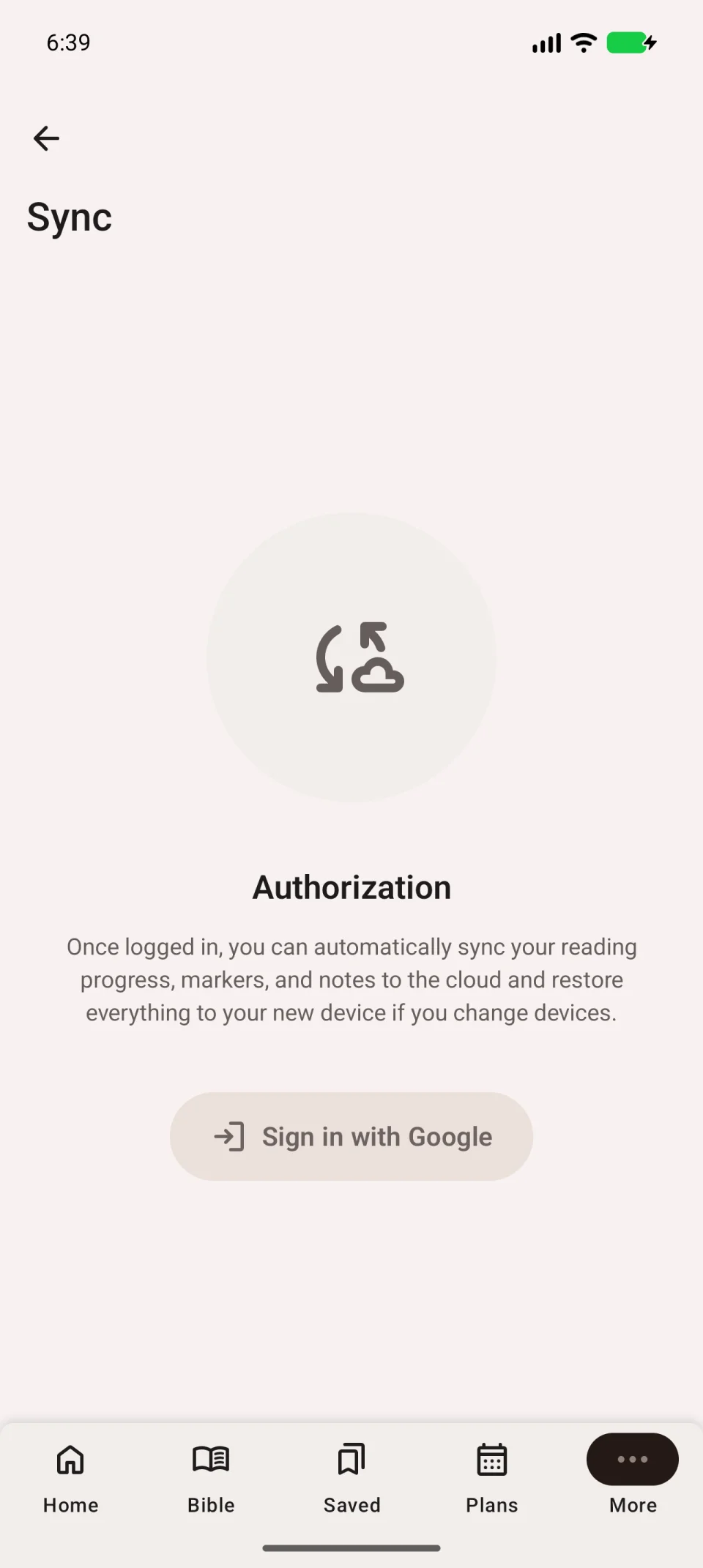
If the operation fails, resolve the error first. Choose entries to check on the new device, such as a named note and a bookmark to a familiar verse.
Connect the new device
- Install the same app from Google Play, checking its name and developer.
- Open More → Account & sync.
- Tap Sign in with Google and choose the same account.
- Run Sync Now and wait for completion.
- Open Saved and find your chosen entry. Use Notes for a note.
- For a transferred plan, open Plans → My plans and check its assignments.
Compare the note’s contents, not just its title. Separately check downloaded translations for offline reading.
When to stop using the old device
Wait until the required data appears and opens on the new phone. Until then, do not sign out or clear the old app; signing out removes the local data described in the sign-out guide.
Sync transfers a defined set of data, not a complete phone backup. Check what synchronises if a setting or figure differs.