Smart Bible apps · Android
How to highlight text with colour
Highlight whole verses or individual words, change colours and remove highlights in Smart Bible for Android.
Smart Bible team · For version 4.x
Button names match the English interface; screenshots show the English interface.
On this page
A highlight remains in the chapter so you can spot a passage next time. You can colour a whole verse, several neighbouring verses or individual words within one verse.
Highlight a whole verse
- Open a chapter in Bible and briefly tap a verse.
- Tap neighbouring verses individually to include them.
- Tap a colour circle on the toolbar to quickly colour the selection.
To choose a shade in the editor first, tap Highlight to the right of the colour circles. Choose a colour and tap Save.
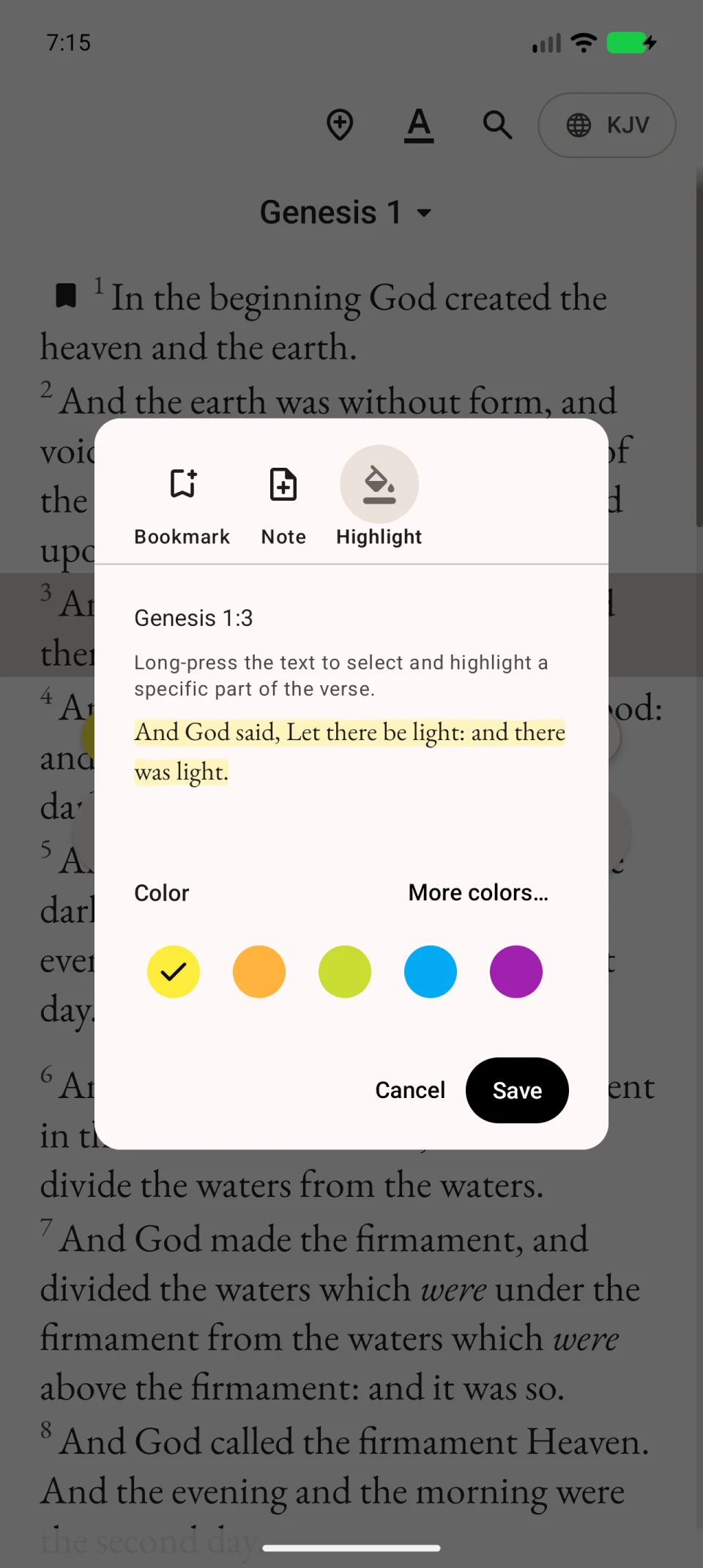
Close the selection toolbar after saving. Check that the intended passage remains coloured.
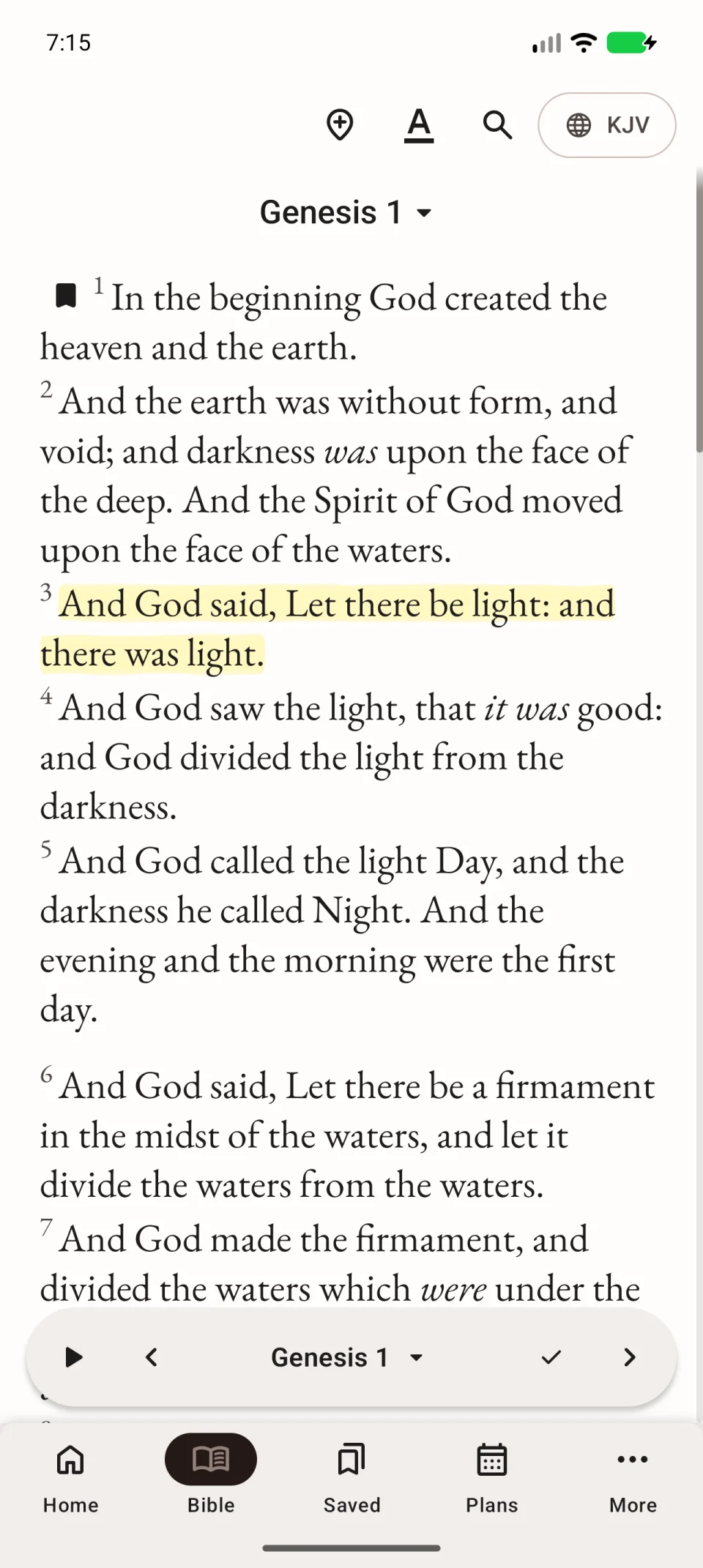
Highlight individual words
- Select one verse in the chapter.
- Tap Highlight to the right of the colour circles.
- In the editor, touch and hold a word.
- Move the selection handles to include only the words you want.
- Choose a colour and tap Save.
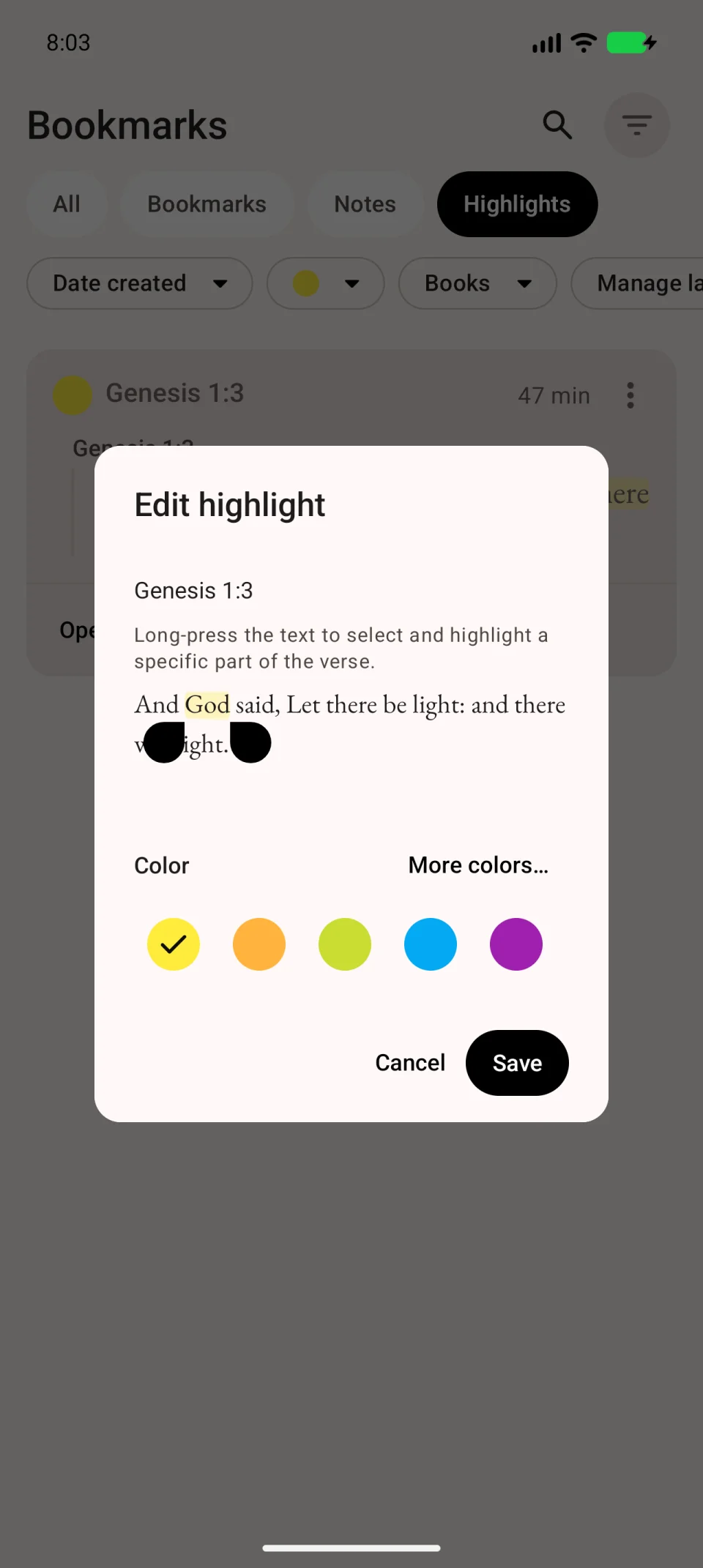
Return to the chapter and check the highlight boundaries. Partial selection happens inside the editor; tapping verses in the chapter selects whole verses. You cannot partially highlight several verses at once.
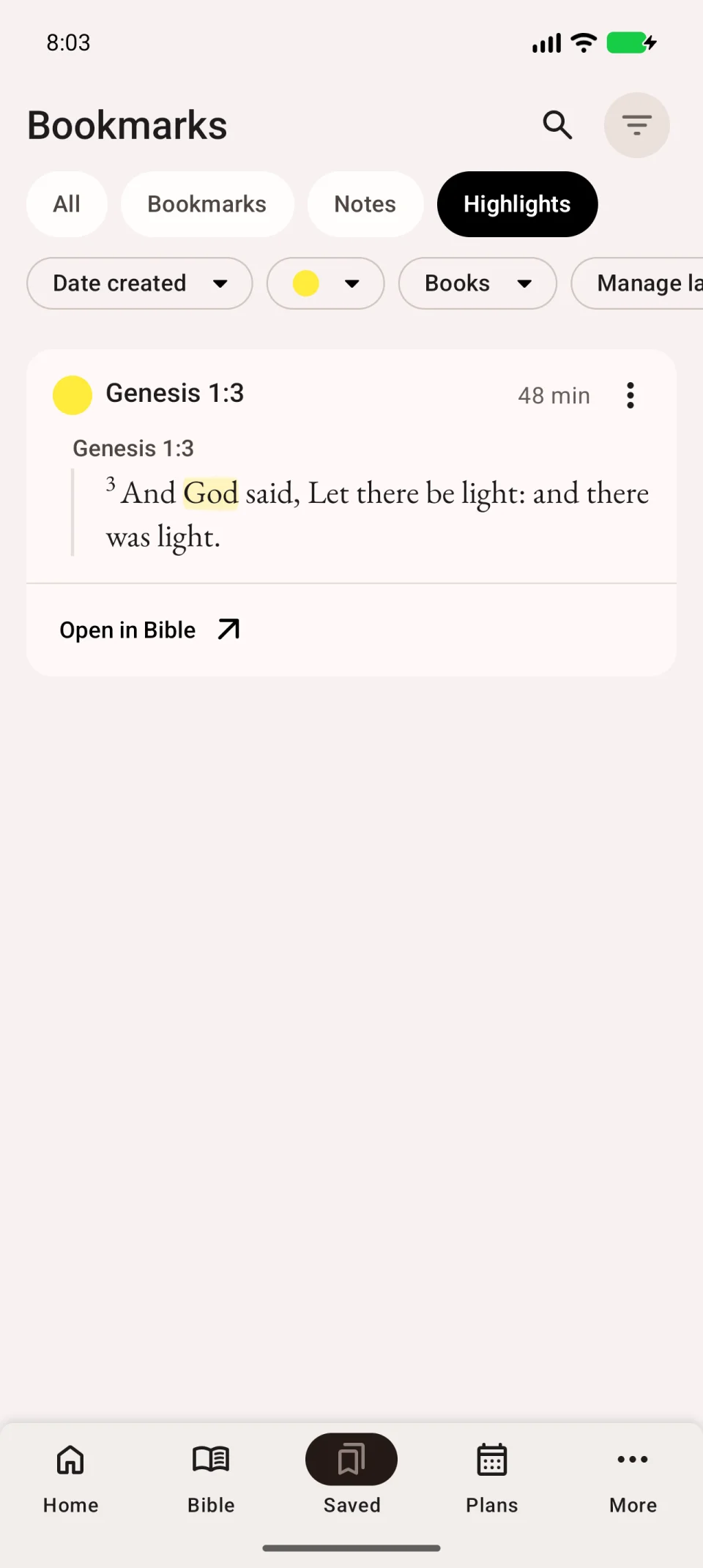
Change or remove a highlight
Open Saved → Highlights, find the entry and open its three-dot menu. Edit it to change the colour or boundaries. Use More colors… for a custom shade and check the preview before saving.
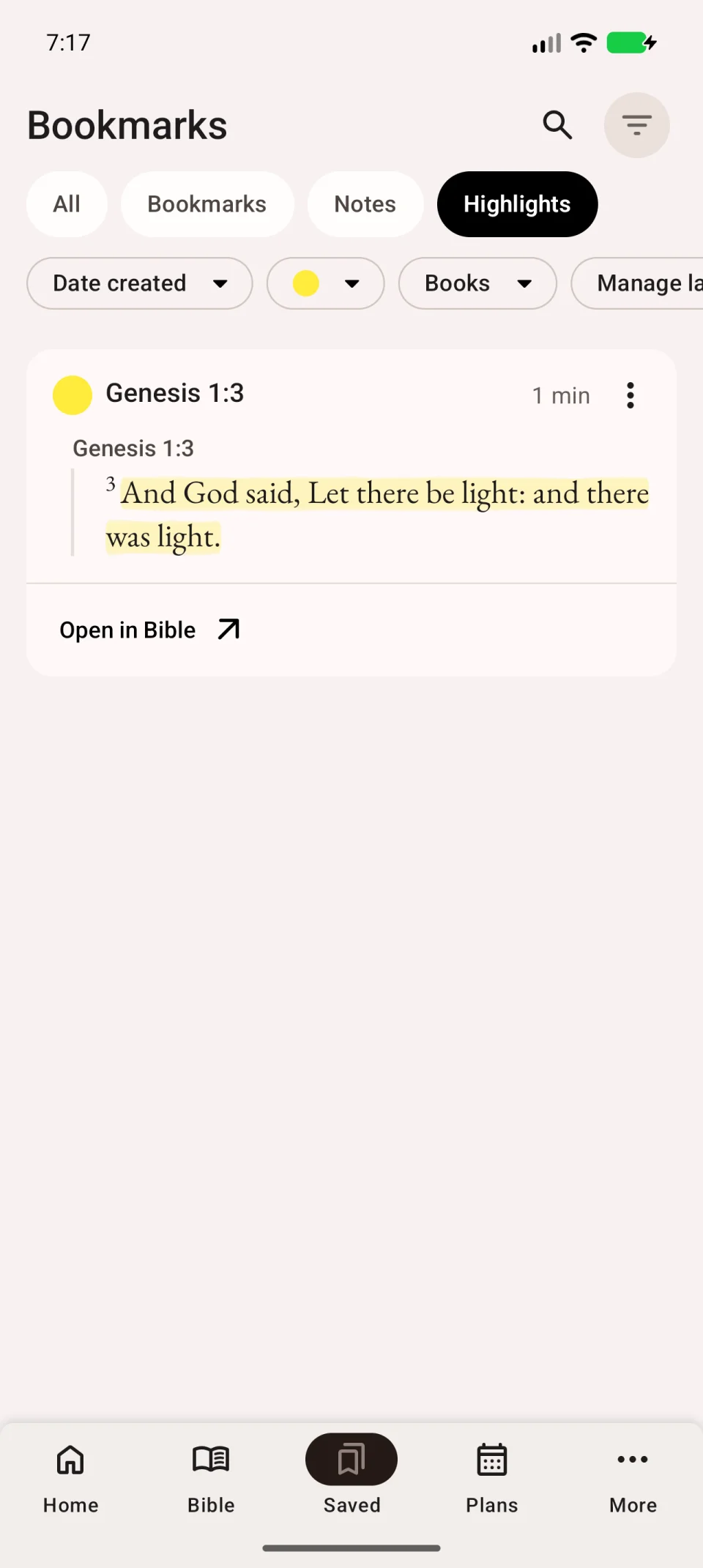
Deleting the entry removes your highlight, not the Bible text. Neighbouring verses with the same formatting may appear as one passage in the list; check its range before deleting.