Smart Bible apps · Android
How to switch and remove downloaded translations
Choose a downloaded Bible for reading or remove its local copy in Smart Bible for Android.
Smart Bible team · For version 4.x
Button names match the English interface; screenshots show the English interface.
On this page
To read another downloaded translation, choose it above the text; you do not need to download it again. Removing a download is a separate action. Afterwards, its local text is unavailable until downloaded again.
Switch the text
- Open Bible.
- Tap the current translation abbreviation at the top right.
- Choose a downloaded translation.
- Check its abbreviation and the open chapter’s title.
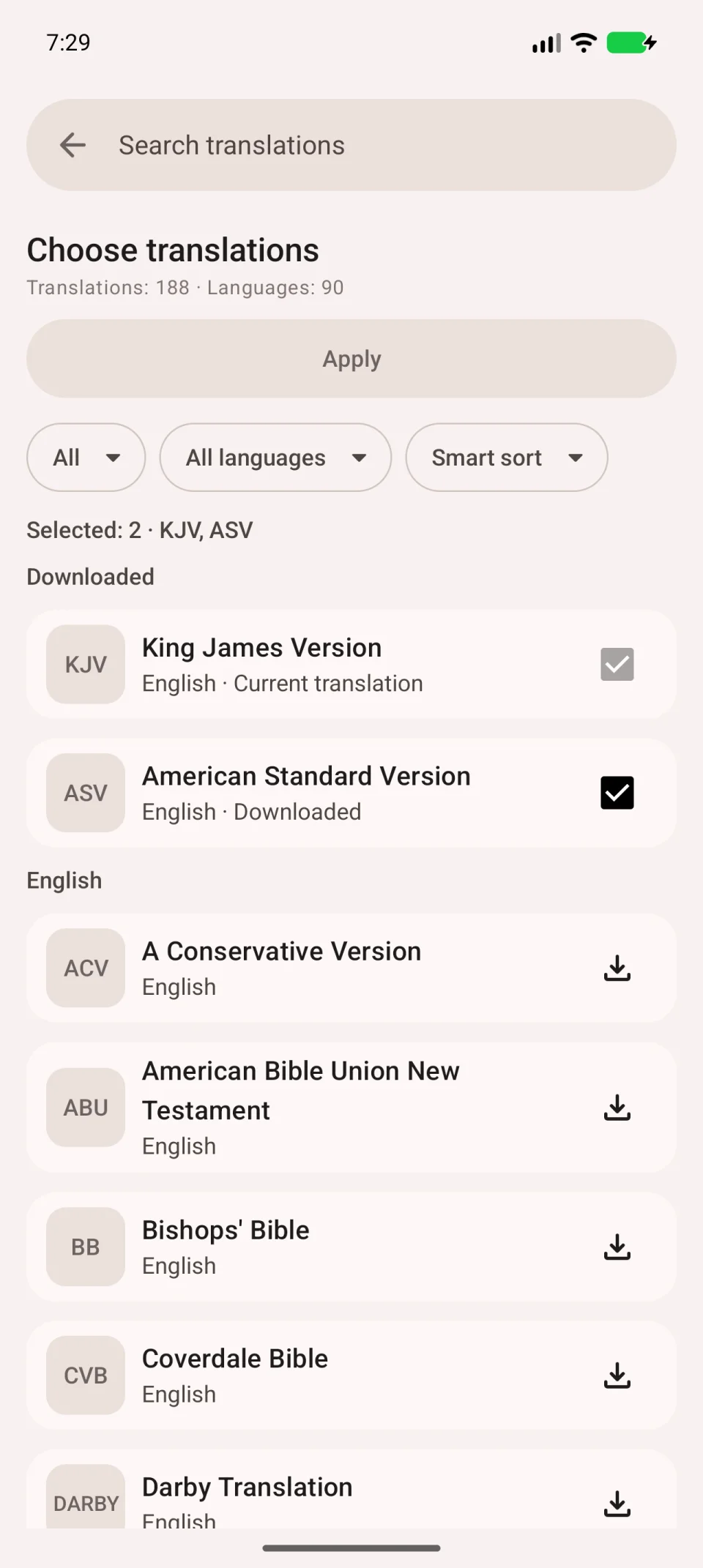
If the translation is missing, open Other translations and download it from the library. Switching the Bible text does not change the interface language.
Remove a download
- Choose Other translations in the translation selector.
- Find a downloaded translation in the library.
- Open its three-dot More… menu.
- Choose Remove download, if available.
- Read the confirmation and check the translation name before removing it.
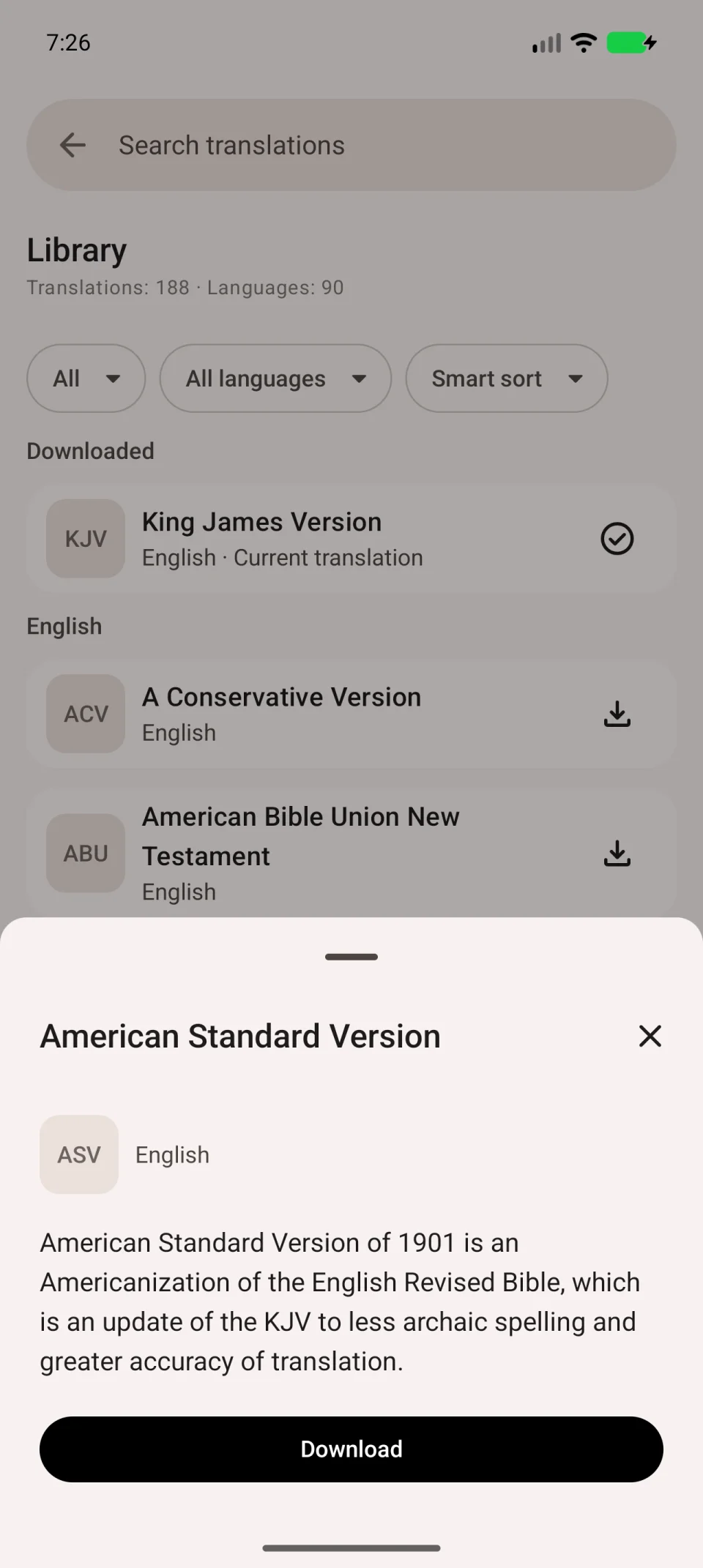
Do not remove a translation you need offline while travelling. If you simply want to read another text, switching in the top toolbar is enough.
If a verse is missing after switching
Check the contents of the selected edition. Translations do not always include the same books and may number verses differently. Open the book and chapter through the passage selector to check whether the passage is present.