Smart Bible apps · Android
How to listen to the Bible
Start and stop text-to-speech, change chapters and use background playback in Smart Bible for Android.
Smart Bible team · For version 4.x
Button names match the English interface; screenshots show the English interface.
On this page
The app reads Scripture using Android’s system voice. This is speech synthesis, not a narrator recording. Available voices, pronunciation and offline support depend on your device.
Start reading aloud
- Open a chapter in Bible.
- Find the triangle on the left of the bottom reading toolbar.
- Tap Play.
- If it is quiet, raise media volume using your phone’s volume buttons.
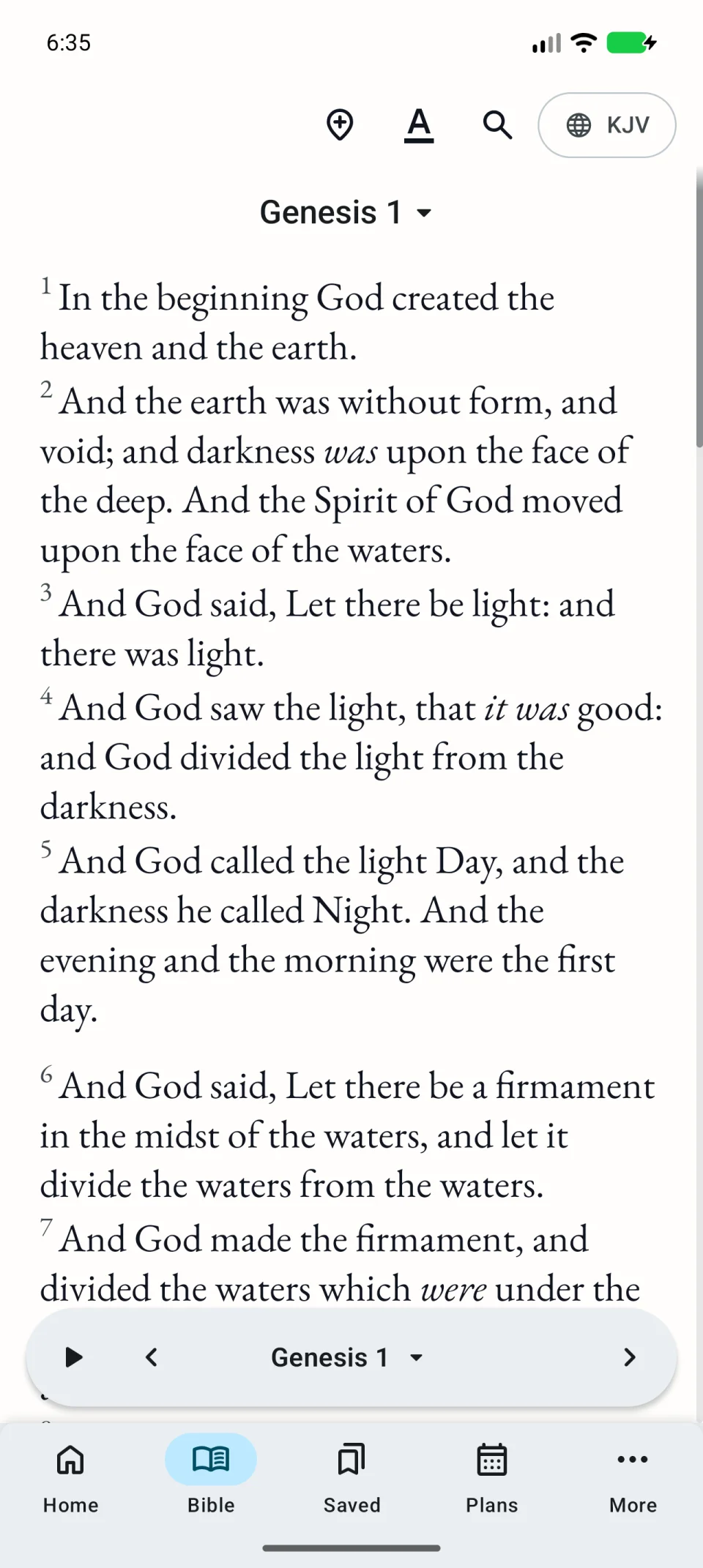
The button changes when playback starts. Check that you hear the right language and translation.
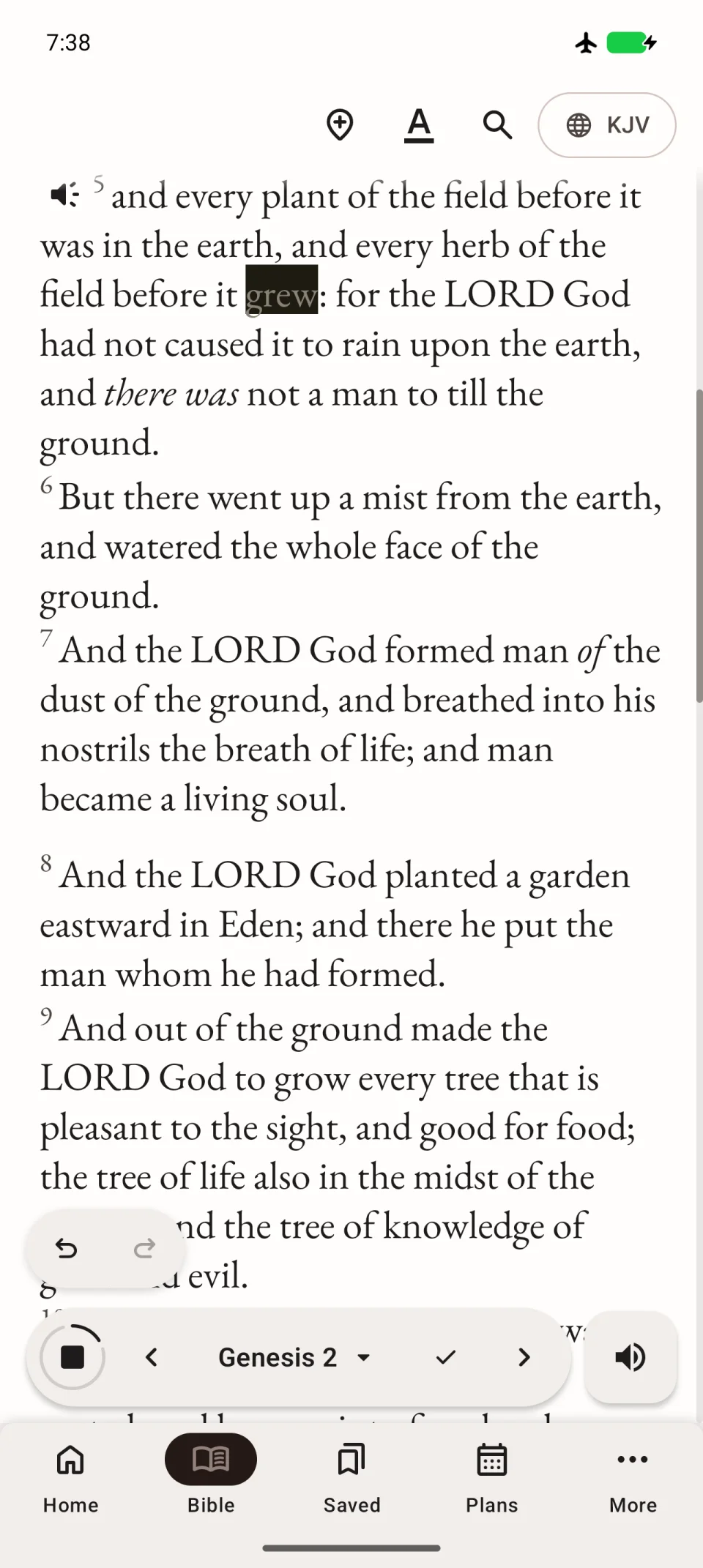
Stop or change chapters
In normal reading, tap the square Stop button in place of the triangle. When reading a plan assignment, this button works as Pause.
The arrows beside the chapter name change chapters. Following playback into the next chapter has its own setting: see reading along with audio.
Listen outside the reading screen
After starting playback, you can open another app. Background controls are available in the system notification or on the lock screen if Android displays them for the app. Your phone’s background restrictions can affect this behaviour.
If the button or sound is missing
Scroll back slightly if the bottom toolbar is hidden. If the button is still missing, tap the underlined A, open Usage and check Playback button.
If the button works but you hear nothing, check volume and connected headphones. Then choose a voice in the translation’s language. See audio troubleshooting for further steps.