Smart Bible apps · Android
No sound or missing voice
Check media volume, audio output, Android speech engines and offline voice data when Smart Bible cannot read aloud.
Smart Bible team · For version 4.x
Button names match the English interface; screenshots show the English interface.
On this page
The app uses Android’s text-to-speech system. If there is no sound, first check volume and the selected voice. Test the same chapter after each change to identify what helped.
Check volume and audio output
- Open a chapter in Bible and tap the bottom triangle to play.
- Raise media volume with the phone buttons; ringtone volume is separate.
- Check for connected Bluetooth headphones or speakers. Disconnect an unwanted device to hear the phone speaker.
- Tap the square stop button and start again.
If the button is missing, open More → Settings → Usage and enable Playback button.
Choose a suitable voice
- Open More → Settings → Audio.
- Tap Voice.
- Choose a voice matching the Bible text’s language.
- Return to the chapter and retry.
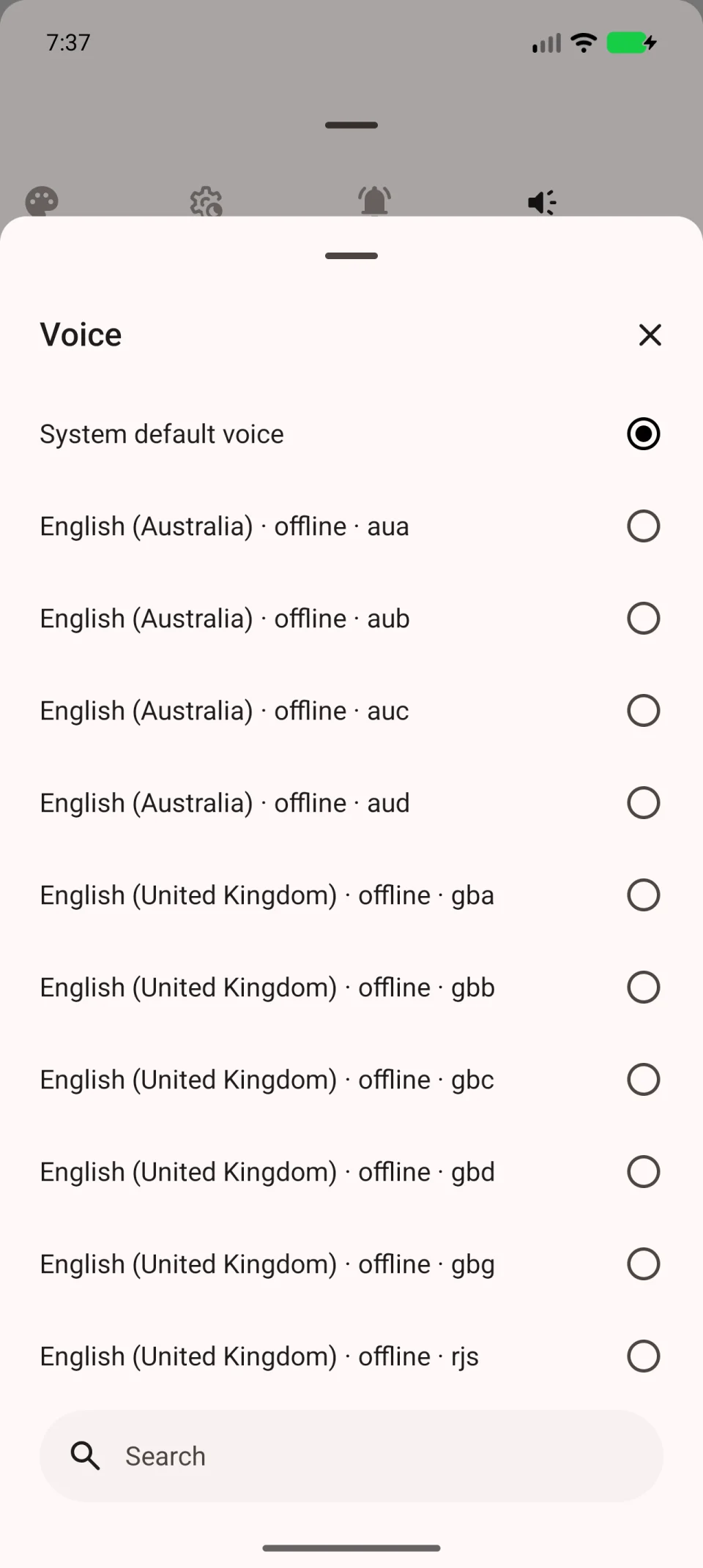
For testing, set Speech rate and Pitch to the normal value 1.00. Adjust them for comfort after sound returns.
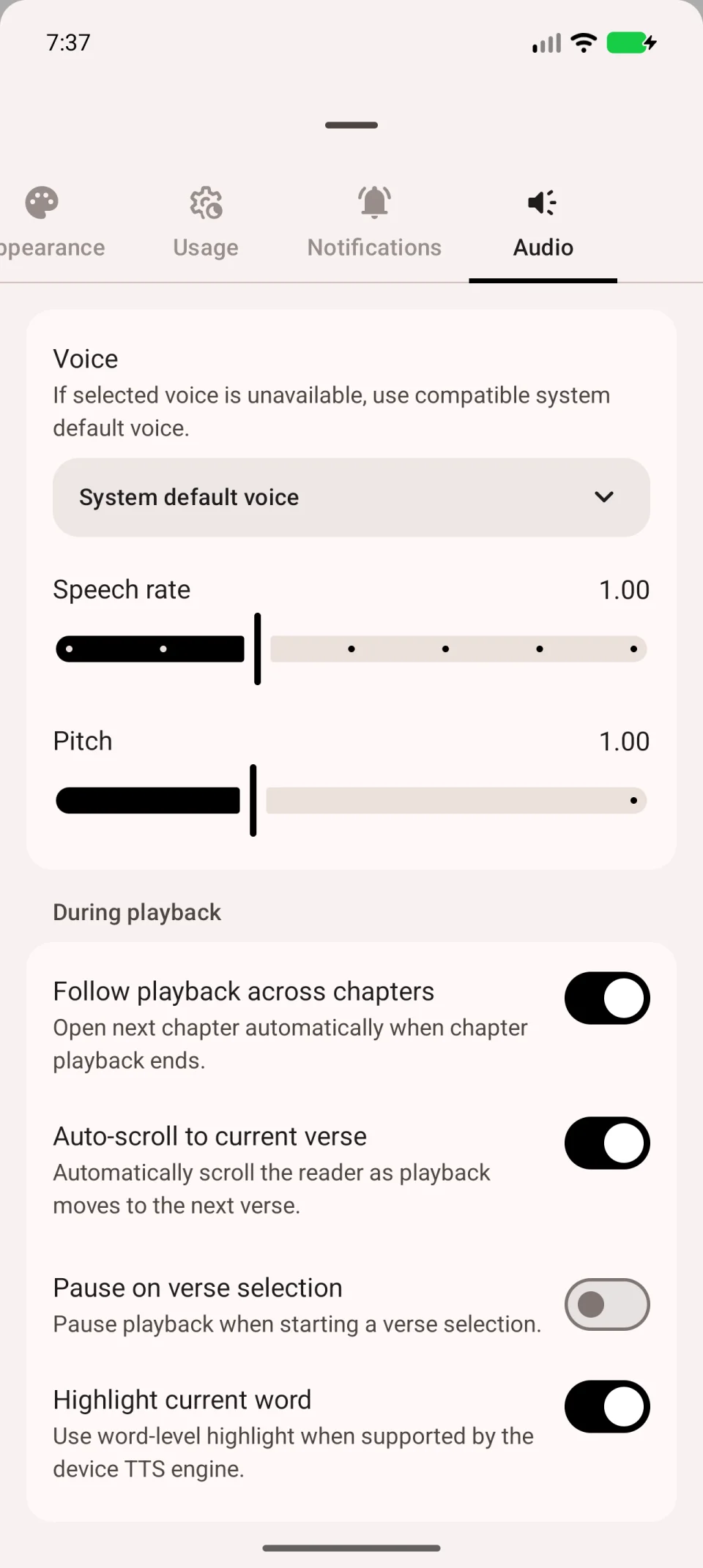
If the voice is missing
Find text-to-speech in Android settings. Check that a speech engine is installed and enabled, then install its voice data for the required language. Paths and labels depend on the phone and engine.
Return to the app and reopen Voice. A lone System default voice option does not prove that voice data is installed or working.
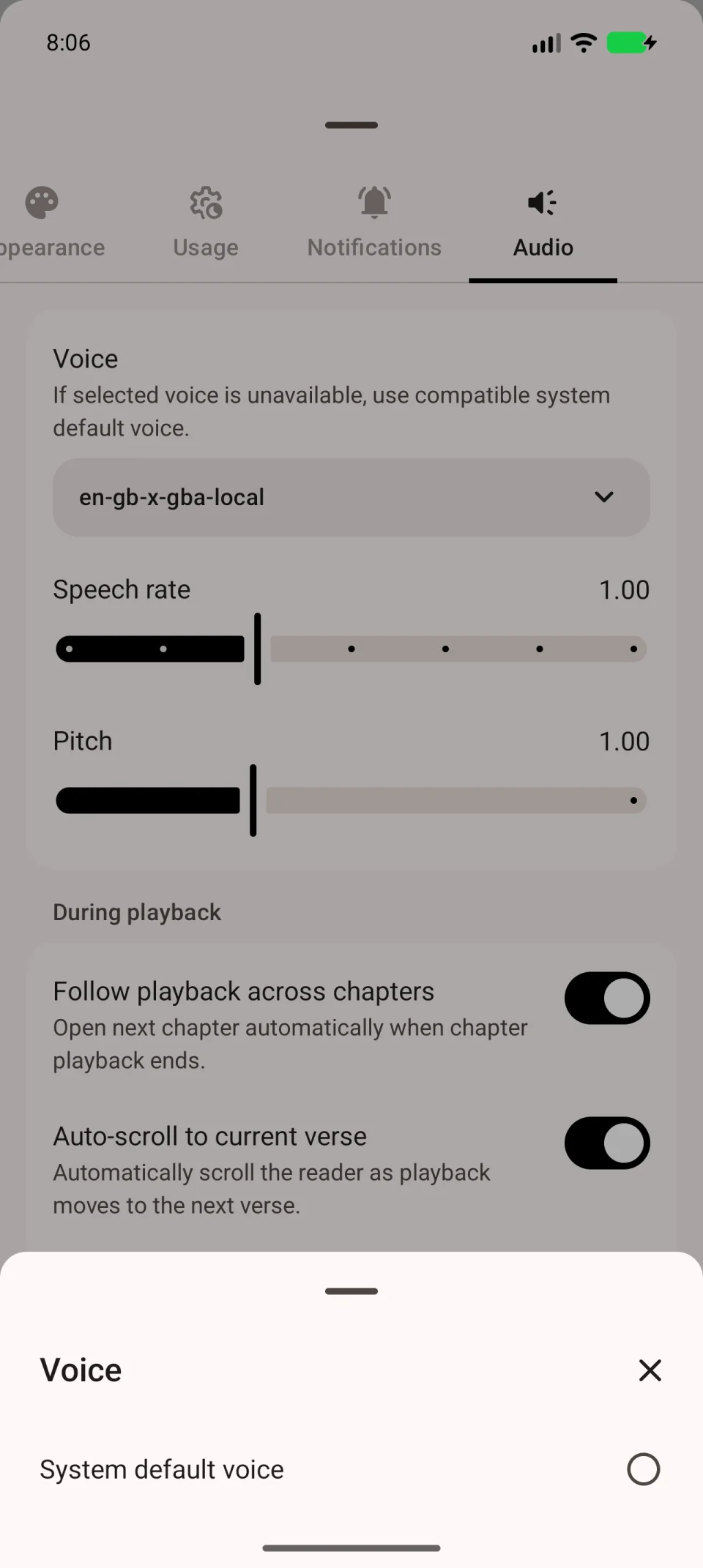
If sound fails offline
The voice may need a connection. Install an offline voice and download the translation in advance, then disconnect and test a chapter. See voice settings.
If the problem remains
When contacting support, include phone model, Android and app versions, translation, voice and speech engine names, and whether sound works online. You do not need to clear app data for these checks.