Smart Bible apps · Android
How to adjust fonts and appearance
Change text size, font weight, spacing, themes and colours in Smart Bible for Android.
Smart Bible team · For version 4.x
Button names match the English interface; screenshots show the English interface.
On this page
Adjust letters, line spacing and colours while reading. Changes appear in the chapter, so try one setting at a time.
Enlarge the text
- Open a chapter in Bible.
- Tap the underlined A at the top.
- Choose Typography.
- Move Text size right to enlarge or left to reduce it.
- Close the panel and check a few lines for comfort.
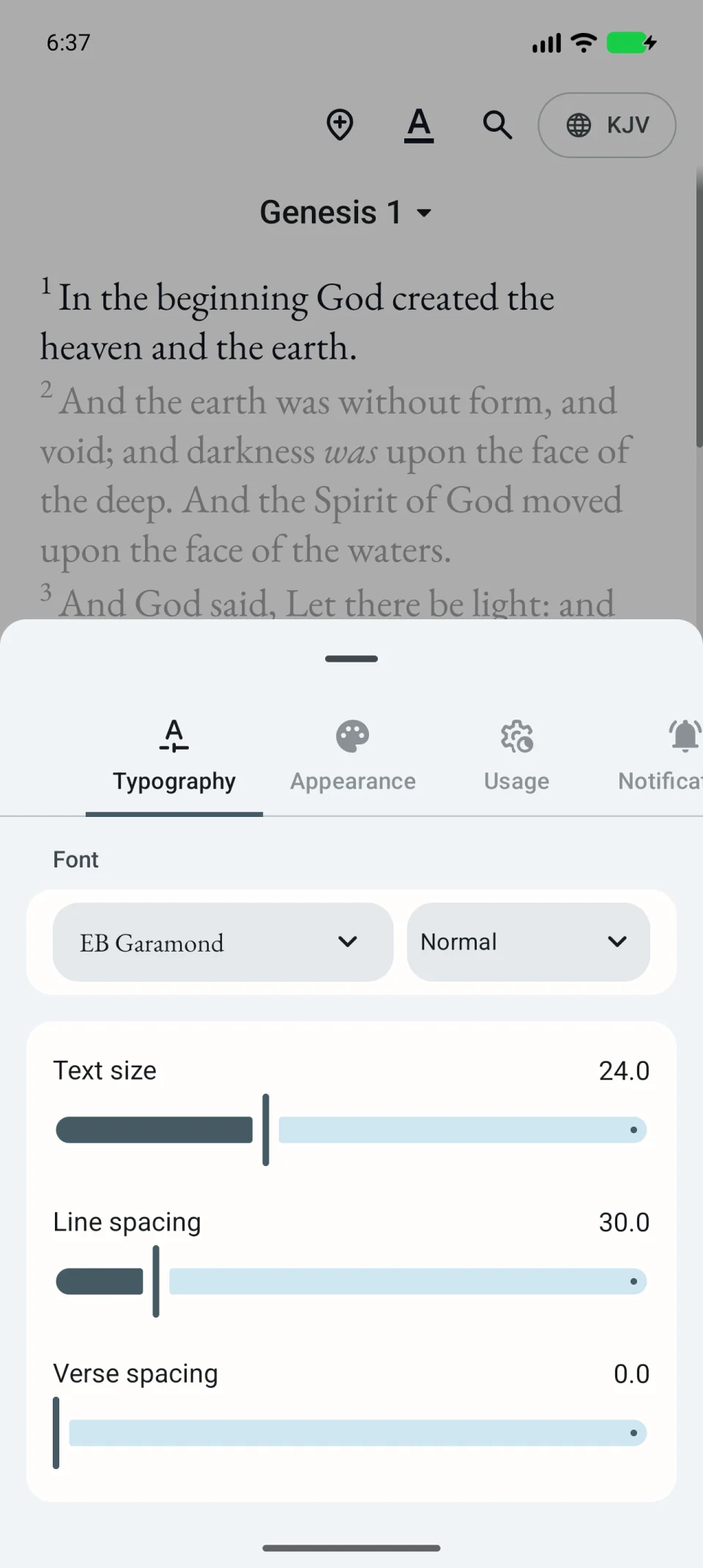
Choose a font and spacing
In the same panel:
- Font changes the letter shapes; tap its name and choose an option.
- Font weight changes thickness using the field beside the font.
- Line spacing adjusts the distance between text lines.
- Verse spacing adds space between individual verses.
You do not need to increase everything together. First choose a comfortable text size, then add spacing if lines feel crowded.
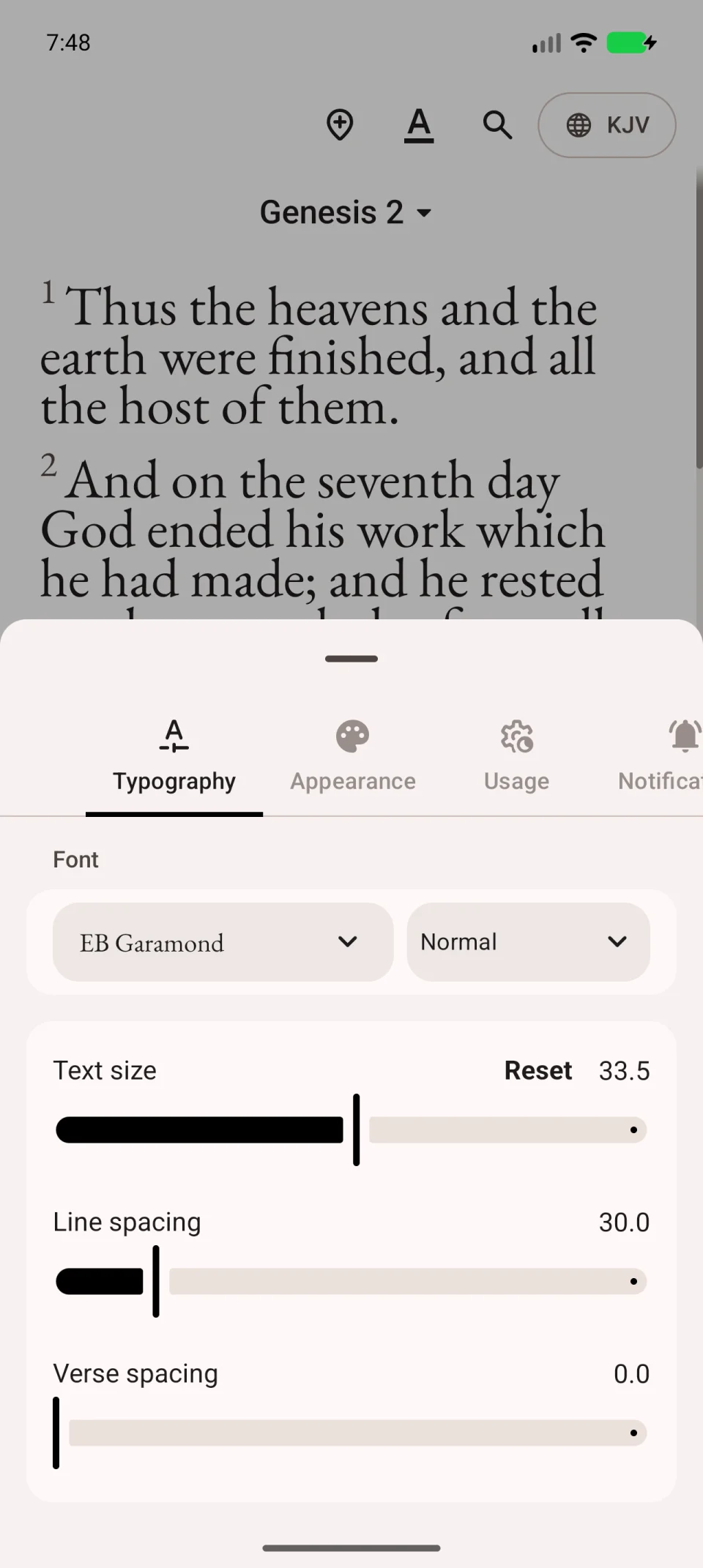
For a quick size change, spread two fingers over the text or pinch them together. Use Text size if the gesture does not work.
Choose light or dark appearance
- Open Appearance in the settings panel.
- Choose Day, Night or Auto to follow the device.
- Choose a theme below.
- Return to the chapter and check text and highlight contrast.
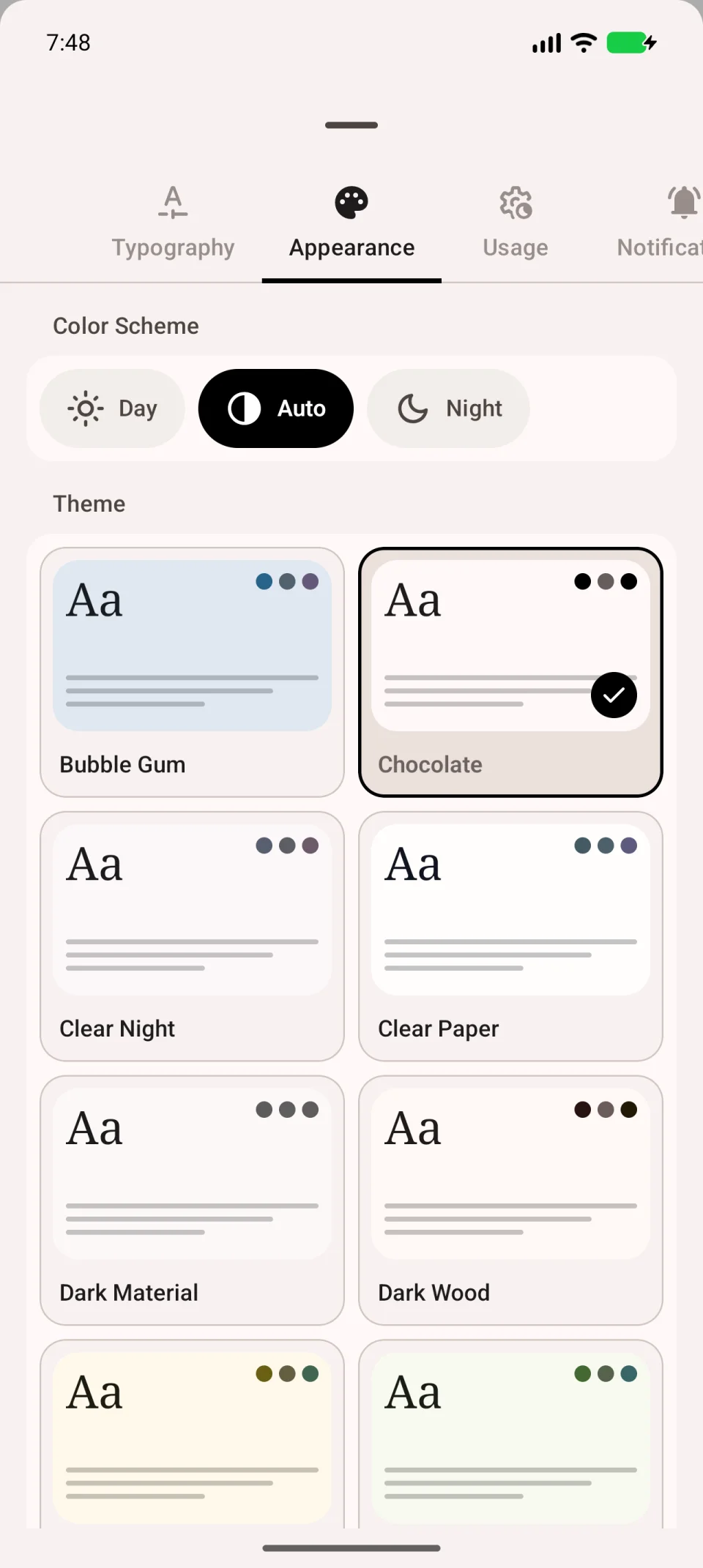
The video changes text size and opens appearance settings.
Restore a comfortable value
Reopen the settings and adjust any value that does not suit you. The reset button beside a changed setting restores its original value.
Verse numbers, section headings and the playback button are under Usage; see app behaviour.