Smart Bible apps · Android
How to add a home-screen widget
Add a daily verse widget and choose its source, translation, background opacity and size on Android.
Smart Bible team · For version 4.x
Button names match the English interface; screenshots show the English interface.
On this page
A widget is a small verse card on your phone’s home screen. It lets you read a passage without opening the app. Choose a daily verse collection, translation and background opacity for it.
Add the card
- Open Home in the app.
- On the daily verse card, open the three-dot menu → Settings.
- Find the collection you want on the home screen.
- At the bottom of its card, tap Add widget to Home screen, the squares-and-plus icon after sharing and copying.
- Confirm Add to home screen in Android’s dialog.
- Find the widget on your phone’s home screen. Check neighbouring pages if the current page is full.
If adding from the app is unavailable, hold an empty home-screen area → Widgets. Find your app, choose Daily Verse and drag it to an empty space. System command names vary between phones.
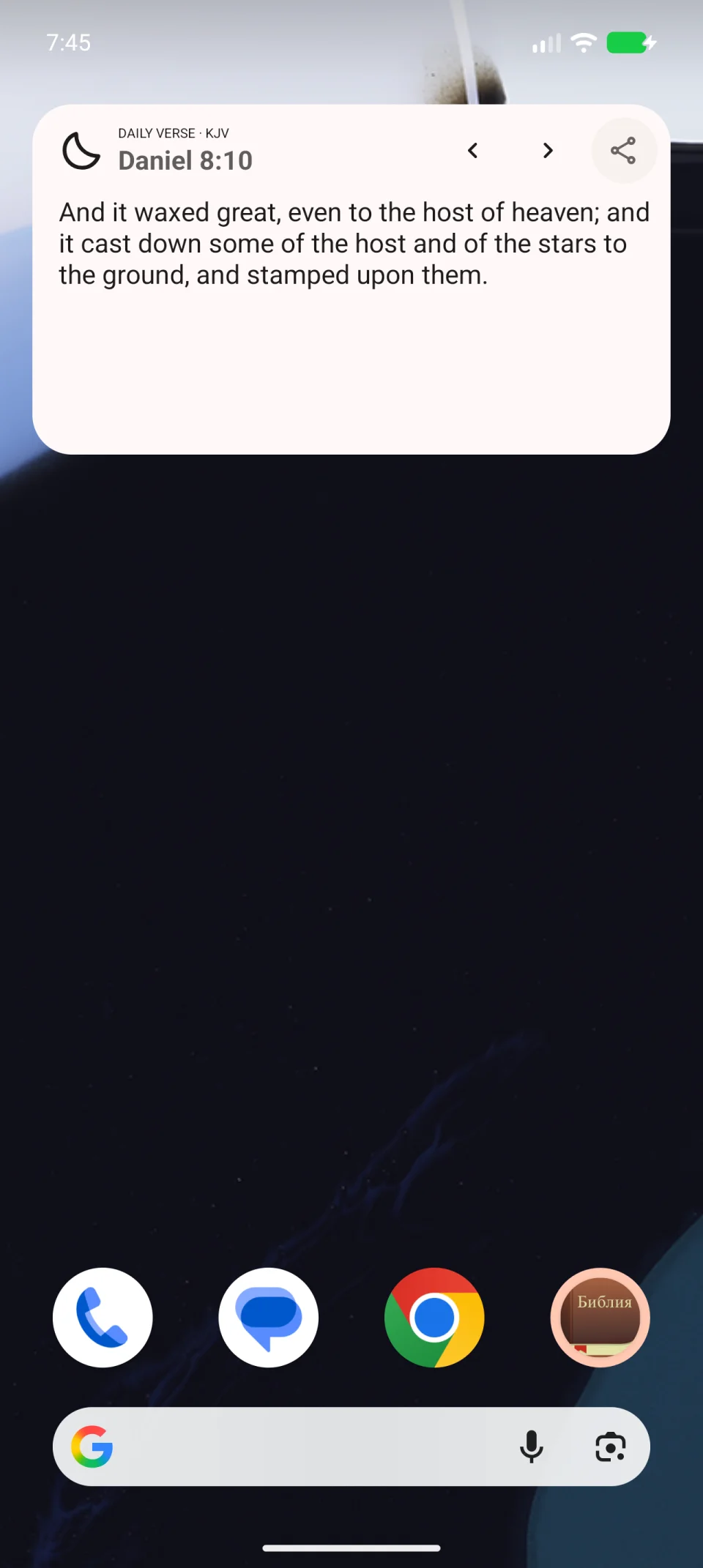
The video adds a widget through Android’s widget list.
Change source, translation and background
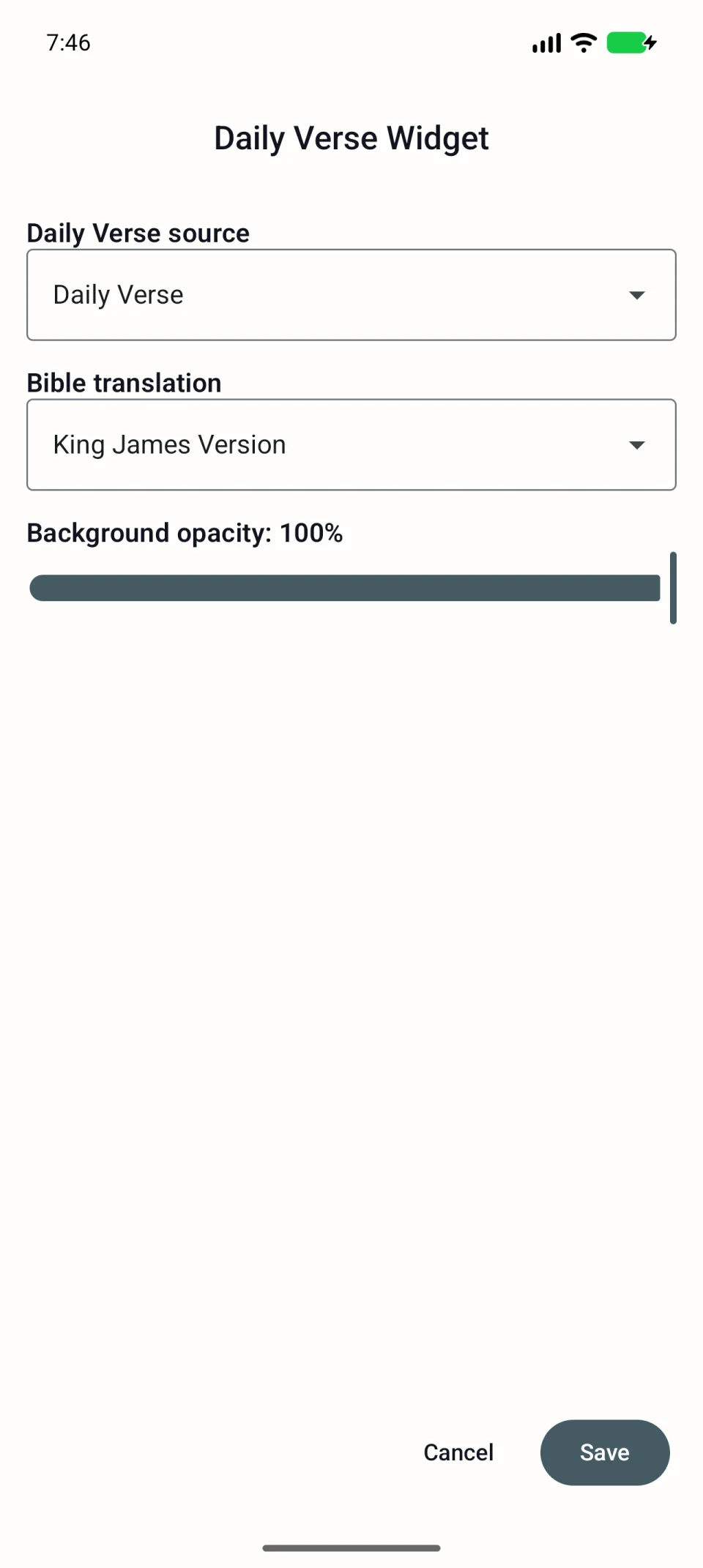
- Hold the widget.
- Choose Settings in its menu; your Android launcher may use another name.
- Choose a collection under Daily Verse source.
- Choose a downloaded Bible translation.
- Adjust Background opacity. Lower values reveal more wallpaper; keep the text readable.
- Tap Save and check the home-screen card.
Resize or remove
Hold the card and drag the resize handles if they appear. Available sizes depend on the Android launcher.
To remove it, hold the card and choose removal from the home screen. This removes the widget; the app and your entries remain.
If the card is empty
Open the app and check that the collection exists, has selected books and uses a downloaded translation. If the collection was deleted, choose another source. See widget troubleshooting for further steps.