Smart Bible apps · Android
How to customise daily verses
Create daily verse collections, choose their books, set reminders and edit or remove collections in Smart Bible.
Smart Bible team · For version 4.x
Button names match the English interface; screenshots show the English interface.
On this page
A daily verse collection defines which books the app chooses passages from. For example, create “Psalms” and select only that book. You can use several collections at once.
Open the collections
- Go to Home.
- On the daily verse card, open the three-dot menu → Settings.
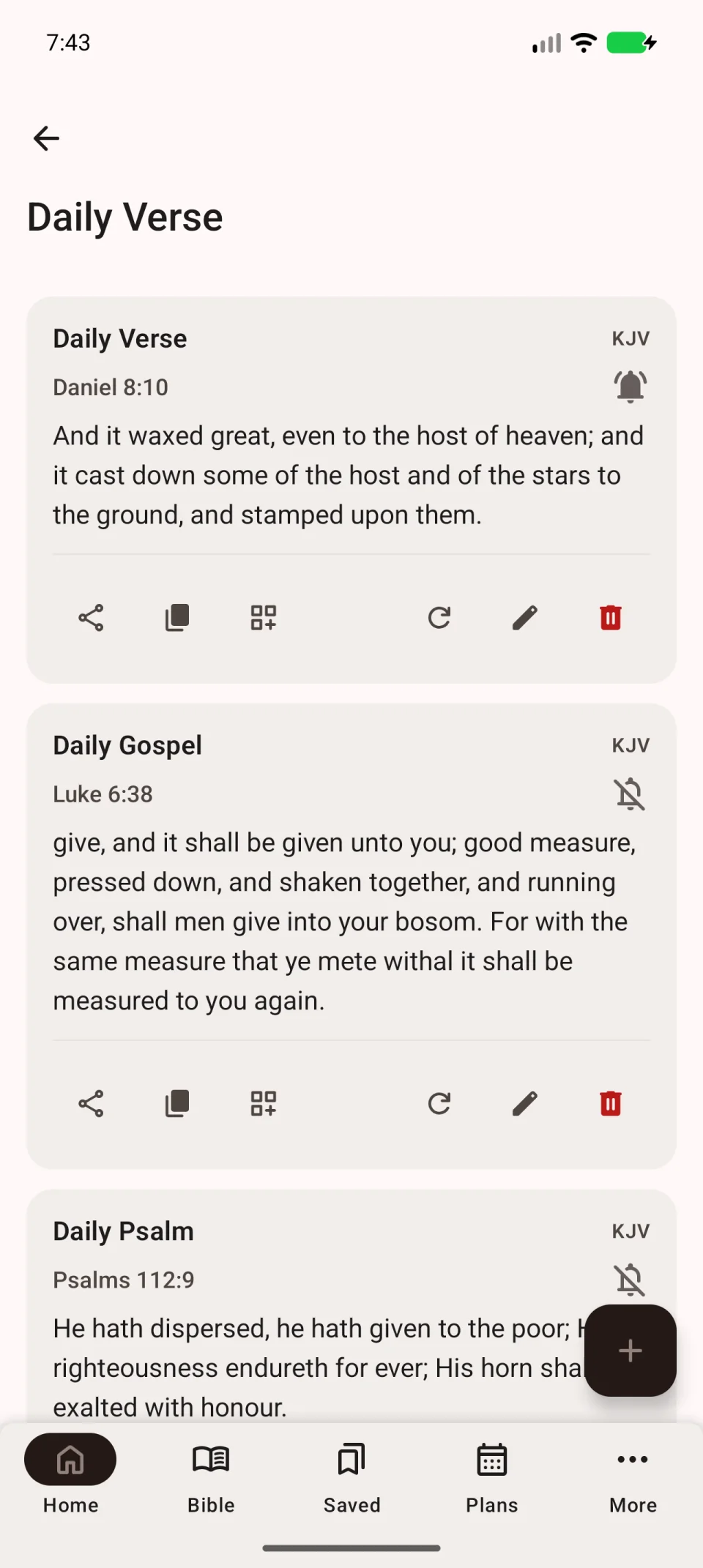
- On Daily Verse, tap + at the bottom right.
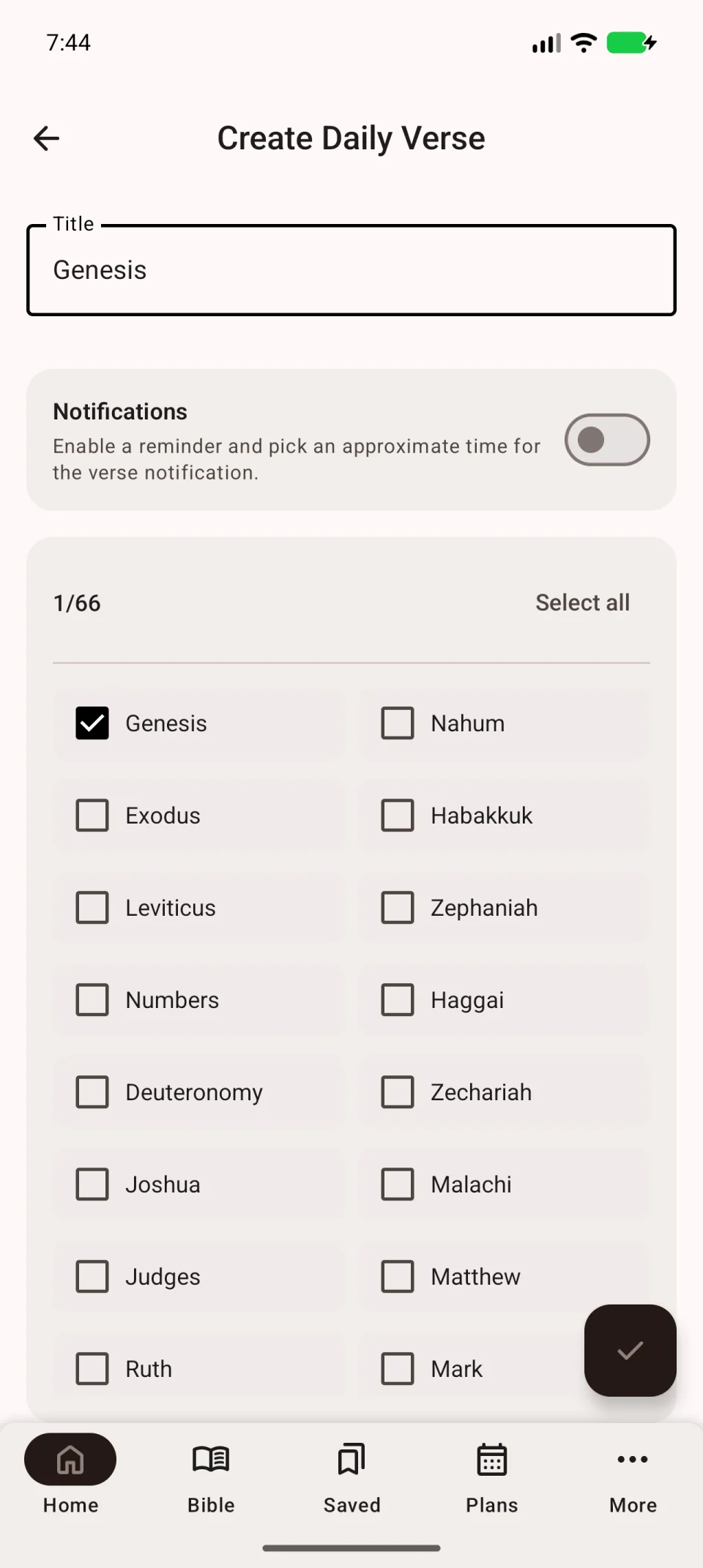
Name it and choose books
- Enter a recognisable Title, such as “Psalms”.
- Select the source books. If all are selected, clear the overall selection and keep only those you want.
- Check the count above the list: at least one book must be selected.
- Optionally enable Notifications and set a time, or leave them off.
- Tap the check mark at the bottom right to save.
Both the title and book selection are required. Check them if the collection will not save.
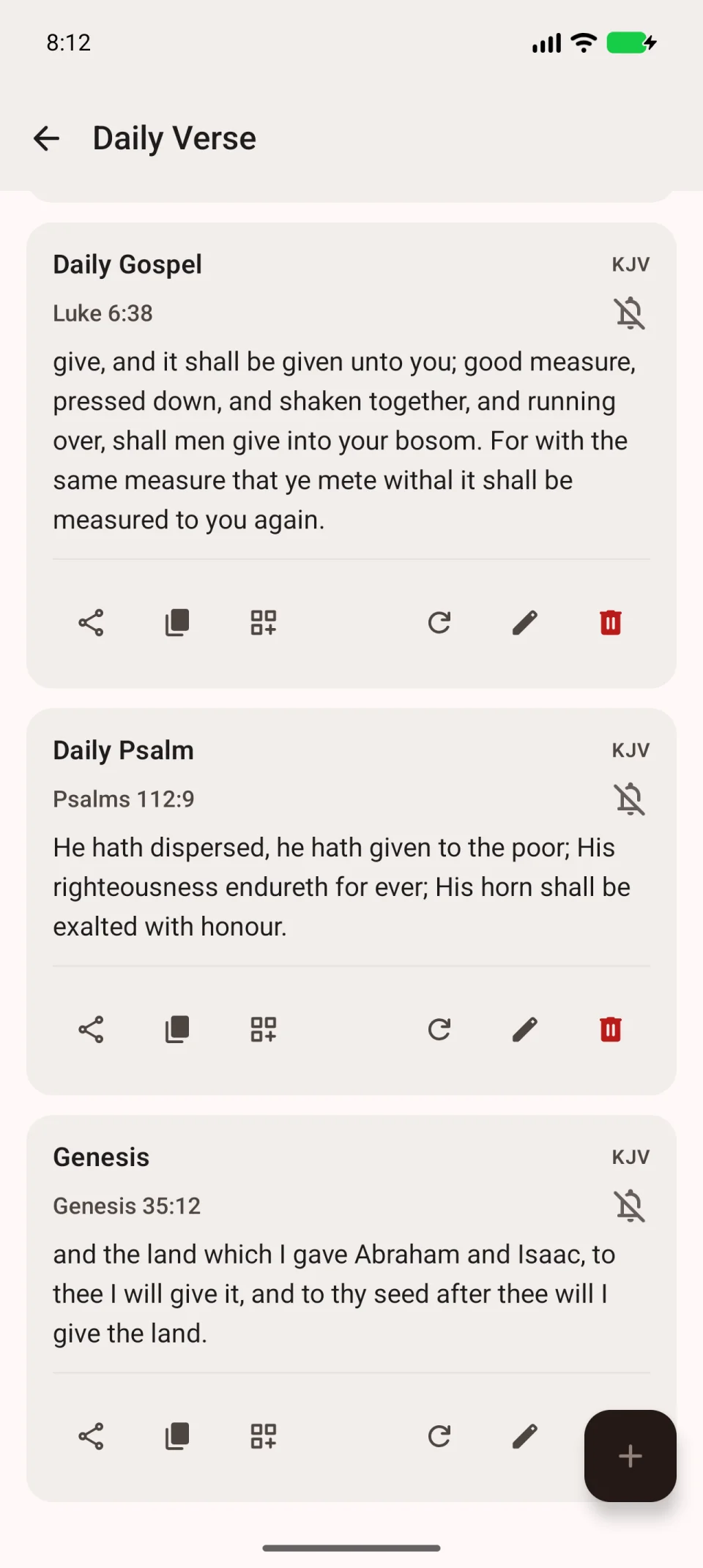
The new collection appears as a separate card with a verse from the selected books.
The video creates a collection from one book.
Which translation is used?
The collection editor has no separate translation selector. Books come from the main translation selected while reading. The widget has its own translation setting.
Edit the collection or choose another verse
Find its card in the same list:
- The pencil opens its title, books and reminder. Save changes with the check mark.
- The circular arrow chooses another passage from the collection.
- The bin deletes the collection. Check the card’s title first. Choose another source for any widget using it.
If no verse appears, check the selected books and downloaded translation. See reminders for notification settings.