Smart Bible apps · Android
How to use footnotes and cross-references
Show translation notes and cross-references, open explanations and follow related passages in Smart Bible for Android.
Smart Bible team · For version 4.x
Button names match the English interface; screenshots show the English interface.
On this page
A translation note explains a word or phrase. A cross-reference points to a related Bible passage. These materials depend on the selected translation; enabling a setting does not create new notes.
Show additional materials
- Open a chapter in Bible.
- Tap the underlined A in the top toolbar.
- Open Usage. Swipe the tab row sideways if it is hidden.
- Enable Show cross-references to display references to related passages.
- Enable Show translation notes to display explanations included in the translation.
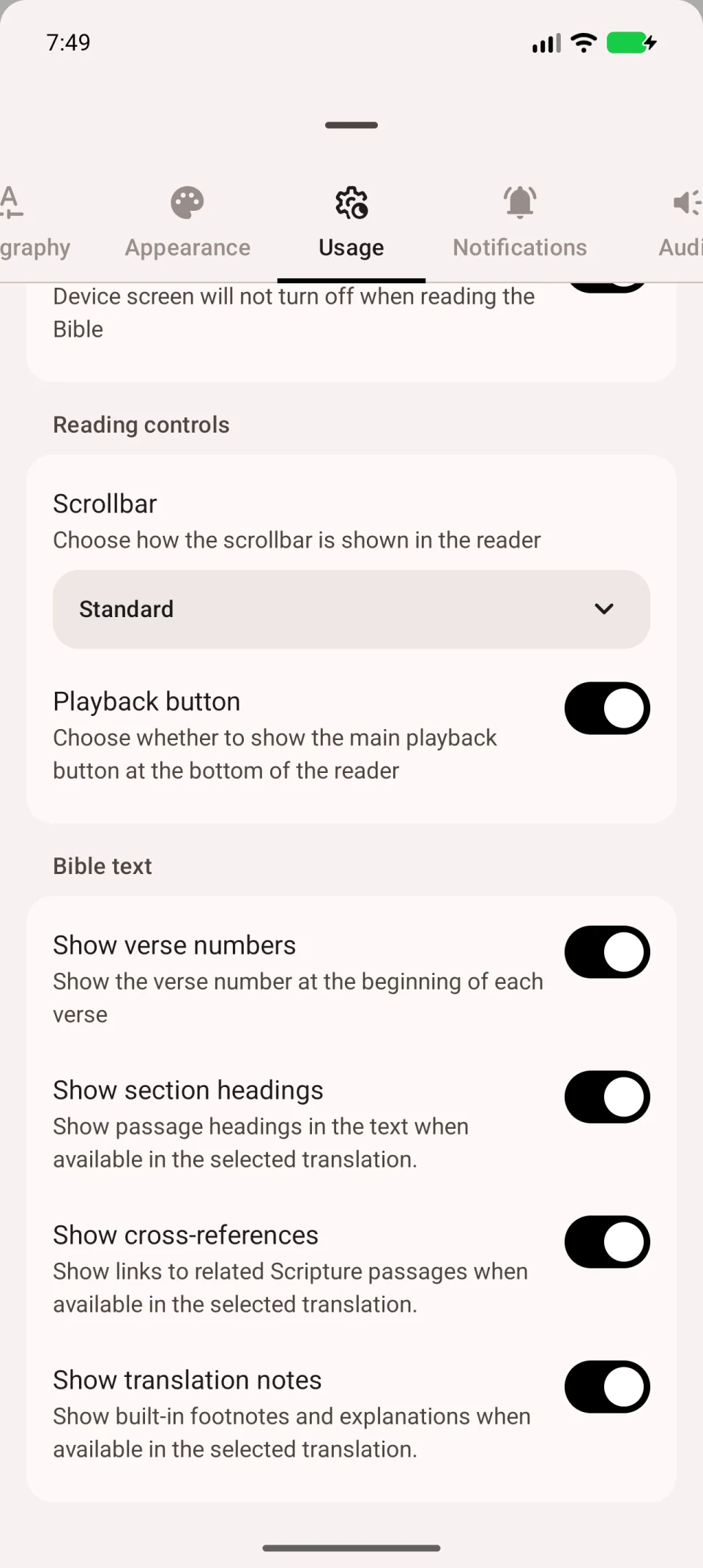
Show section headings controls headings within a chapter. A heading helps you navigate the text but is not itself a reference or note.
Open a note or reference
Return to the chapter and look for an additional-material marker beside a verse. Tap it to open the explanation. If it contains a Bible reference, tap that reference to open the related passage. Return afterwards to continue the original chapter.
If there are no markers
Check both switches, then try another passage in the same translation. A translation without additional materials will not show any, even with the settings enabled. Check the translation’s details in the library.
If a reference appears but does not open the intended passage, check the books and verse numbering. You may need another translation to read the linked passage.