Smart Bible apps · Android
How to complete daily plan readings
Open assignments, mark passages as read and check the day's progress in Smart Bible for Android.
Smart Bible team · For version 4.x
Button names match the English interface; screenshots show the English interface.
On this page
One day’s reading may contain several chapters or passages. Open and read each one, then check the plan’s marks to see what remains.
Find the day
- Open Plans → My plans.
- Tap your plan.
- Choose a day in the horizontal calendar above the assignments.
If you cannot remember where you stopped, open the top-right three-dot menu → Go to first unread. The plan shows a day with unfinished reading.
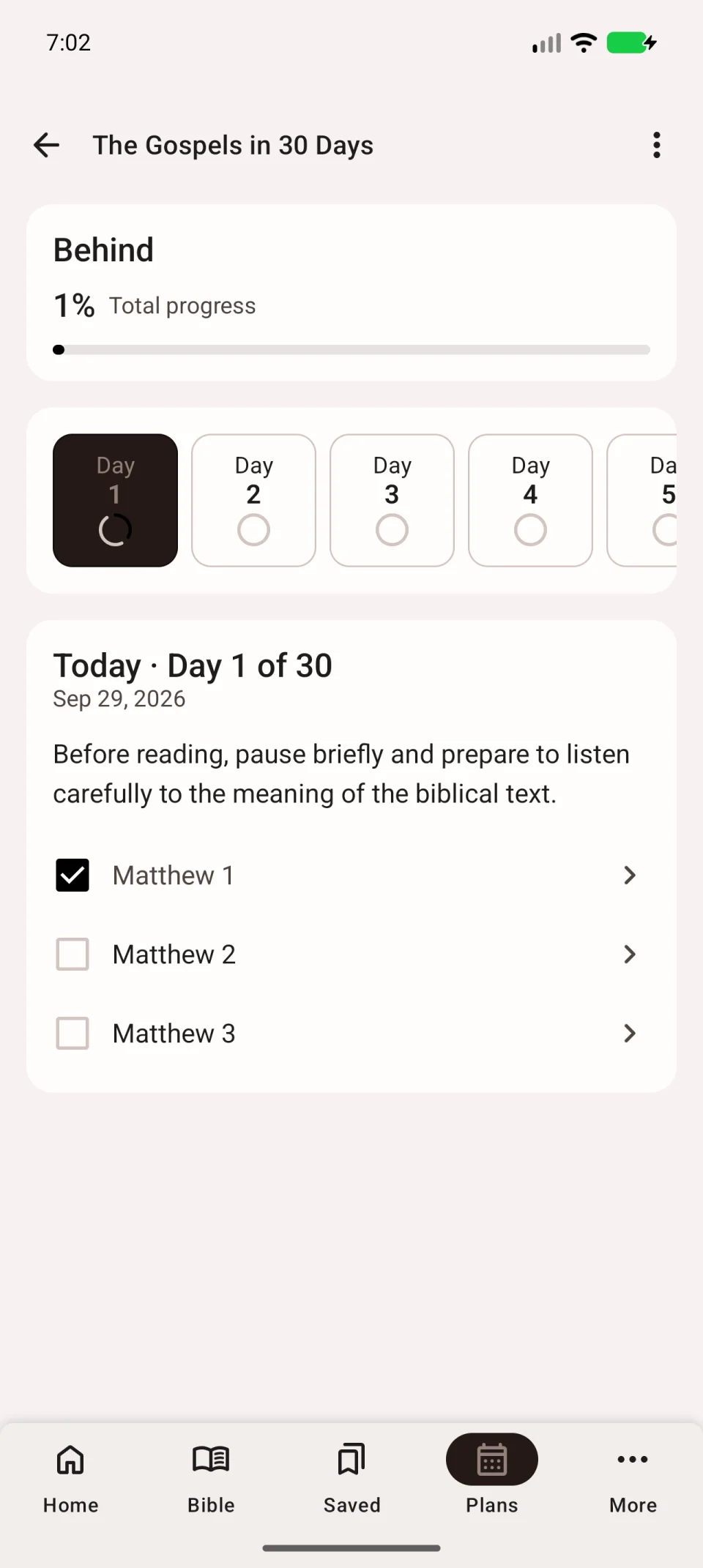
Read and mark a passage
- Expand the assignment if several chapters share one row.
- Tap the arrow to the right of the chapter name.
- Read the passage.
- Tap Mark passage as read above the bottom toolbar.
- Tap the bottom-right arrow to open the plan’s next passage.
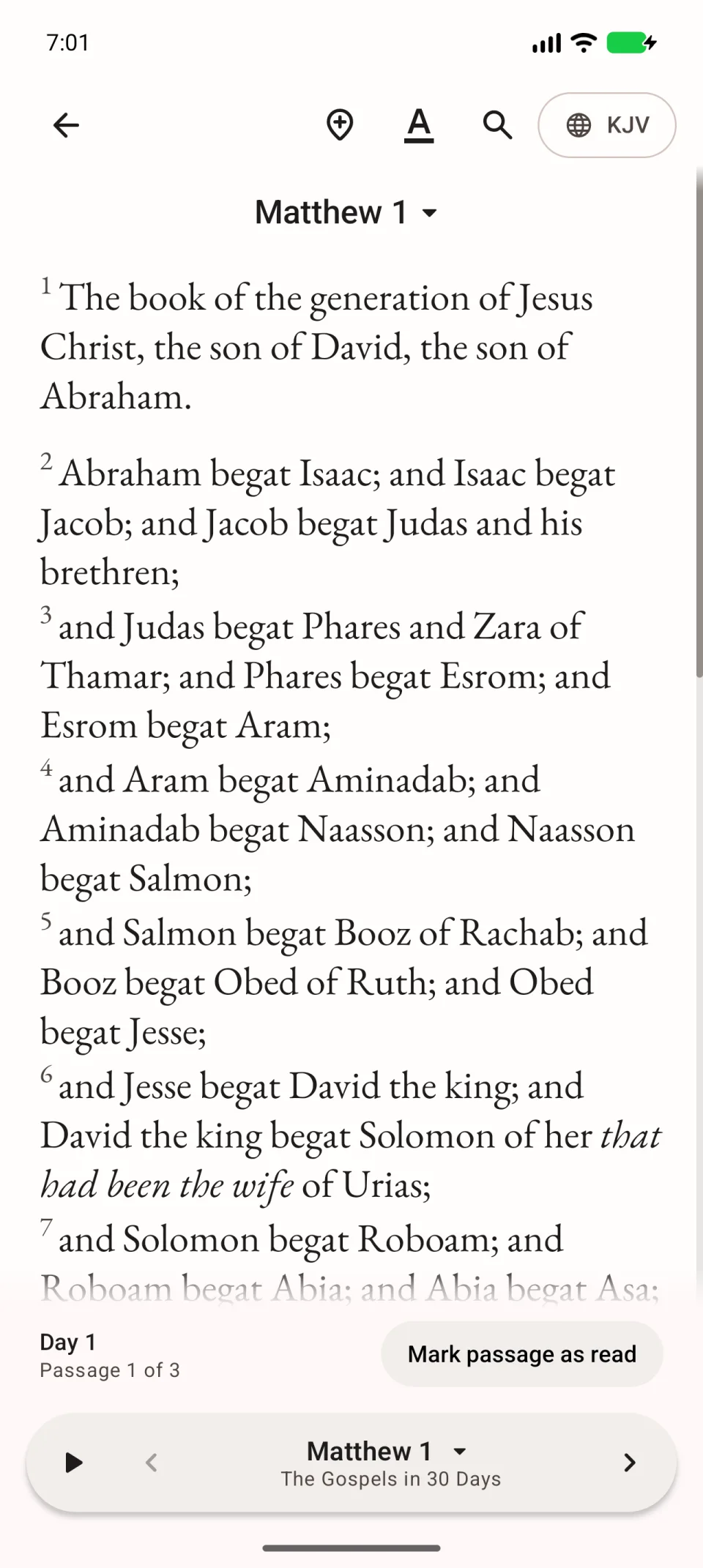
The video opens a chapter from a plan, marks it and checks progress.
Check that the day is complete
Return to the plan and inspect all assignments for that day. If it contains four chapters, marking one leaves three.
If you read outside the app, mark the corresponding assignment in the plan list. Tap an accidental mark again to remove it, then check the day’s state.
Continue next time
Reopen the plan and choose Go to first unread. You can also open completed days to reread them.
If an unread assignment is on an earlier date, move the schedule to today. General reading statistics and plan completion measure different things; time in the app alone does not complete every assignment.