Smart Bible for Android has a new look across the reader, Home, Search, reading plans, and bookmarks. Here is a look at the design and features introduced in the 4.x updates and available in version 4.0.4.
More room to read
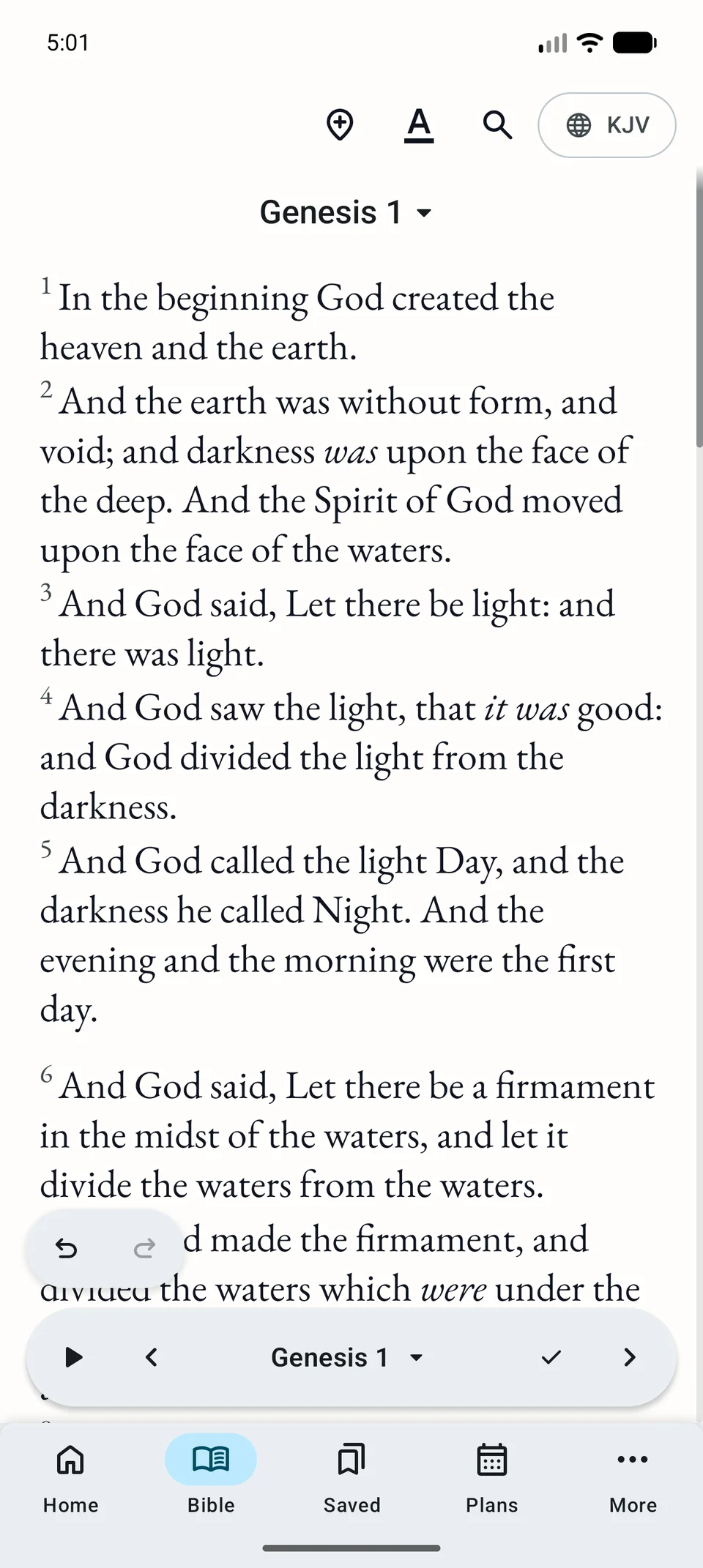
Chapter navigation and read-aloud controls now sit in the bottom bar. The bars hide as you scroll, leaving more room for the text.
Open a verse from search, a bookmark, or a link, and it is briefly highlighted so you can find your place.
On phones, the main sections are at the bottom of the screen; on tablets, they move to the side. Wider screens can show a list and the selected content side by side.
Where to start today
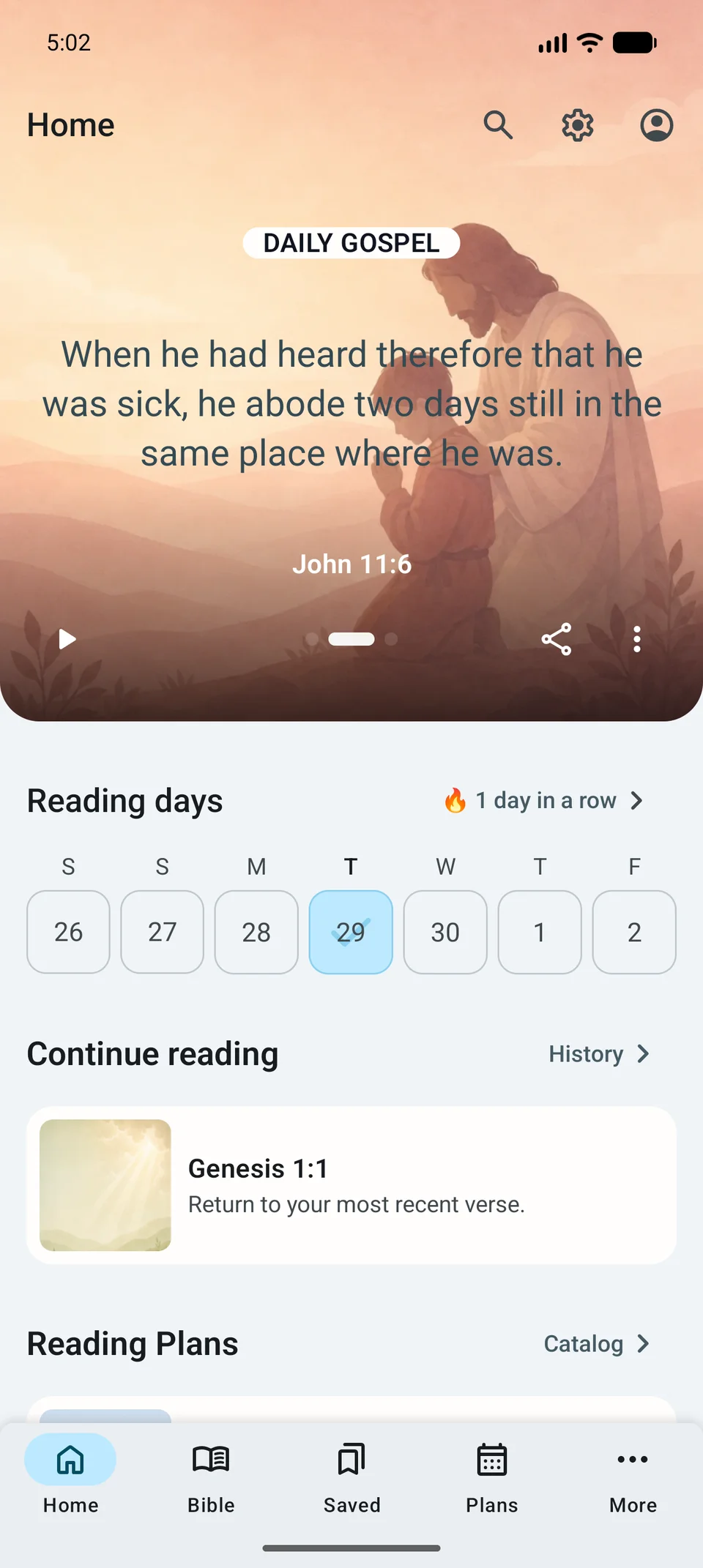
Home brings together the daily verse, your activity calendar, and reading plans. You can also pick up where you left off.
Want to read about a particular subject? Choose a topic card, such as love, hope, or patience, to find relevant passages.
Search by topic
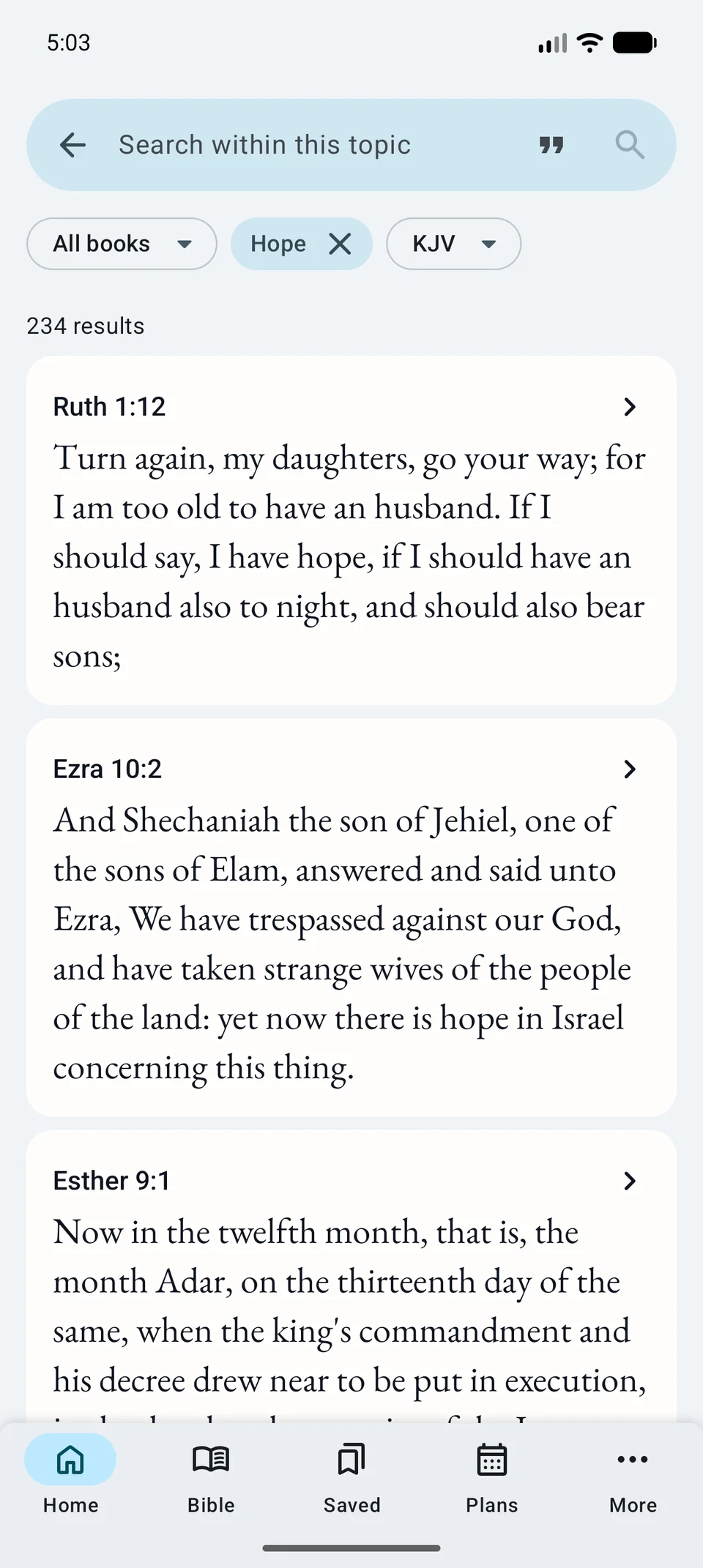
Choose a topic on Home or in Search to see related Bible passages. Open any result in its chapter to read the surrounding verses.
When matching verses follow one another, they appear as a single passage so you can read the whole thought.
Topical search is available for supported translations. You can still search by word too.
Reading plans with covers and descriptions
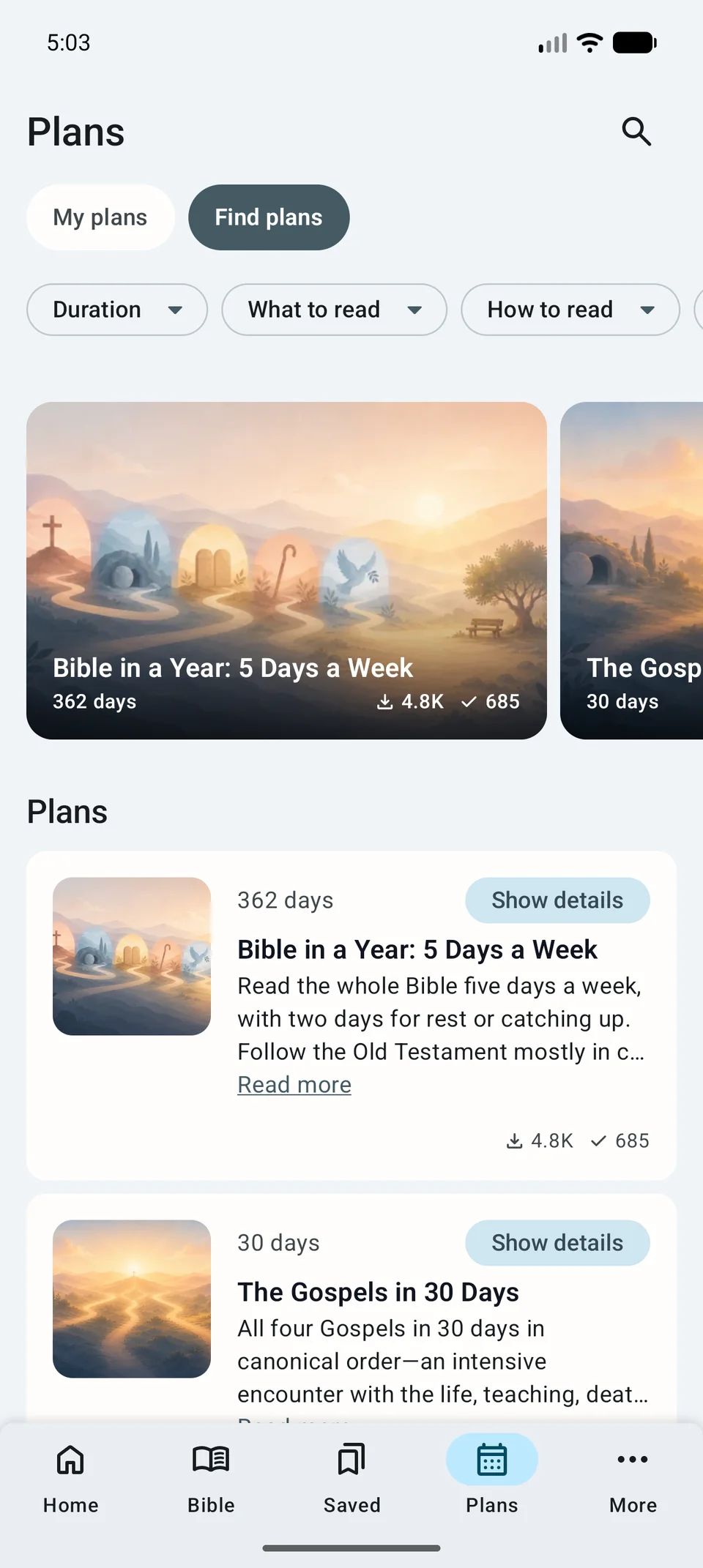
The catalog now includes covers and short descriptions, making it easier to see what a plan covers and how long it takes.
Each plan shows which chapters you have finished. You can mark a chapter as read without leaving the reader. Completed plans stay in your history, and you can follow any of them again.
Notes and highlights within reach
Select one or more verses to bring up the action toolbar. Choose a highlight color, add a bookmark, write a note, copy the passage, or share it.
The bookmarks section now has separate tabs for notes, bookmarks, and highlights. Use search and filters to find what you saved, or expand a long passage right in the list.
Consecutive verses with the same highlight color and labels appear as one passage, keeping longer highlights together.
Your choice of fonts and colors
Choose a light or dark theme, then adjust the font, text size, and spacing. The color theme applies throughout the app.
You can still compare translations, listen to the Bible, and return to saved reading positions.